

For some of the finer details on how Davis Edge assignments are graded, click to jump to the "How Edge Grades Write Back to Your LMS Course" section of this article.
To learn how to navigate your Davis Edge Gradebook, click to jump to the "Edge Gradebook Display Options" section of this article.
To learn how to accept late work, extend due dates, or reset assignments within your Edge Gradebook, click to the jump to the "Edge Gradebook Features" section of this article.
For Edge grades to appear in your LMS gradebook, you must first launch an Edge assignment via your LMS to create your Edge class. If you need information on accessing your Edge assignments and creating your Edge class, please consult our Instructor "Quick-start Guide" article.
How Edge Grades Write Back to Your LMS Course
As students complete work in Davis Edge, their grades will automatically record to your Learning Management System course. Be sure to check the grading page of your LMS course to confirm your students' Edge assignment scores are being recorded.
If you set due dates within Davis Edge itself, students who haven't opened an Edge assignment by its due date will be given a zero for said assignment. Furthermore, if students complete Edge assignments after their due dates have passed, their scores for said Edge assignments will be overridden with zeroes.
You will need to accept or reject late work within Davis Edge itself, then update the effected students' Edge assignment grades in your LMS gradebook.
Any time you see a zero for an Edge assignment in your LMS gradebook, you should consult your Edge Gradebook to confirm whether you need to accept late work.

All Edge assignments are single-take quizzes graded based on competency.
For student grades to write back to your LMS gradebook successfully, the student must access their Davis Edge assignments through the integrated links in your LMS course every time. If a student logs into the Davis Edge website directly and accesses an assignment without using the links in your LMS course, their score for that assignment will be recorded in Davis Edge, but will not sync to your LMS.
If a student reports their grades aren't posting to your LMS gradebook, check if their assignment scores are registering in your Edge Gradebook. If they have scores in your Edge Gradebook, but not your LMS gradebook, the most likely reason is the student logged into the Davis Edge site directly, then completed assignments outside of your LMS integration. To give students a refresher on the proper way to access their Edge assignments, you can direct them toward our Student "Quick-start Guide" article.
Additionally, if a student’s grades do not appear in your Edge Gradebook and/or do not write back to your LMS gradebook, they may be completing work independently or under an email account that is not enrolled in your course. You can check this by asking the student to confirm which email account they are using to access Davis Edge. If the student has completed work under an email other than their institutional email (i.e. the email address they use to access your LMS course), you can direct them to contact Customer Care via [email protected] for assistance merging their two accounts. Consult our "Enrollment Issues" support article, for more information on why a student might not be on your roster.
Edge Gradebook Display Options
You can use the Gradebook page in Davis Edge to verify grading discrepancies in your LMS, and to enter grading exceptions for late work, extensions, or resetting assignments.
To access your Edge Gradebook, launch any Edge assignment, then click "Gradebook" in the top-right navigation bar.

Your Edge Gradebook will initially open in the "Class" Display option, wherein you can toggle between viewing your full student roster's Assignments or Practice Quizzes.
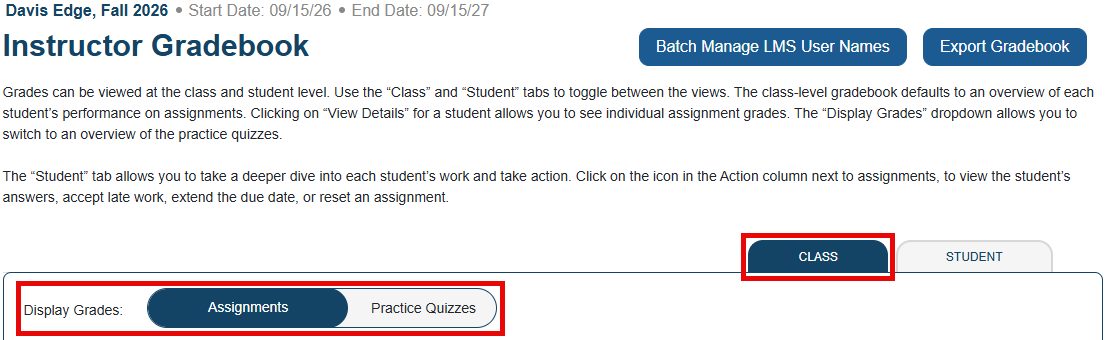
Use the "Assignment Name" dropdown menu to view class-wide performance data for all or specific Edge Assignments or Practice Quizzes.
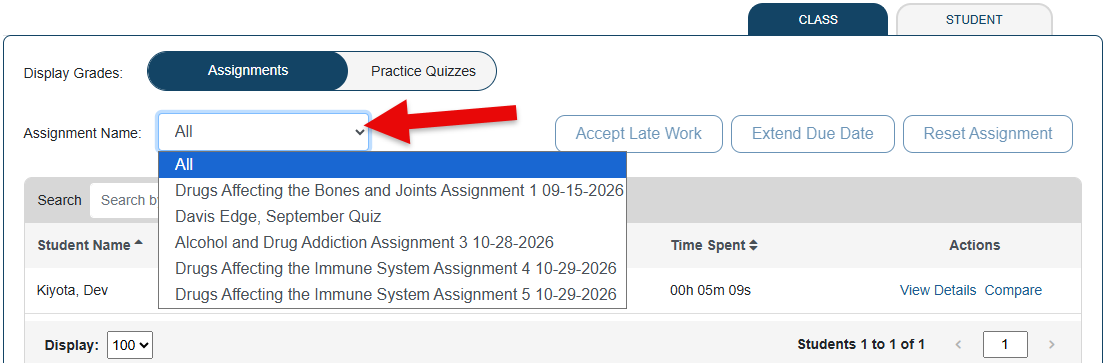
The "Student" Display option will allow you to view all grades for an individual student, which you will select using the "Student" dropdown menu.
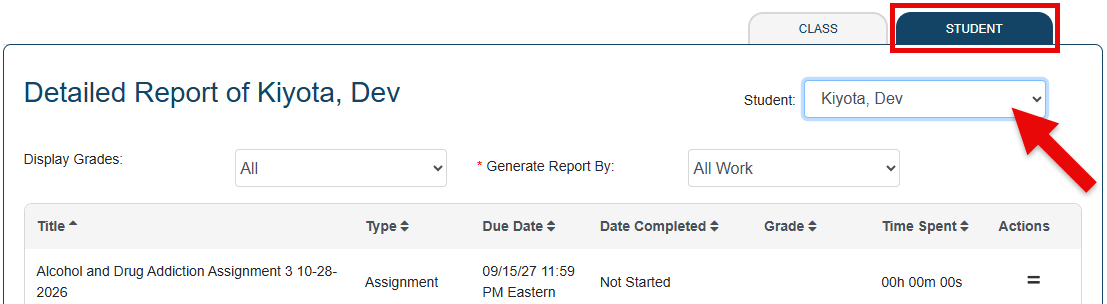
Within the Student Display option, you can further specify to display the selected student's Assignments, Practice Quizzes, or Success Level Goals using the "Display Grades" dropdown menu, as well as use the "Generate Report By" dropdown menu to display student work categorized by Course Topic or Area of Practice.
Please be advised the "Generate Report By" options will not generate a report or file for you to download.
Edge Gradebook Features
You've got three grading exceptions you can enact via your Edge Gradebook: Accept Late Work, Extend Due Date, and Reset Assignments.
When viewing your Edge Gradebook in the Class Display option, enacting these features will apply them to all your students. For example, choosing an assignment from the "Assignment Name" dropdown menu then clicking "Reset Assignment" will reset all student progress on the chosen assignment.
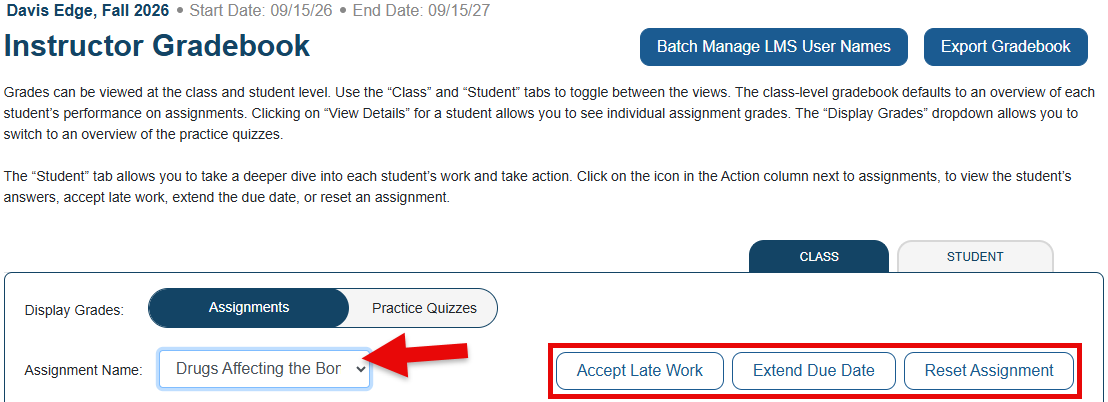
If you want to enact your Edge Gradebook features on a student-by-student basis, please first navigate to the "Student" Display option.
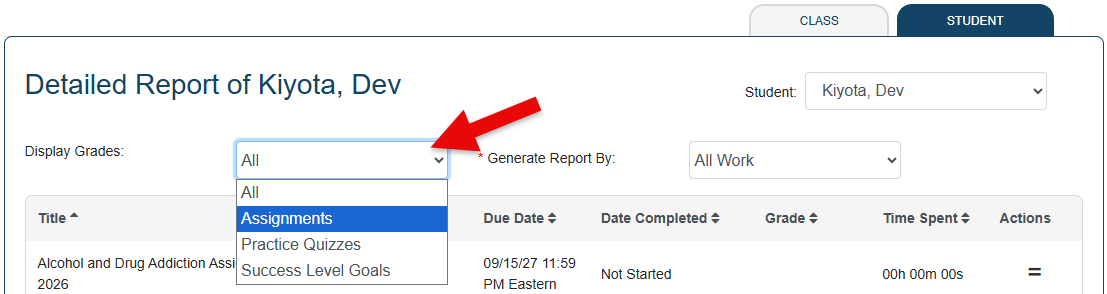
You'll click the "Actions" button for a specific assignment to choose an exception to enact upon it.
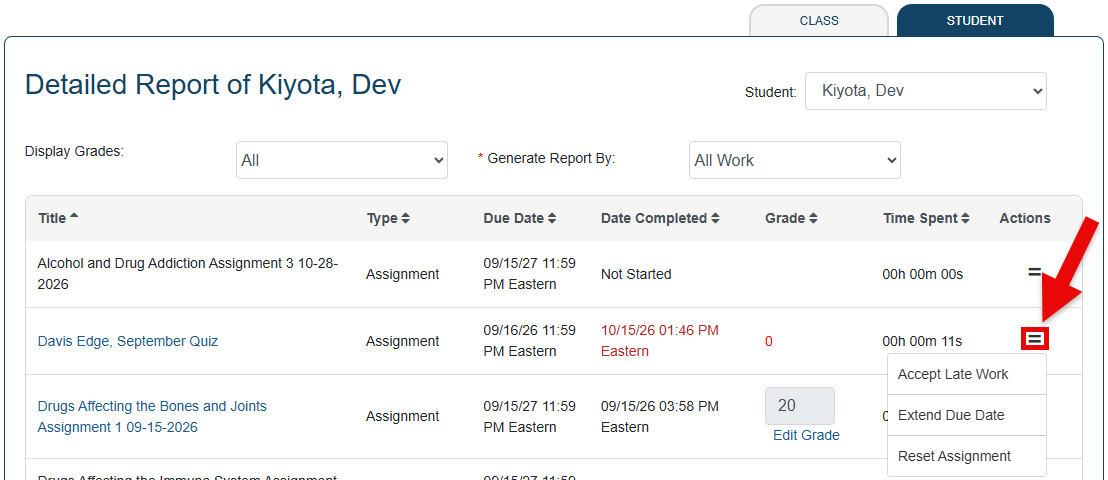
Accept Late Work
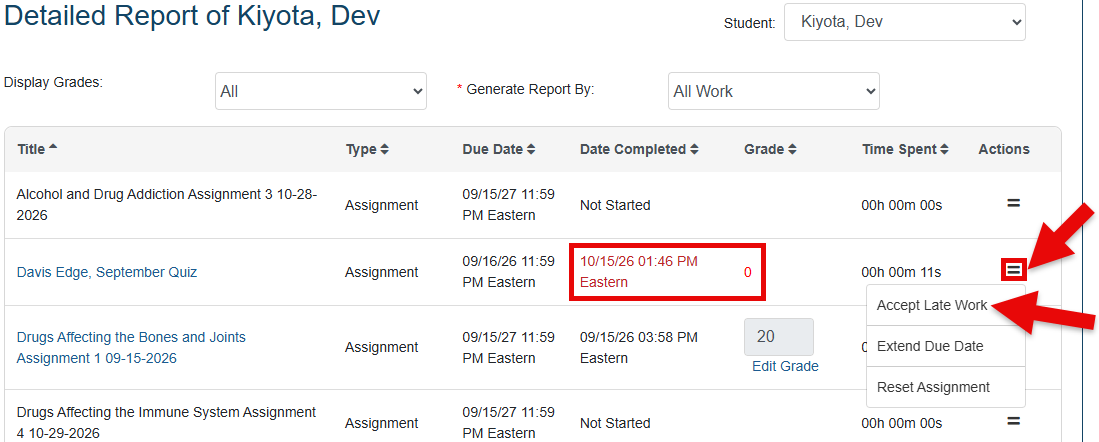
Scores for assignments or exercises submitted after their respective due dates will be marked with red zeroes and red Date Completeds in your Edge Gradebook.
To allow late work from a student, go to the "Student" display of your Edge Gradebook. Click the "Actions" button for a specific late assignment, then choose "Accept Late Work."
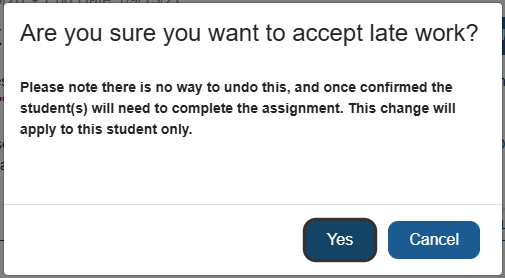
When opting to accept late work at the student or class level, please note the pop-up message. Select "Yes" to accept the late work.
Late work that has been accepted will change from red to black text. The student’s grade will update to reflect the score they earned on that assignment.
After accepting late work, please wait overnight for grades to update in your LMS gradebook.

Extend Due Date
To extend a due date for an individual student, go to the "Student" display of your Edge Gradebook.
Click the "Actions" button for a specific assignment, then choose "Extend Due Date."

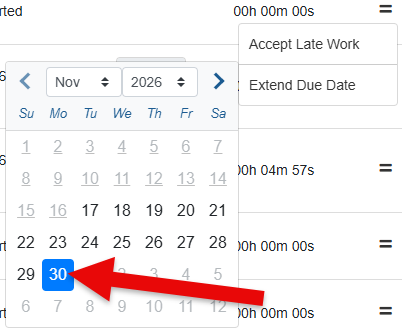
A calendar window will popup. Choose the assignment's new due date.
As long as you're choosing a date that hasn't yet passed, you can even use the Extend Due Date feature to make an assignment due sooner.
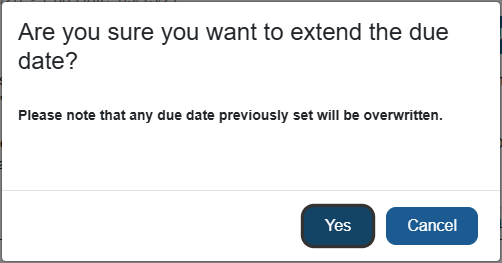
A confirmation popup will appear after choosing a new due date. Click "Yes" to confirm.
The updated due date will then be displayed in the Gradebook for that assignment.
After extending due dates, please wait overnight for grades to update in your LMS gradebook (if work was submitted late prior to the due date change).

Reset Assignment
To reset an Edge assignment for an individual student, go to the "Student" display of your Edge Gradebook.
Click the "Actions" button for a specific assignment, then choose "Reset Assignment."
You might get more requests from your students to reset their Edge assignments earlier in your semester, if your students aren't made aware that Edge assignments are single-attempt.
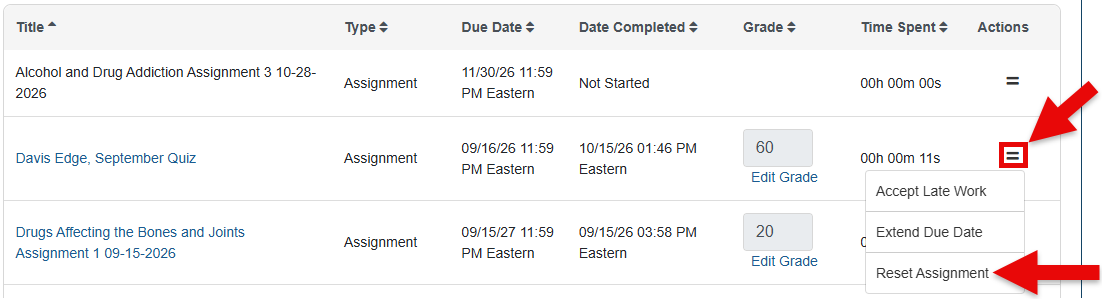
When opting to reset Edge assignments, please note the pop-up message. This action cannot be undone, previous scores won't be saved, and the student(s) for whom the assignment is reset will need to complete that assignment from scratch.
Select "Yes" to reset the assignment content.
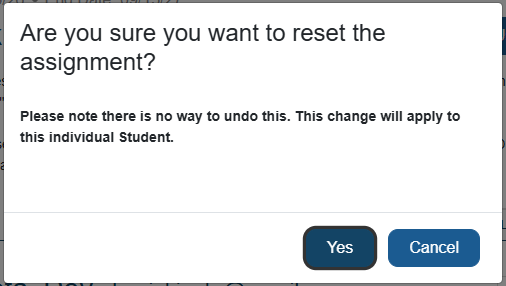
The scores for reset assignments will remain blank until the student completes the assignment content again.
After resetting assignments, please wait overnight for grades to update in your LMS gradebook.

If you've reset an assignment after its due date, the student's previous grade may be replaced with a red zero indicating the assignment is late. You can use the “Extend Due Date” button to give the student a new due date for their next attempt, or use the "Accept Late Work" button to accept their work after they submit again.

