In addition to the Davis Edge assignments your instructor has chosen, you can make yourself Practice Quizzes to further familiarize yourself with content from your textbook. Your Practice Quiz scores won't report back to your LMS gradebook.
To create a Practice Quiz, first launch any Davis Edge assignment linked in your LMS course. If you need more information on launching Edge assignments, please consult our Student "Quick-start Guide" article.
Once you've launched an Edge assignment, click "Success Center" in the top-right above your Edge assignment to access your Success Center.

Your Success Center page collects insights on your Edge assignment performance. For more information on checking your Edge assignment performance, consult our Student "Grading and Success Center" article.
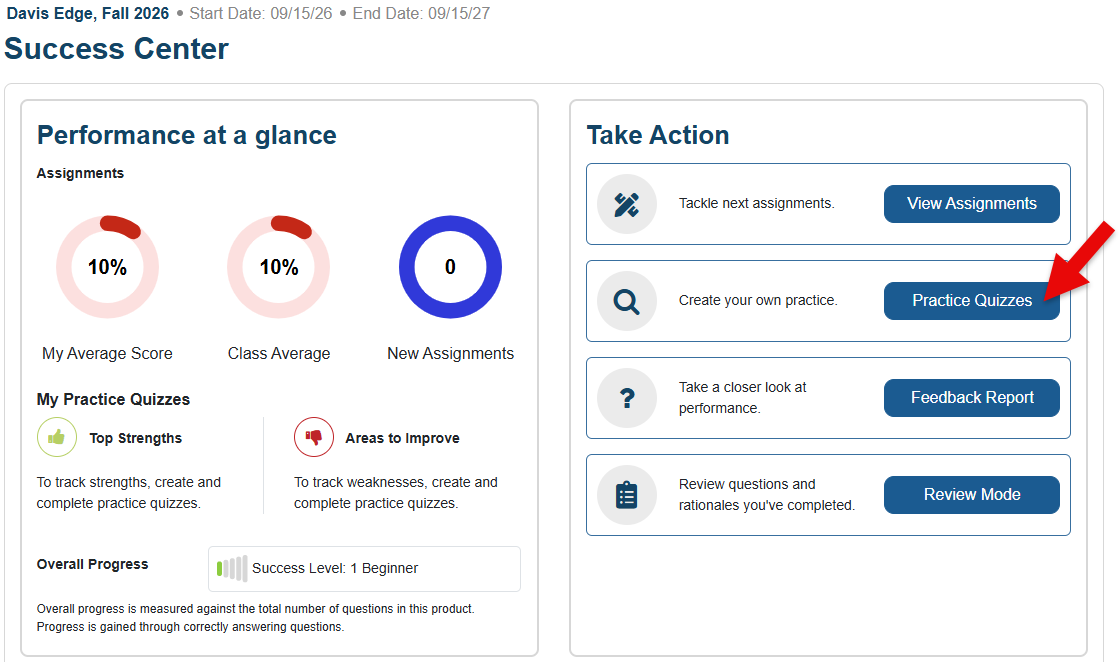
On your Success Center page, click the "Practice Quizzes" button to launch your Practice Quiz Builder.
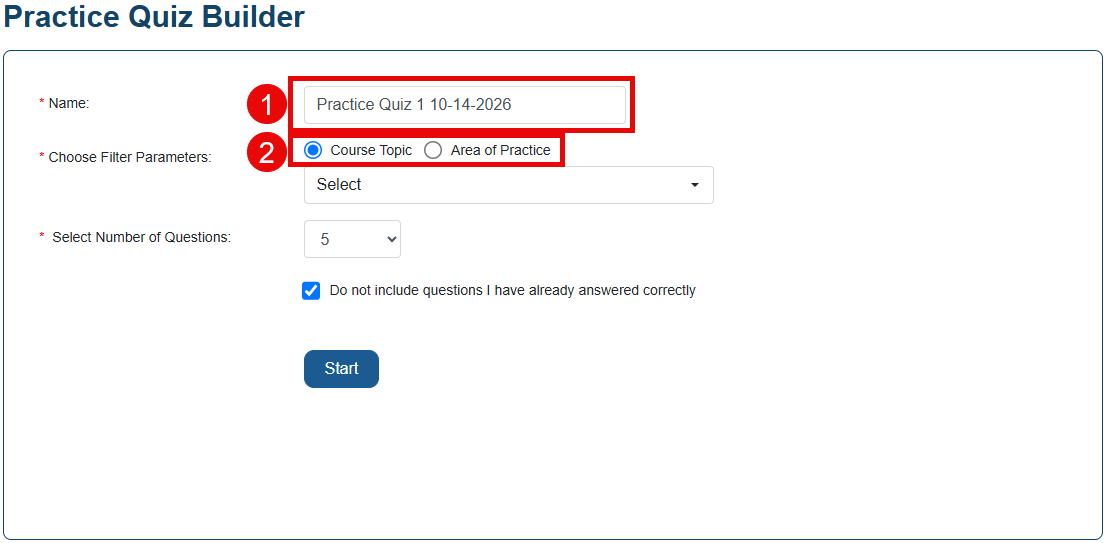
Using your Practice Quiz Builder, you'll be able to create a Practice Quiz.
First, enter a name for your Practice Quiz (1). You instructor is able to see the name of the quiz.
You can choose content by Course Topic or by Area of Practice (2). Course Topic will display content in the order in which it appears in your textbook. Area of Practice groups content under umbrella concepts and does not go in order of the textbook chapters.
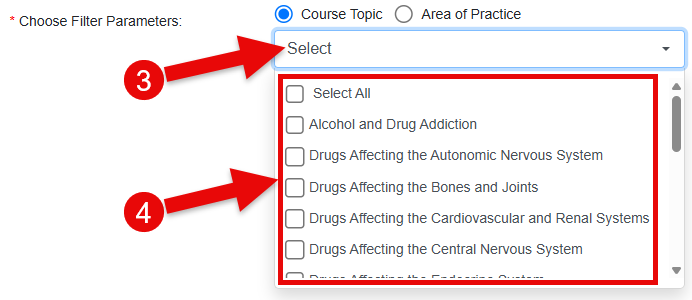
After you've selected to generate questions based on Course Topic or Area of Practice, click the "Select" dropdown menu (3) to choose which Course Topics or Areas of Practice to generate questions from.
You can "Select All" to create a Practice Quiz covering all key topics in the class. Alternately, you can select one or more topics at a time (4).
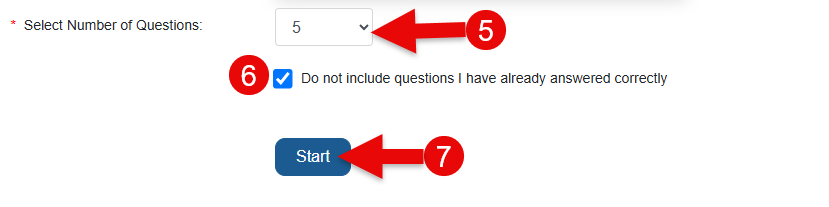
Next, select the number of questions in your quiz (5). You can choose between 5, 10, or 20 questions.
Your Practice Quiz will default to filter out questions you have previously answered correctly (6). If you do not want the quiz to filter out questions you have previously answered correctly, you can click to clear this checkbox.
Next, click Start Quiz (7) to generate and begin working on your Practice Quiz.
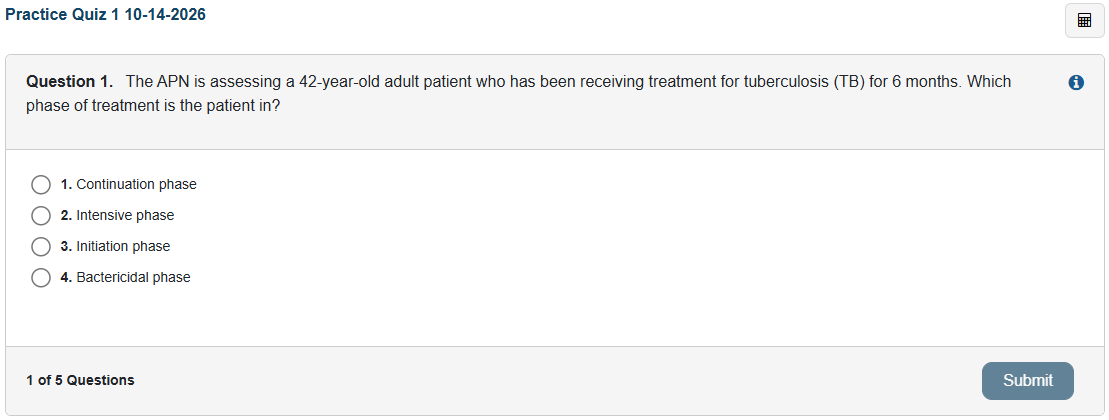
Your Practice Quiz will generate according to the parameters you chose on the "Practice Quiz Builder" screen.
Select answers, then click "Submit" to progress through your Practice Quiz.
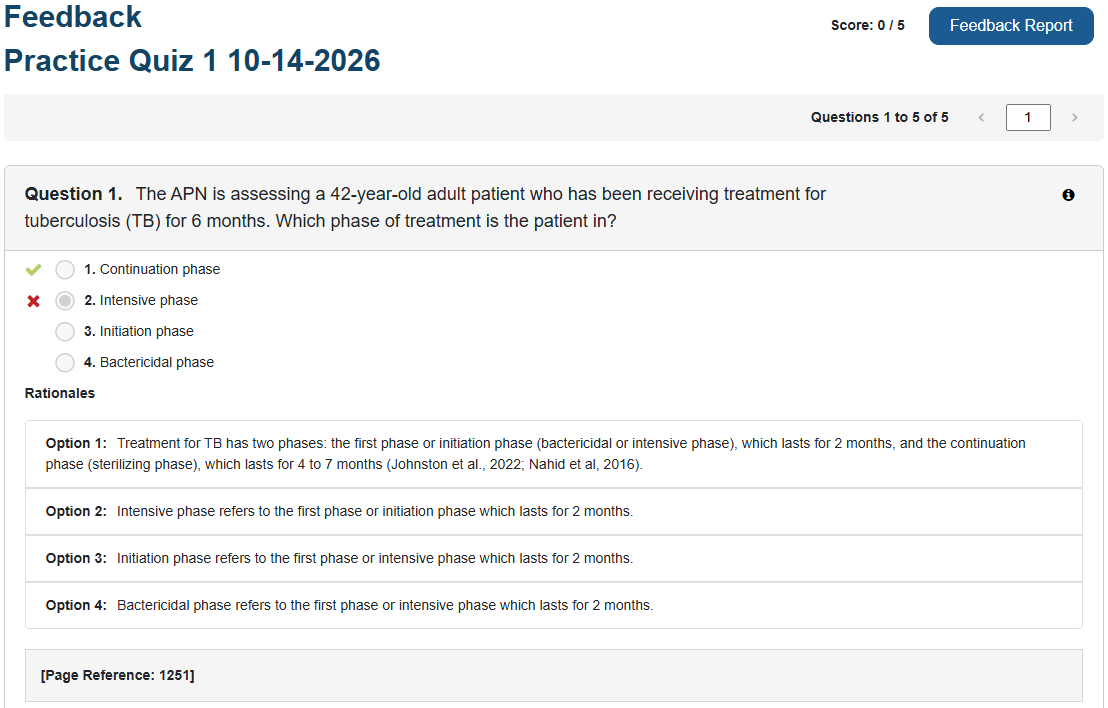
Once you have completed a Practice Quiz, you'll be provided a Feedback page for your results.
On a Practice Quiz's Feedback page, you can review the questions you answered correctly and incorrectly, the rationales for each question's answer choices, and a page number to bring your review back to your textbook.
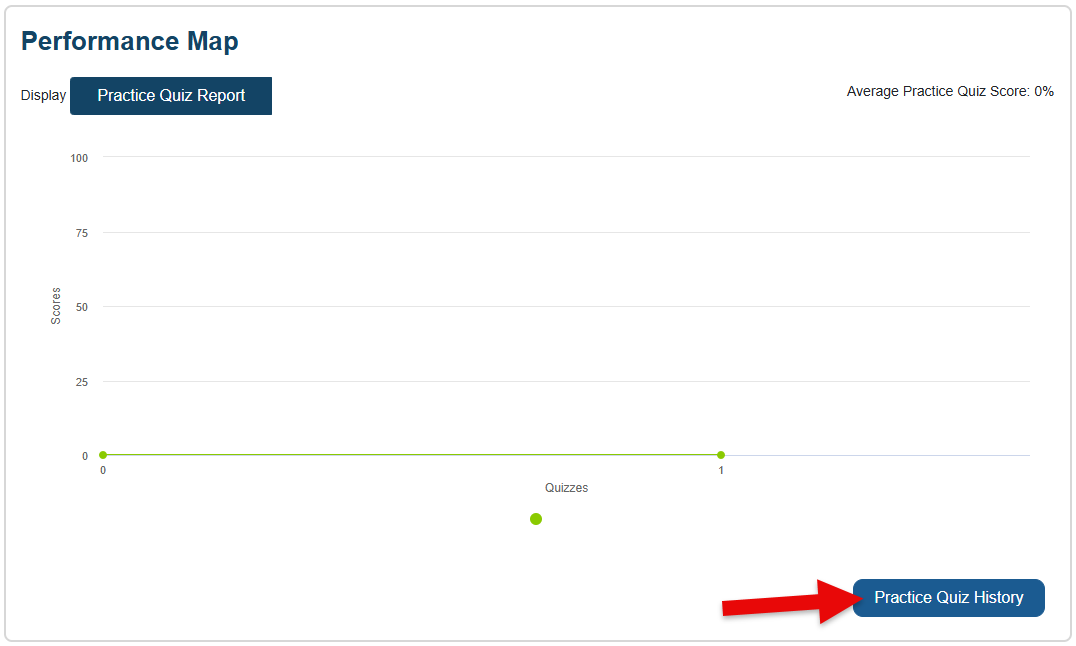
At the bottom of your Success Center page, you can view a Performance Map of your Practice Quiz scores.
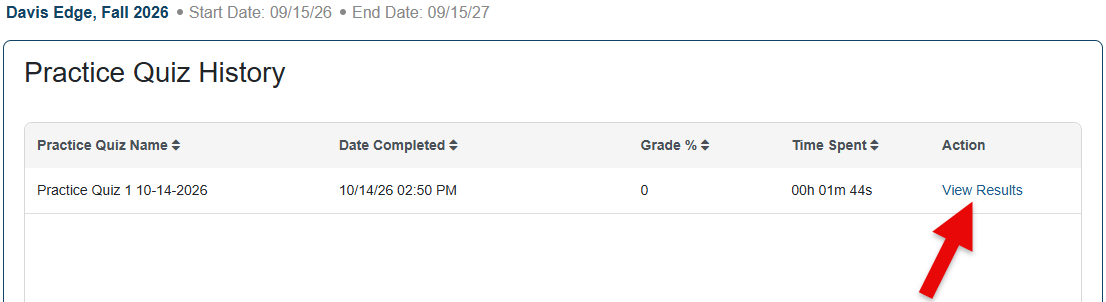
If you click the "Practice Quiz History" button beneath your Performance Map, you'll be taken to a page where you can further review your Practice Quiz results and feedback.
On your Practice Quiz History page, click "View Results" to return to the Feedback page for a previously-completed Practice Quiz.