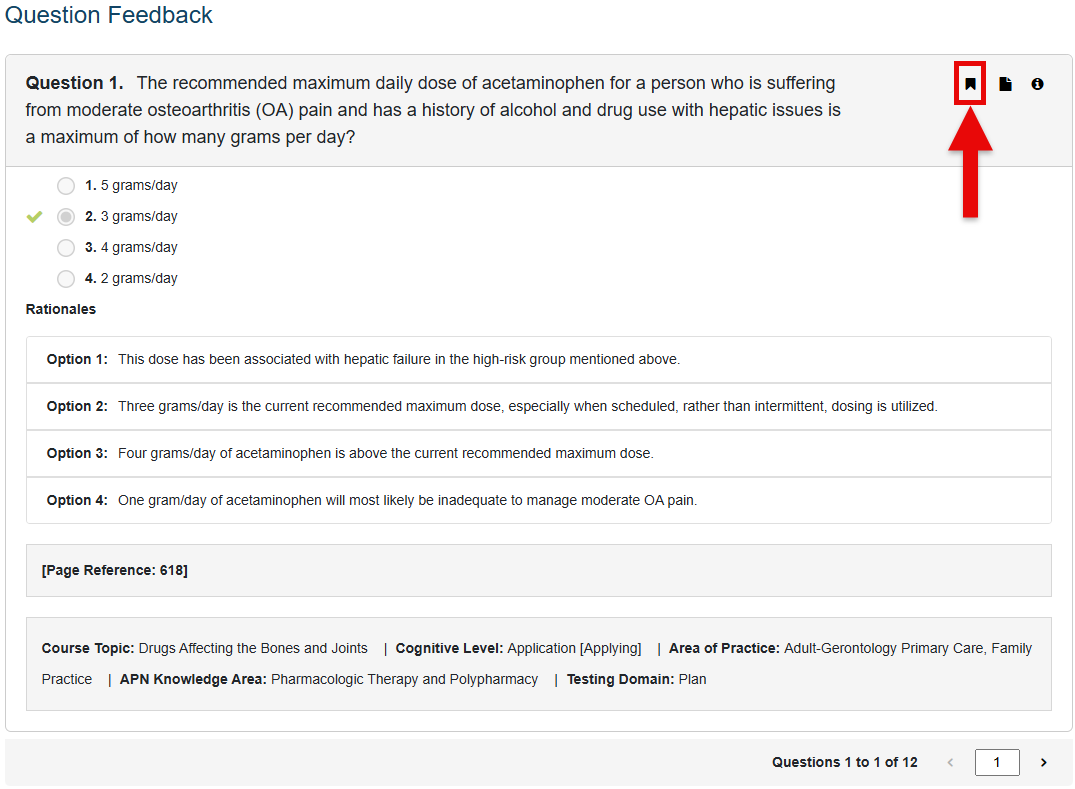
For some of the finer details on how Davis Edge assignments are graded, click to jump to the "Grading" section of this article.
If you want to know how to further review your performance on Edge assignments, click to jump to the "Success Center" section of this article.
For information on the review resources you can launch via your Success Center page, click to jump to the "'Take Action' Panel" section of this article.
Grading
You must launch each Edge assignment attempt via your LMS course, for your grades to record correctly. If you need information on accessing your Edge assignments via your LMS course, please consult our Student "Quick-start Guide" article.
You'll only have one attempt to finish each Edge assignment.
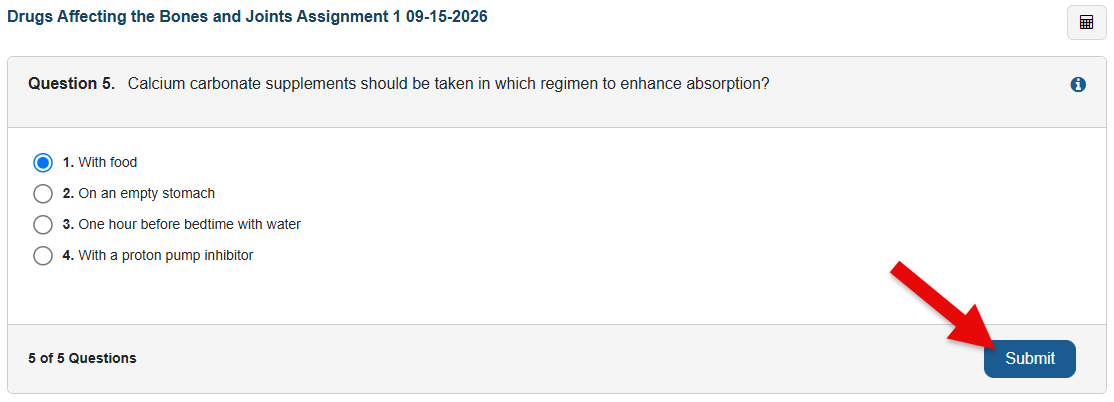
When you complete a Davis Edge assignment, your grade will write-back automatically to your instructor's LMS course gradebook.
Be sure to check the grading page of your LMS course to confirm your Edge assignment scores are being recorded.

If you haven't opened and/or made progress on an Edge assignment before its due date passes, you'll be scored with a 0 for that assignment. Furthermore, if you complete an Edge assignment after its due date has passed, your grade for that Edge assignment will be overridden with a zero.
Please inform your instructor if you've completed an Edge assignment after its due date. Your instructor will need to accept or reject your late work within Davis Edge itself, then update your Edge assignment grade in their LMS gradebook.

Success Center
To get further insight on your Davis Edge assignment performance, you can navigate to your Success Center page after launching an Edge assignment. If you need more information on launching Edge assignments, please consult our Student "Quick-start Guide" article.
Once you've launched an Edge assignment, click "Success Center" in the top-right above your Edge assignment.

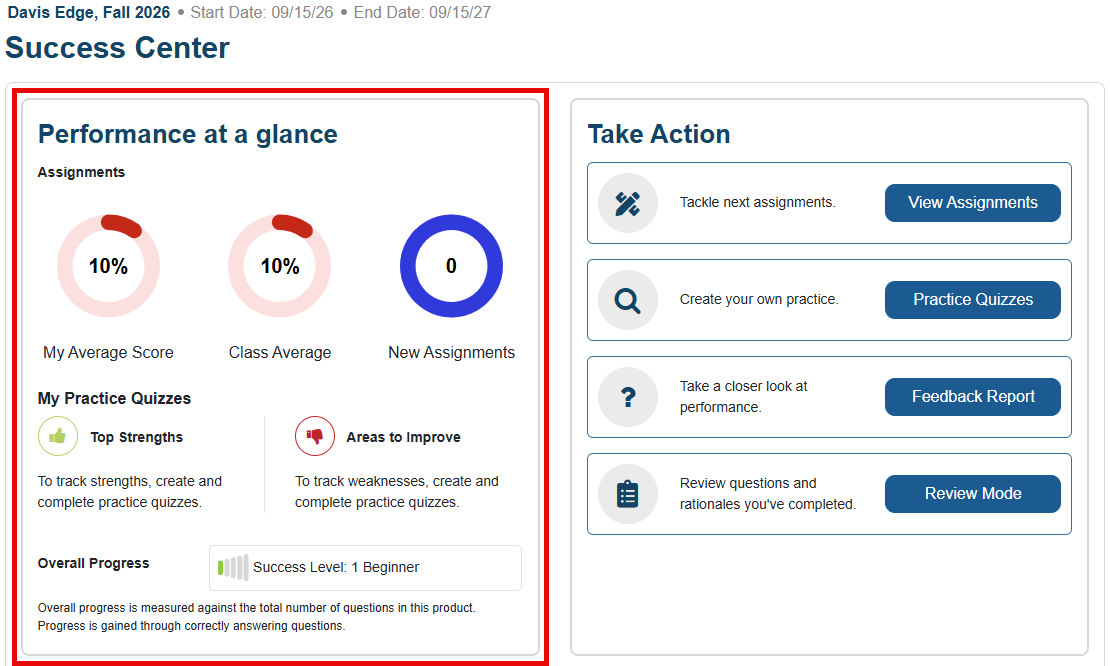
Your Success Center page collects insights on your Edge assignment performance, and functions as a gateway to other review and remediation resources within Edge.
At the top-left of your Success Center page, your "Performance at a glance" panel gives you an overview of your average Edge assignment score, as well as the Edge topics which are your Top Strengths or Areas to Improve.
Resources available via the "Take Action" panel will be detailed in its dedicated section below.
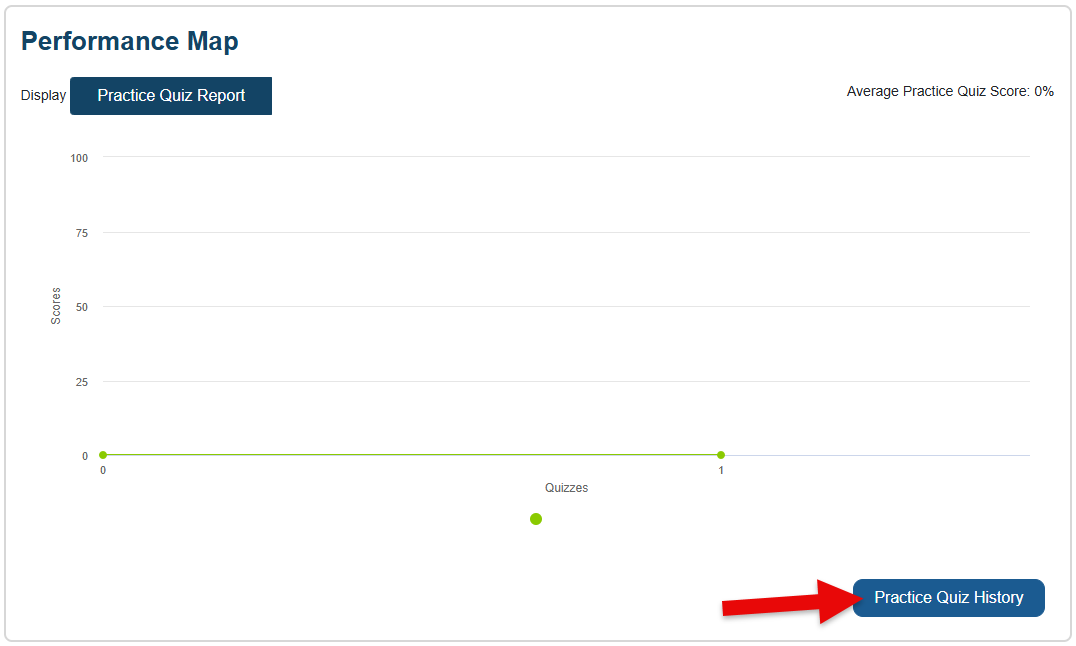
At the bottom of your Success Center page, you can view a Performance Map of your Practice Quiz scores.
For more information on Practice Quizzes, please consult our "Practice Quizzes" article.
Please note, once you've navigated to your Success Center page, Davis Edge will no longer write-back Edge assignment scores to your LMS gradebook within your current browser tab.
To restart writing back Edge assignment scores, you'll need to close the tab in which you navigated to your Success Center, then launch or re-launch an Edge assignment via your LMS course.
"Take Action" Panel
Via the "Take Action" panel on your Success Center page, you can navigate to four separate review resources within Davis Edge.
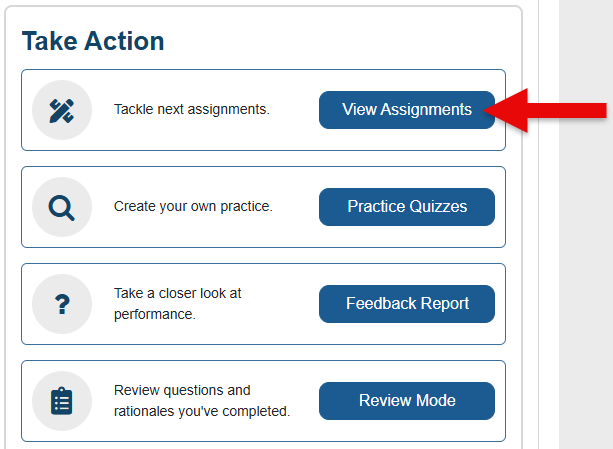
View Assignments
Click the "View Assignments" button to be taken to your Assignments page.
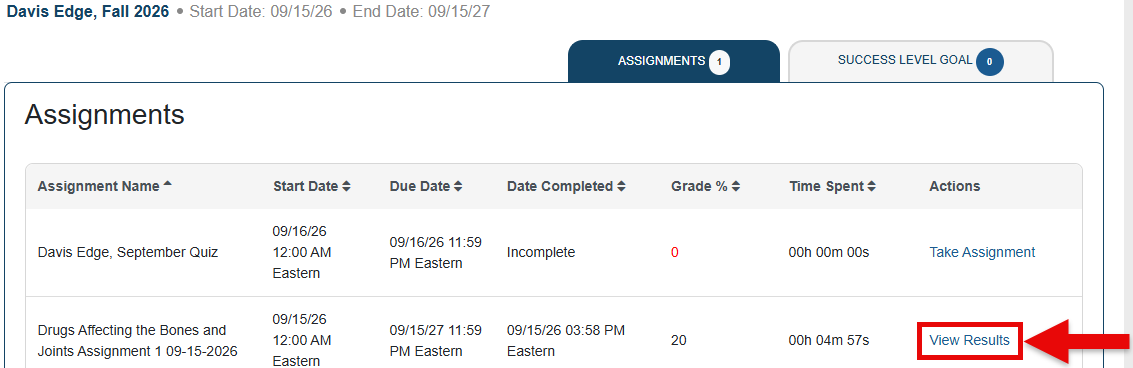
On your Assignments page, you can review your scores on completed Edge assignments, as well as click "View Results" to return to the Feedback page for a completed Edge assignment.
Do not click "Take Assignment" for any Edge assignments on your Assignments page. Launching an assignment via your Assignments page will not allow your score to be recorded in your LMS gradebook.
Practice Quizzes
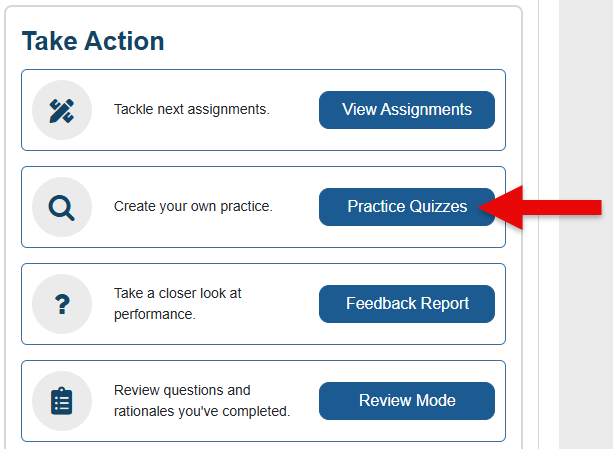
Click the "Practice Quizzes" button to be taken to your Practice Quiz Builder.
For more information on utilizing your Practice Quiz Builder, please consult our "Practice Quizzes" article.
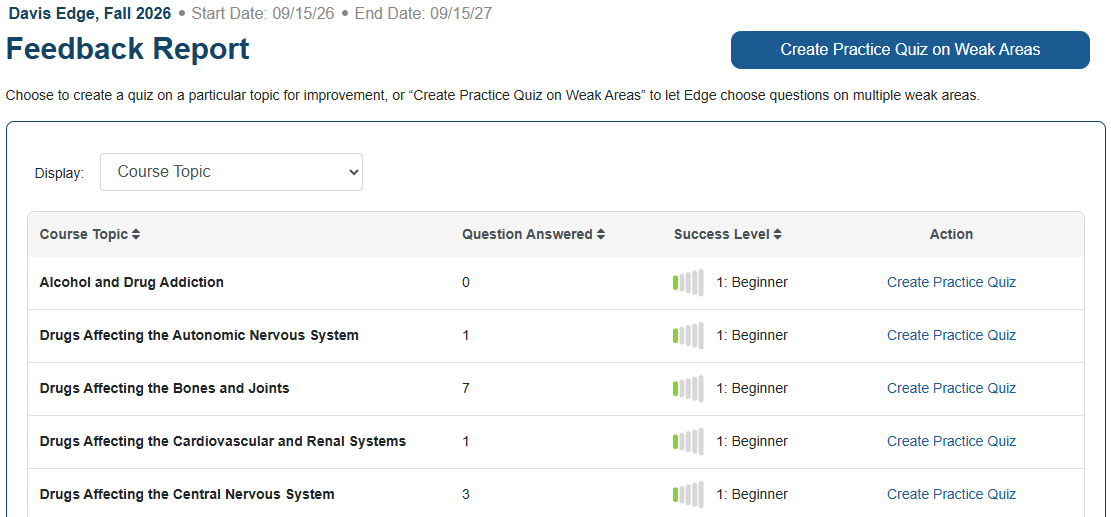
Feedback Report
Click the "Feedback Report" button to be taken to your Feedback Report page.
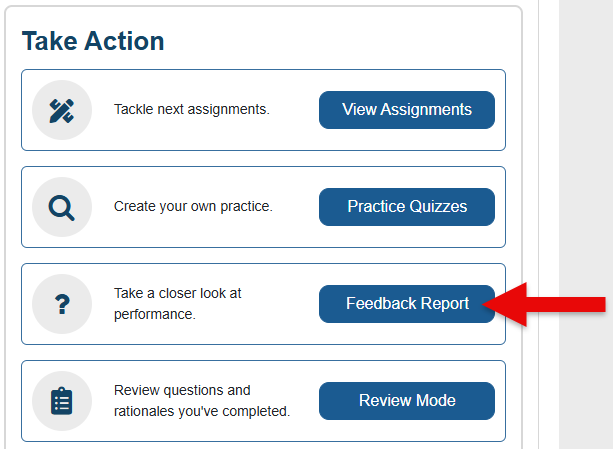
On your Feedback Report page, you can view your success levels on the Course Topics and Areas of Practice covered by Edge assignments and Practice Quizzes you've completed.
If you've got a low success level for a particular Course Topic or Area of Practice, you can use the Feedback Report to initiate creating a Practice Quiz for further remediation.
Review Mode
Click the "Review Mode" button to be taken to your Review Mode tool.
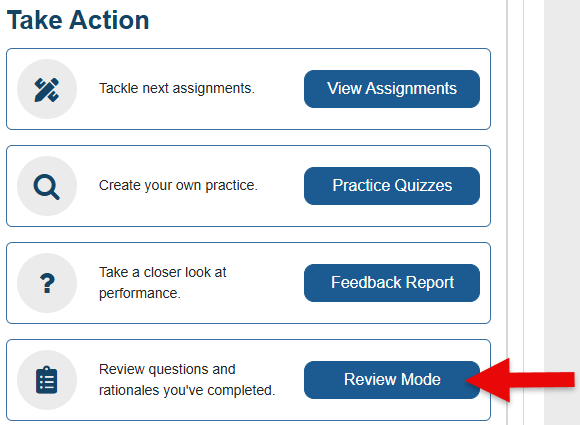
Using the Review Mode tool, you can revisit Edge questions you've previously answered correctly.
Choose the Course topics or Areas of Practice for which you want to review questions, then click the "Review" button.
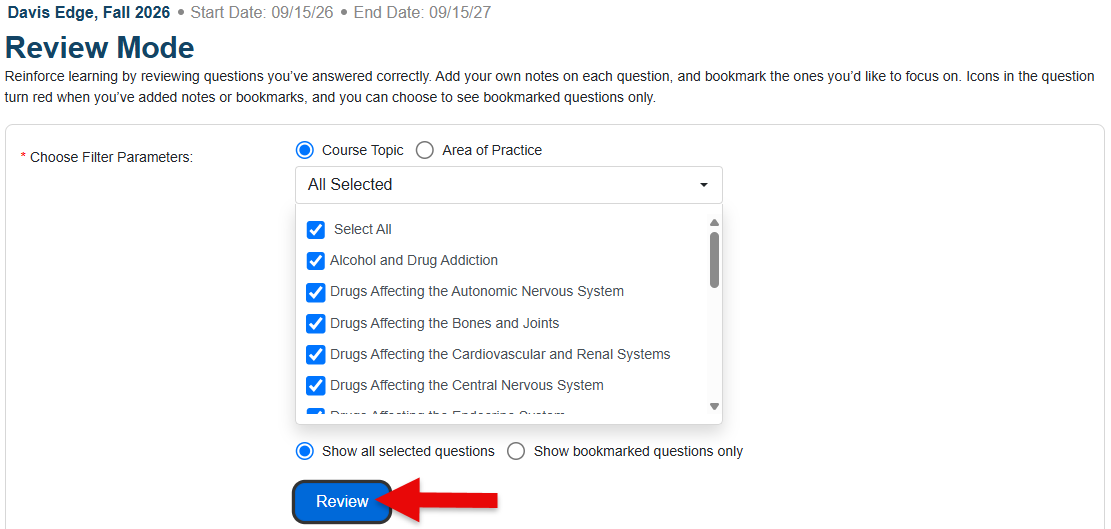
After clicking the "Review" button, scroll down on the Review Mode tool's page to see questions that match the parameters you chose.
For each question, you'll be able to again review correct answers, rationales, and page references.
Bookmark a question to highlight it for a future review.