

Via assignment topics that build on textbook content, Medical Language Lab assignments increase retention of key medical word elements and terms, as well as provide additional support for pronunciation, documentation, and overall medical language usage. This support article contains recommendations for implementing MLL's assignment types into your syllabus and/or lesson plans. If you instead need a step-by-step look at how students will complete MLL assignments, please consult our student "Assignment Exercise Types" article.
The majority of MLL assignment content is comprised of topic-based assignment modules. MLL assignment modules will take students 30–45 minutes to complete, and are often assigned to be completed alongside reading an assignment module's corresponding textbook chapter. For more information on how to choose which activity types and exercises students will have to complete in each assignment module, please consult the "Finalize your MLL Class Set-up" section of our Instructor "Quick-start Guide" article.
Within each MLL assignment module, you'll find a variety of pre-made exercises separated by activity types. If you know the name of the activity type or exercise type you're considering implementing, you can jump to its section by clicking its name within the directory below. A brief overview of each MLL assignment module activity/exercise type will accompany its implementation best practices:
- Read
- Watch
- Response
- Practice
- Review
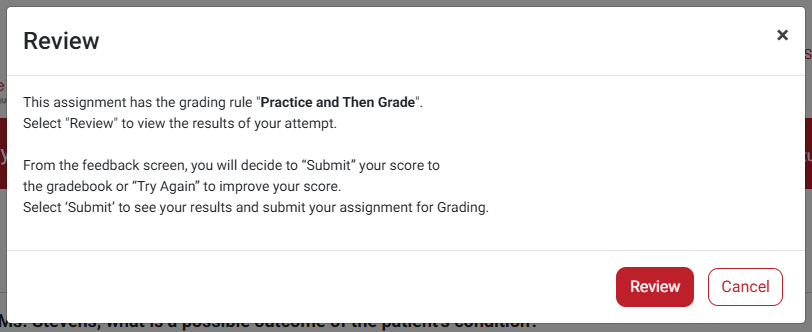
After completing an attempt of an MLL exercise, students will be presented a "Review" popup. On an attempt's Review popup, students will be informed of the exercise's Grading Rule, which will determine how the exercise at-hand is graded and whether students will be able to attempt the exercise again. For more information on MLL Grading Rules, please consult the "'Practice and then Grade' and Other Grading Rules" section of our Instructor "Grading" article.
All MLL Grading Rules will allow students to review a Feedback Screen with results for their current exercise attempt. Furthermore, the Feedback Screens for exercises which contain audio content will allow students to replay the exercise's audio and view its transcript.
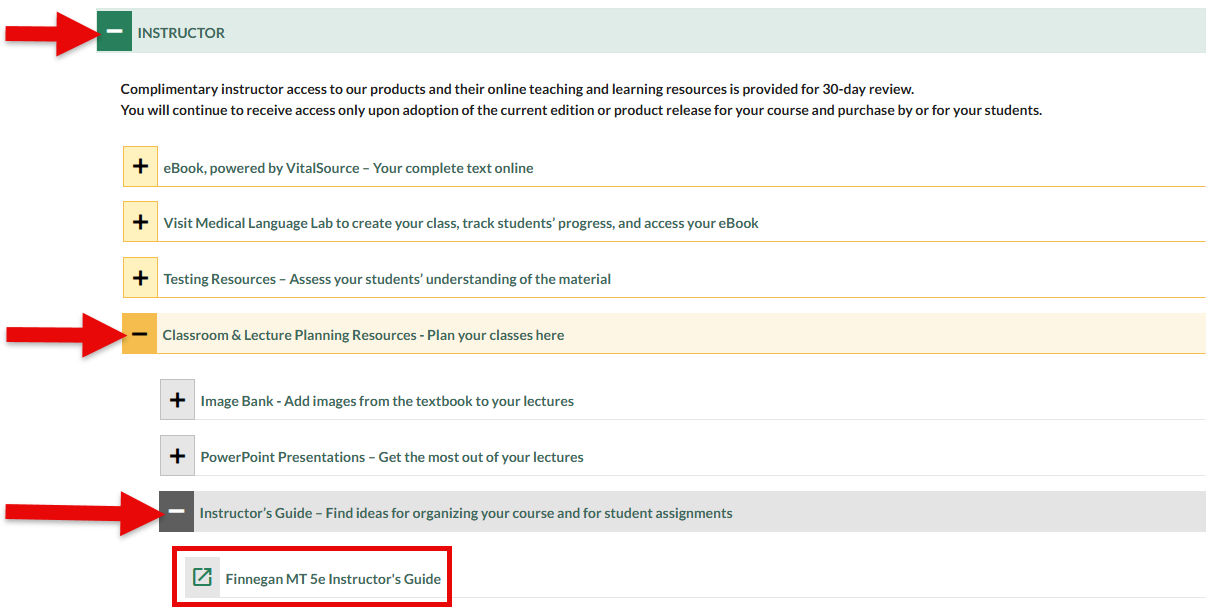
For further recommendations on using MLL in your class, please consult your textbook's Instructor's Guide, found in the "Classroom & Lecture Planning Resources" dropdown menu of your textbook's Instructor Resources. If you're unsure how to locate your textbook's Instructor Resources, please consult our "Instructor Resources" support article.
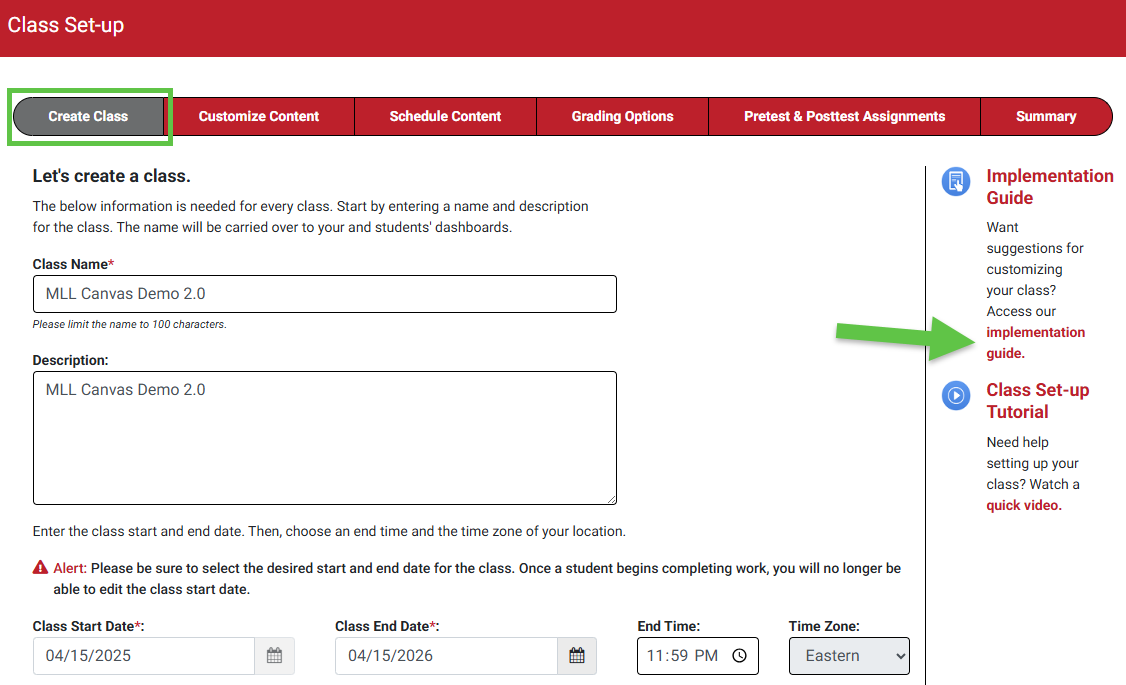
For even more information on using MLL in your class, you'll find an Implementation Guide linked on the "Create Class" step of your MLL Class Set-up. If you're unsure how to access your integrated MLL class' Class Set-up, please consult the "Navigate to your MLL Class Set-up" section of our Instructor "Quick-start Guide" article.
Read Activity
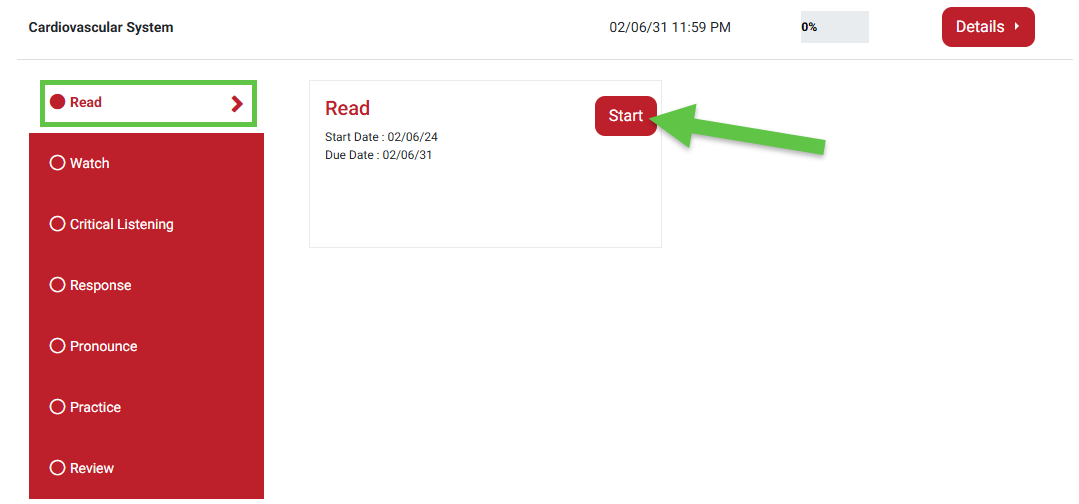
The first activity type within an MLL assignment module will be a link to your assignment's corresponding eBook chapter, to encourage students to read their textbook before completing MLL exercises.
FA Davis eBooks are hosted on VitalSource, and you can provide your students with our "eBook Access" article for more information on using VitalSource.
An assignment module's Read activity is not graded, and completion data won't be recorded by MLL.
Watch Activity
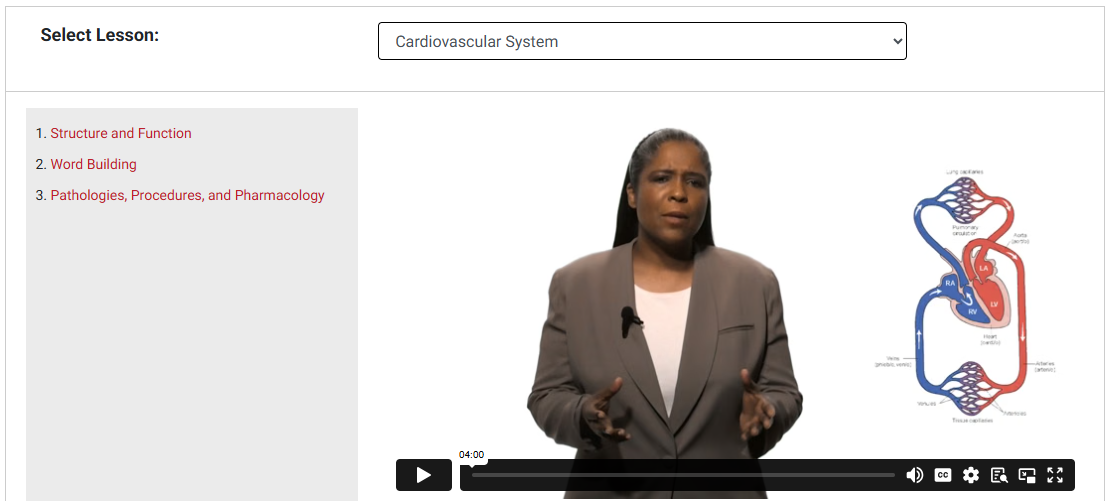
An assignment module's Watch activity will contain a series of short, instructor-led lecture videos covering the core sections of each the module's corresponding chapter.
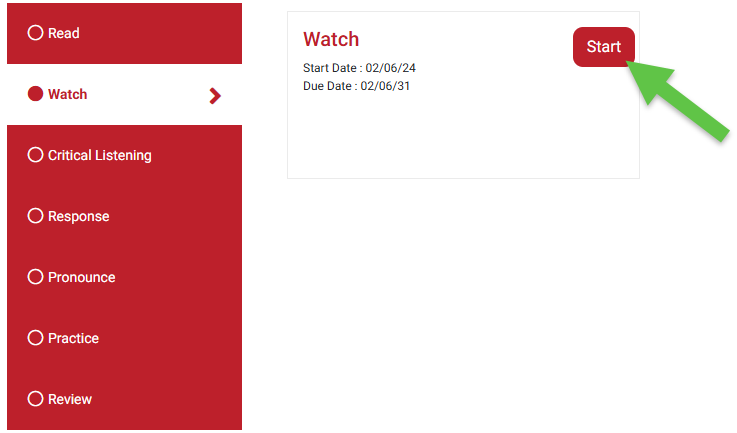
Like Read activities, Watch activities are not graded and their completion data won't be recorded by MLL.
Critical Listening Exercises
The Critical Listening activity type will contain the first graded exercises within an MLL assignment module, and Critical Listening exercises will be graded automatically by MLL.
An MLL assignment module will feature four Critical Listening exercises.
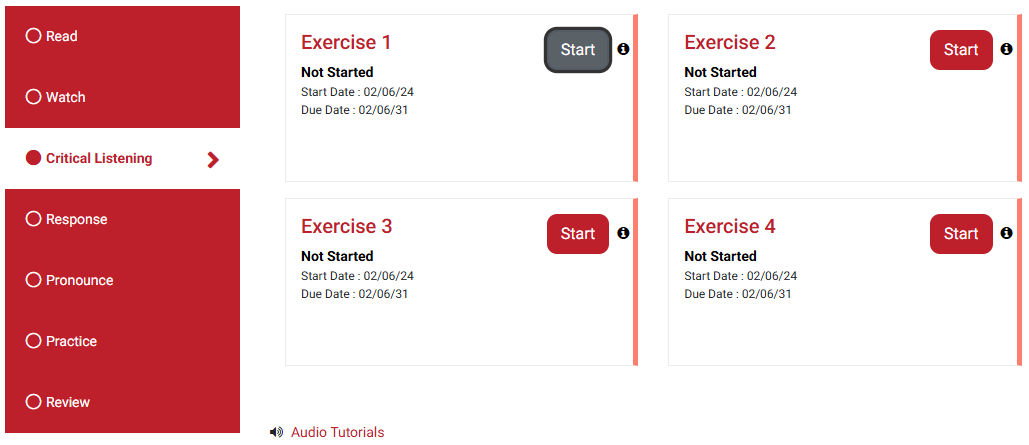
Critical Listening exercises begin with a short, high-quality audio scenario, which students can listen to as many times as needed to develop a general command of the scenario's context.
After students listen to a Critical Listening exercise's audio scenario (1), they'll click the "Continue to Questions" button (2).

After students click "Continue to Question(s)," their recollection and comprehension of key terms in the audio scenario will be tested by multiple-choice questions.

Response Exercises
Response exercises will be automatically graded by MLL, and each MLL assignment module will contain two Response exercises.
Similar to Critical Listening exercises, Response exercises are based upon an audio scenario prompt. In these exercises, however, the audio scenarios end with one character asking a clinician a question requiring basic understanding of the terminology used. Students will then choose from a selection of potential answers to complete the dialogue accurately.
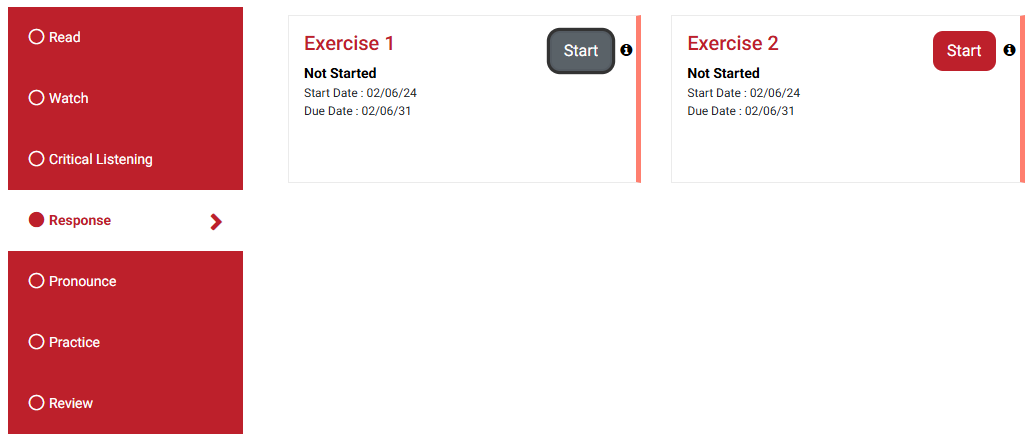
Students will listen to the Response exercise's audio scenario (1) to familiarize themselves with its content, then click the "Continue to Questions" button (2) to answer the questions associated with the audio scenario. Some Response exercises will require students to record their own voice to submit as a response.

To complete Response exercise questions which require students to submit their own voice, students will need an internal or external microphone to record their responses.
Students will click the Record button (1), then read the statement (2) precisely as written. They'll be able to review their recorded answer by clicking the "Preview" button (3), and can re-record their answer by clicking the Record button again.
Once they are satisfied with their recording, students will click "Submit" (4) to be scored based on how well they pronounced the Response exercise's statement prompt.

Generation Exercises
Generation exercises are the only MLL exercise content that has to be graded manually, and (when available) each Generation activity type will be comprised of two exercise types: Audio and Text.
Generation exercises aren't available within all MLL platforms, and the majority of instructors do not assign Generation exercises to be completed. For more information on how to turn Generation exercises off, please consult the "Finalize your MLL Class Set-up" section of our Instructor "Quick-start Guide" article.
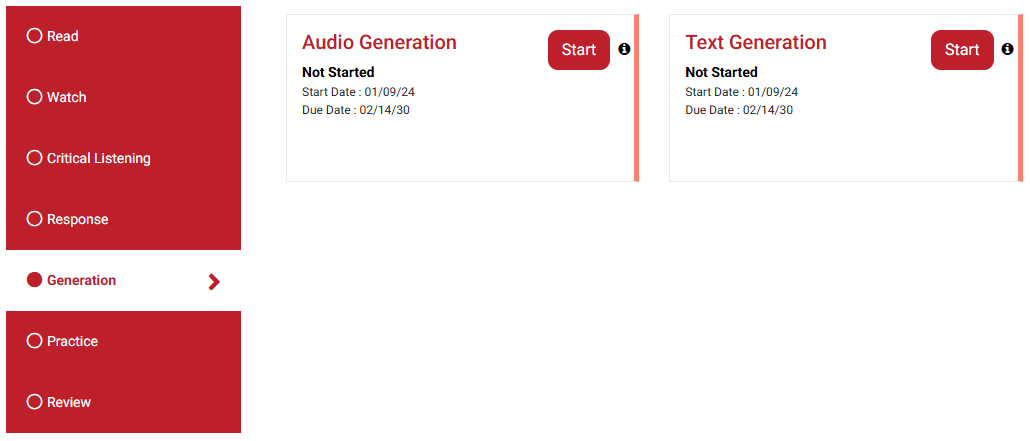
Audio Generation exercises ask students to record a sentence or two using appropriate medical terminology. Students will need either an internal or external microphone to complete these exercises, and will need to grant the system access to their microphone if asked.
Students will click the Record  button (1). When finished speaking, they'll click the
  button to stop recording. To erase their current recording so they can record another, students will click "Reset."
Students can click Preview (2) to play back then recording, then Submit (3) once they're satisfied with their recording.

Smartphones generally do not support MLL’s Audio Generation exercises. Additionally, students should avoid using Internet Explorer when completing Audio Generation exercises.
Desktop and laptop computers with Mac OS or Windows 7, 8, and 10 are generally supported, with Google Chrome being the recommended browser. Chromebooks are supported, and iPads may be supported if they've been updated with the latest versions of iOS.
When recording responses, students must observe whether sound waves are appearing on their screen, in the visual cue seen below. If their audio is not being captured, that sound wave cue won't appear, and students may need to use a different device to complete the Audio Generation exercise at-hand.

When completing a Text Generation Exercise, students are asked to write a sentence or two using medical terminology. They will type in an answer, then click "Submit."

Remember, Generation exercises are not graded automatically, so students will not see grade write-back for these exercises until you evaluate their submissions and assign a grade within your MLL Gradebook.

Pronounce Exercises
Pronounce exercises will be automatically graded by MLL, and offer students an opportunity to refine their pronunciation of medical terms.
Not all MLL platforms will feature the Pronounce activity type; for the platforms that do, each MLL assignment module will contain two Pronounce exercises.
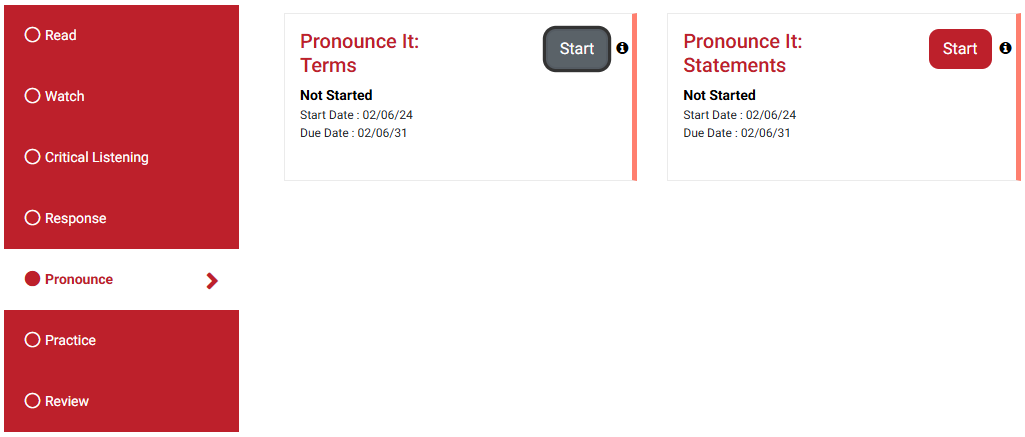
Pronounce exercises will prompt students to record themselves pronouncing either a single term from the aligned textbook chapter or a full sentence containing one or more medical terms from the chapter. Students will select the microphone icon to record.

After submitting their recordings for a Pronounce exercise, MLL will automatically analyze and grade their pronunciation, then provide them with feedback down to the phoneme-level for any words that they had difficulty pronouncing.
Practice Exercises
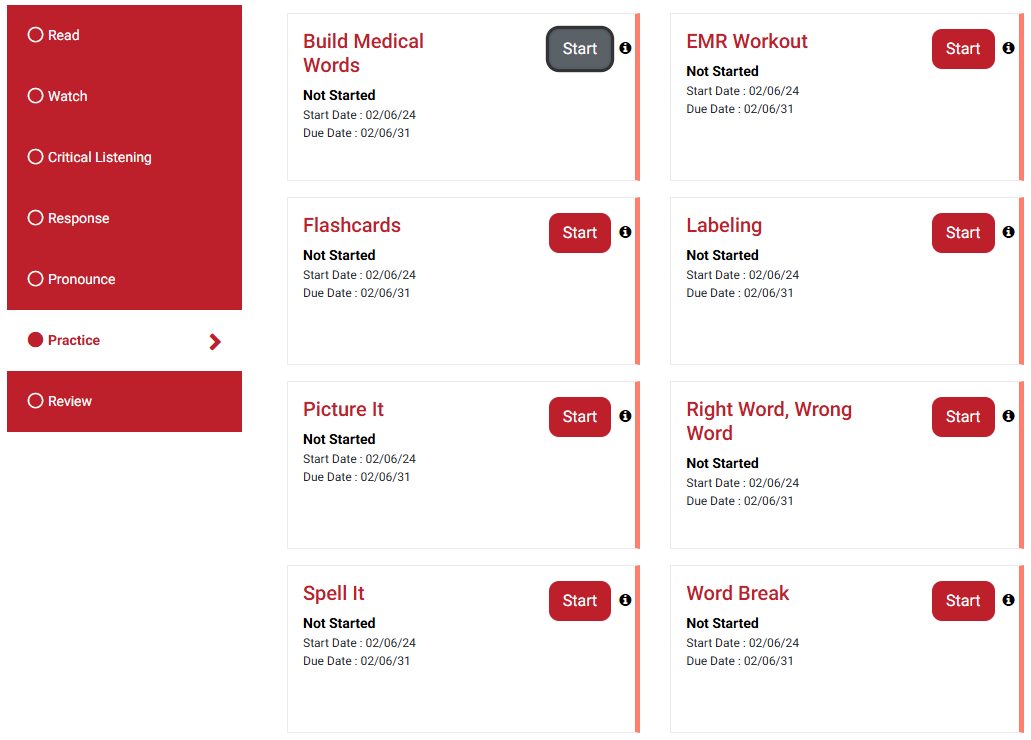
The Practice exercises available can differ from one assignment module to the next, and can task students to do any of the following, and more: spell terms correctly, differentiate between similar terms, recognize anatomical features visually, build whole terms from word elements, locate terms used in medical records, and break terms down into their constituent word parts.
With the exceptions of ungraded Flash Cards and Crosswords exercises, Practice exercises are automatically graded.
If you'd like to learn how to reduce the Practice exercises available in a given MLL assignment module, please consult the "Finalize your MLL Class Set-up" section of our Instructor "Quick-start Guide" article.
Review Exercises
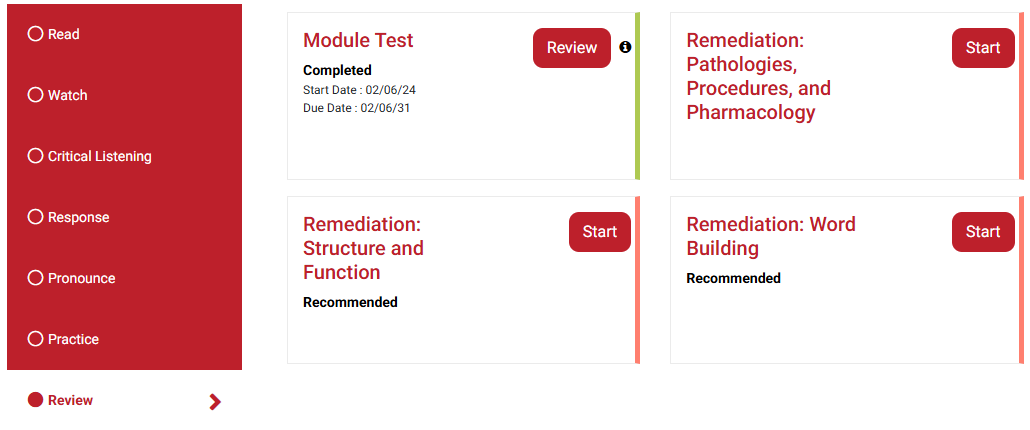
The Review activity type contains a comprehensive, end-of-module test designed to assess students' mastery of the corresponding chapter's content.
A Review Module Test will be graded automatically on a student's first attempt.
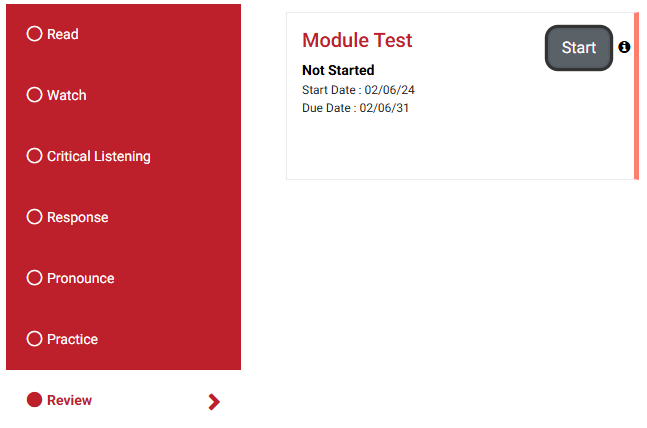
A Module Test will contain 10 multiple-choice questions.

Once students complete a Module Test, they'll receive remediation material based on their performance. The remediation material includes various multimedia formats as well as a review quiz.
Completion of remediation material is ungraded.
PreTest and PostTest Exercises
You may choose to assign a PreTest and/or PostTest. Because MLL assignments cannot be proctored, and because you cannot edit the specific questions that go into a PreTest or PostTest, please do not use either assignment as a formal exam.
An MLL PreTest provides a comprehensive primer of the MLL content students will encounter during your MLL class, to be vetted by you as an assessment of your students' preceding medical terminology knowledge.
Furthermore, you can choose for your PreTest to generate a Study Plan for each student, highlighting the strengths and weaknesses dictated by their PreTest results. A student's PreTest Study Plan should be consulted to consider which content areas might most require their attention, as they encounter them throughout your MLL class.

An MLL PostTest provides a comprehensive review of the MLL content you covered during your MLL class, and is often used by instructors as a review for their class' final exam.
Because students are sometimes demoralized by beginning a semester with a low PreTest grade, even when instructors reinforce to students that a PreTest can be a preview of what students will learn in the forthcoming class, many instructors forgo assigning the completion of an MLL PreTest. Conversely, most instructors assign an MLL Posttest, to be completed a week or two before the end of their class' semester.

If you have further questions about teaching with an integrated MLL class, please contact your Educational Consultant, Business Development Manager, and/or [email protected].

