


For details on how Medical Language Lab assignments are graded, click to jump to the "Grading" section of this article.
If you're curious how to interpret whether your students have fully completed an assignment module, click to jump to the "Percent Complete and Date Completed" section of this article.
To learn how to accept late work, extend due dates, or reset assignments within your MLL Gradebook, click to the jump to the "MLL Gradebook Features" section of this article.
Before your students can complete MLL assignments, you need to set up your integrated MLL class. If you need information on creating your integrated MLL class, please consult our Instructor "Quick-start Guide" article.
Grading
The Grading Rule, chosen in your MLL Class Set-up, for each MLL exercise dictates how that exercise will be scored. To learn more about your MLL Class Set-up, please consult the "Finalize your MLL Class Set-up" section of our Instructor "Quick-start Guide" article.
Students will see the Grading Rule for an exercise specified on the "Review" popup that appears after its final question. Most instructors will choose to score MLL exercises using the "Practice and then Grade" Grading Rule. This is also the default Grading Rule setting for most MLL exercises and activities.
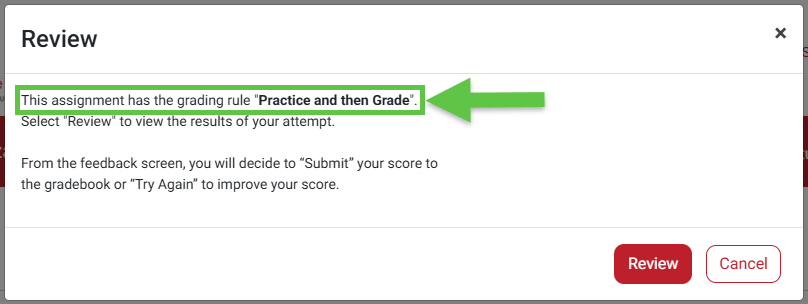
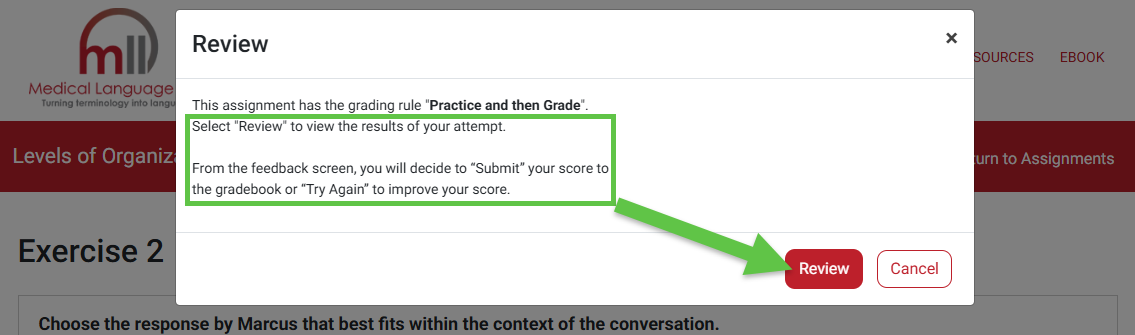
At the end of exercises set with the "Practice and then Grade" Grading Rule, students will click a "Review" button to be taken to the feedback screen for their current attempt.
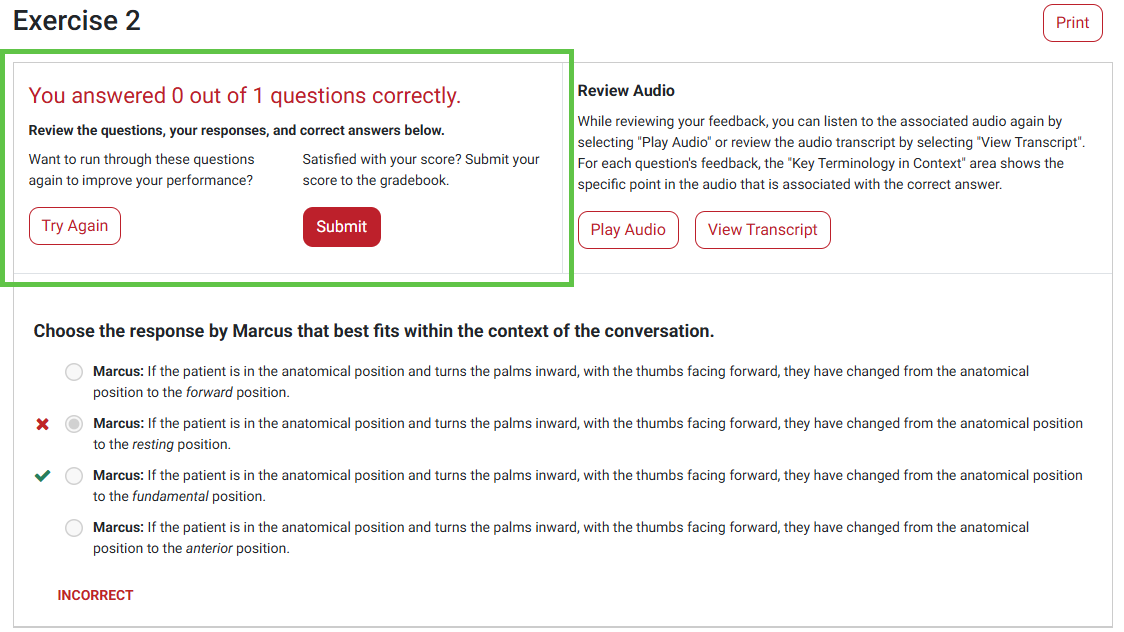
Once on their feedback screen for an exercise with the "Practice and then Grade" Grading Rule, students can click a "Try Again" to discard the score from their current attempt and begin the exercise anew.
Students must click "Submit" at the end of an exercise attempt, for a score to be recorded. A grade will not recorded until students click "Submit," and they cannot improve their grade once they have clicked "Submit."
In addition to "Practice and then Grade," there are four other Grading Rules that may apply to different respective exercise types in your MLL class:
- Grade on First Attempt - Scores for this exercise will be recorded in the Gradebook as soon as students complete it. Though they'll be able to review the results they got on their first attempt, students won't be allowed to re-take the exercise for a higher score. All Module Test exercises, found in the "Review" section of an assignment, will be scored using this Grading Rule.
- Manually Graded - Only applies to exercises in the Generation section of an MLL assignment. The instructor is responsible for grading students' submitted attempts in the Medical Language Lab gradebook, and students won't see a grade for those attempts until you do so. Note that not all versions of the Medical Language Lab include Generation exercises, and many instructors choose to turn this section off for a fully-automated grading experience. If you need help removing Generation exercises from your course, please refer to the "Finalize your MLL Class Set-up" section of our Instructor "Quick-start Guide" article.
- Grade by Participation - Students will be scored based on their completion level of exercises. If students answer every question within a given exercise, before the exercise's due date, they'll receive full credit for that exercise.
- Practice Only - Exercises given this Grading Rule are optional, and students' attempt scores won't be recorded in the Gradebook or count toward their cumulative grade for an MLL assignment. Some exercise types within the Practice activity type of a module will always be set to this Grading Rule, most notably the "Flash Cards" and "Crosswords" exercises you might find in every MLL assignment.
Once the due date for an assignment module passes, any incomplete exercises will be scored as 0%. Likewise, late submissions will be scored as a 0, as will assignments and exercises that students haven't opened and/or made progress on prior to their set due dates.
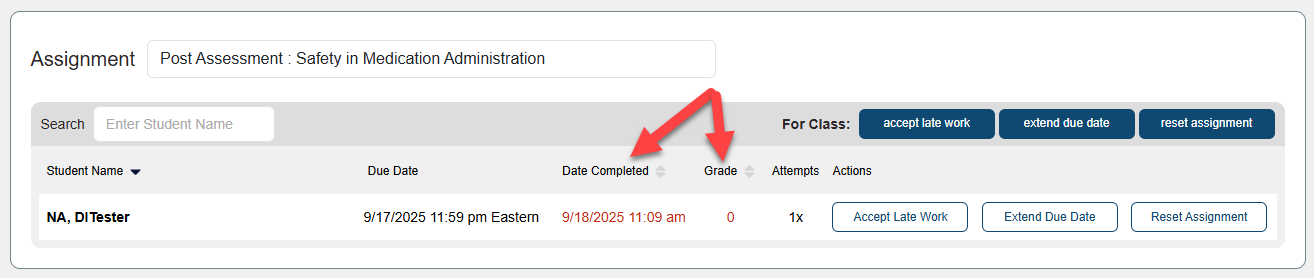
Zeroes for late submissions will appear in red, and can be overwritten via the MLL Gradebook's "Accept Late Work" feature.
Though your MLL class is integrated within your LMS course, your student's MLL assignment scores won't write back to your LMS Gradebook. If you're assigning work within MLL for a grade, you will need to manually enter MLL assignment grades into your LMS gradebook.
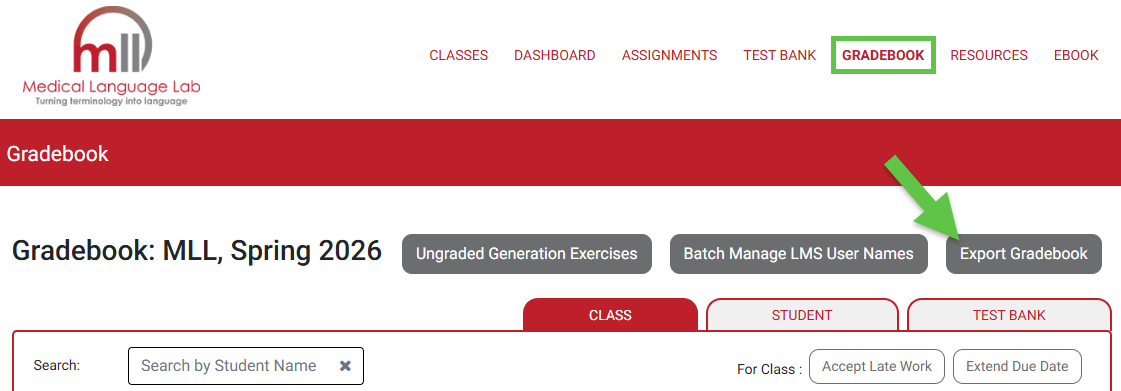
You can download a spreadsheet version of your current MLL Gradebook, to reference while manually entering grades. On the top-right of your MLL Gradebook page, click the "Export Gradebook" button.
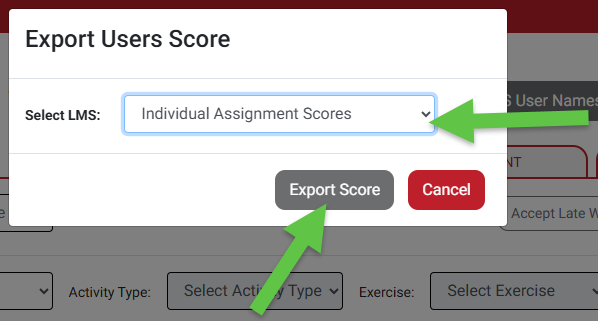
On the ensuing popup, we recommend choosing "Individual Assignment Scores" from the "Select a CSV Format" dropdown menu, to get an easy-to-read spreadsheet. Then, click "Export."
The spreadsheet you export will be current as of the time it was exported. Because of this, we recommend waiting until the end of your semester to begin manually entering grades into your LMS gradebook.
If a student’s grades do not appear in your MLL Gradebook, they may be completing work independently or under an email account that is not enrolled in your course. Consult our "Enrollment Issues" support article, for more information on why a student isn't being recorded by your MLL Gradebook.
Percent Complete and Date Completed
A student's "Percent Complete" bar for an MLL assignment module will fill in regards to how many of the total exercises within the assignment module they've completed. The total number of exercises within an MLL assignment module will include exercise types you've chosen to make ungraded (with the "Grading Options" step of your MLL Class Set-up), but will not include exercise/activity types that cannot be graded.
Exercise/activity types that cannot be graded include your Read activity, Watch activity, the Flash Cards and Crosswords exercises that can be found within some Practice activity types, and the remedial exercises that follow the completion of a "Module Test" exercise.

The respective Percent Complete bars of your students will be averaged to fill the "Percent Complete" bar you see (as an instructor) for an MLL assignment module.

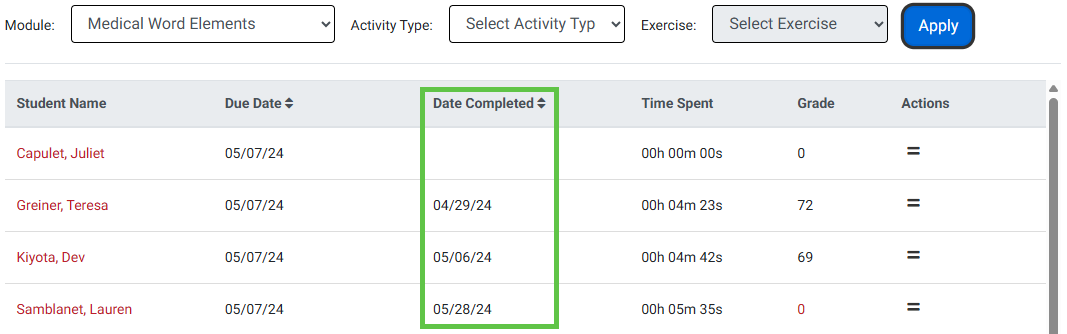
In your MLL Gradebook, the "Date Completed" column populates when a student has completed all exercises that can be graded within an assignment module.
Depending on your MLL "Grading Options" settings, it's possible a student has completed all graded exercises within an assignment module even though their Date Completed column for the said assignment module isn't populated.
MLL Gradebook Features
You can use the Gradebook page in Medical Language Lab to verify how your students are being scored for credit, and to enter grading exceptions for late work, extensions, or resetting assignments.
To access your MLL Gradebook, launch your MLL class and/or navigate to its Dashboard, then click "Gradebook" in the top-right navigation bar.

You've got three grading exceptions you can enact via your MLL Gradebook: Accept Late Work, Extend Due Date, and Reset Assignments. On the “Class” view of the Gradebook, you can make these updates to specific assignments, or even specific exercises within an assignment, by using the following dropdown menus:
- "Module" allows you to select an MLL assignment (e.g. “Cardiovascular System”)
- "Activity Type" allows you to select a section within that assignment (e.g. “Critical Listening”)
- "Exercise" allows you to select a single exercise within an Activity section
When you have made your selections, hit “Apply” to load your students’ scores for that assignment.

In addition to enacting grading exceptions for individual students, you can enact grading exceptions for your entire class by clicking their buttons in the "For Class:" line seen on the "Class" display option of your MLL Gradebook.

Accept Late Work
Scores for assignments or exercises submitted after their respective due dates will be marked with red zeroes in your MLL Gradebook.
To allow late work from an individual student, click "Accept Late Work" next to their name.

When opting to accept late work at the student or class level, please note the pop-up message. Select "Confirm" to accept the late work.

Late work that has been accepted will change from red to black text.

If a student completes an exercise after its due date, their grade for the entire assignment that exercise was in will be recorded as a red zero. This is meant to be a flag for you, so you know the student has late work you need to consider in your MLL Gradebook.
To reject late work, go to the "Student" display of your MLL Gradebook, then choose a student from the "Student:" dropdown. Find an assignment with a red zero for its overall grade, then click that assignment's "Details" button.

Find red zeroes for individual exercises by clicking the "Details" buttons for separate Activity Types. When you find an exercise that was submitted late, you can click its red highlighted name to view the exact answers the student submitted for the exercise in-question, as well as the score they would've received if the exercise was submitted on-time.
Click "Edit" for late work you want to reject.

Enter whatever grade matches the late-work policy for your class, then click the green checkmark to record it.

Extend Due Date
To extend a due date for an individual student, select "Extend Due Date" next to the student’s name. Select the new due date from the calendar window.

When opting to extend a due date at the class-wide level, note the pop-up message and that a new due date will apply for all exercises within an assignment.
Select "Yes" to confirm.

The updated due date will then be displayed in the Gradebook for that assignment.

Reset Assignment
In your MLL Gradebook, you can reset entire assignments or individual exercises for students, thereby enabling them to begin again with clean slates.
To reset MLL assignment content for an individual student, select the "Reset Assignment" button next to that student’s name.

When opting to reset MLL assignment content at the student or class level, please note the pop-up message. This action cannot be undone, previous scores won't be saved, and the student(s) for whom MLL assignment content is reset will need to complete that assignment content from scratch.
Select "Yes" to reset the assignment content.

The scores for reset assignment content will remain blank until the student completes the assignment content again.


