


*This support article is intended for admins and/or instructors who have to create their own Medical Language Lab class. If an admin has created and integrated an MLL class for you, please consult our Instructor "Quick-start Guide" article for further instruction.
Create Your non-integrated Medical Language Lab Class
Please confirm with your admin whether you need to personally create your MLL class.
If an admin will not create your MLL class to then integrate it within your LMS course, you can create your own non-integrated MLL class before contacting [email protected] for further instruction on integrating that class.
To access MLL and create your MLL class, you must first log into FADavis.com.

Log into FADavis.com with the same credentials provided by your Educational Consultant. You will not need to create a new F.A. Davis account.
If your Educational Consultant hasn't provided you with FADavis.com account credentials, please contact them and/or your program's admin.

After logging into FADavis.com, you'll see your My Products page, with listings of all the F.A. Davis books and resources you have access to.
Find your textbook and click its "Medical Language Lab" button.
If you can't find your textbook on your My Products page, please contact your Educational Consultant for further assistance.
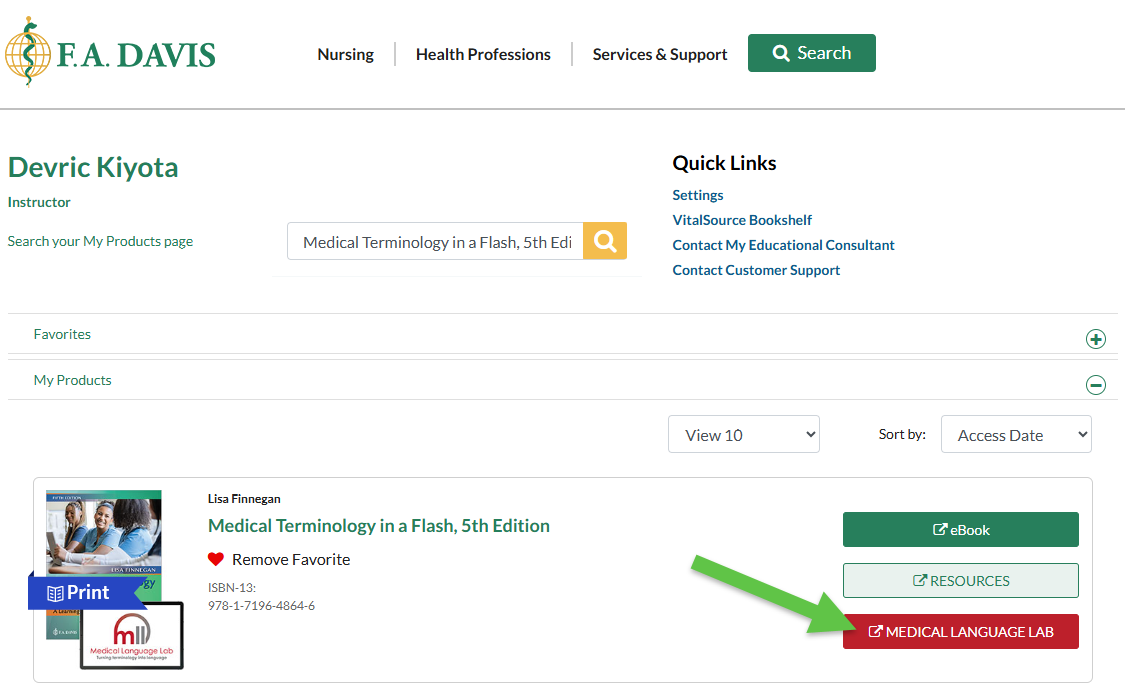
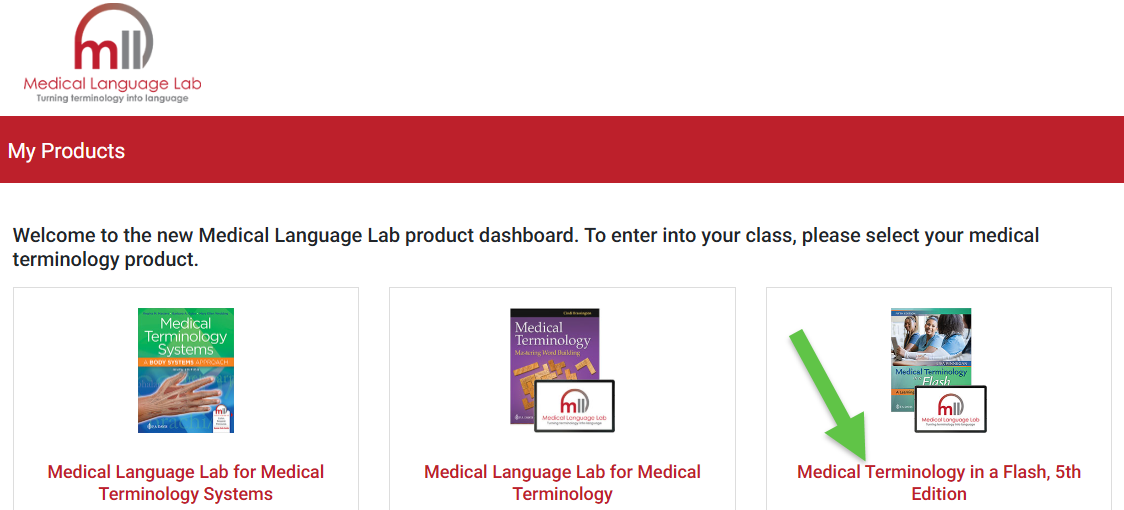
Clicking a "Medical Language Lab" button will launch your Medical Language Lab My Products page. On this page, you will see all the MLL-enabled textbooks you've got access to.
On this page, find your textbook again and click its hyperlinked name to navigate to your textbook's Classes page.
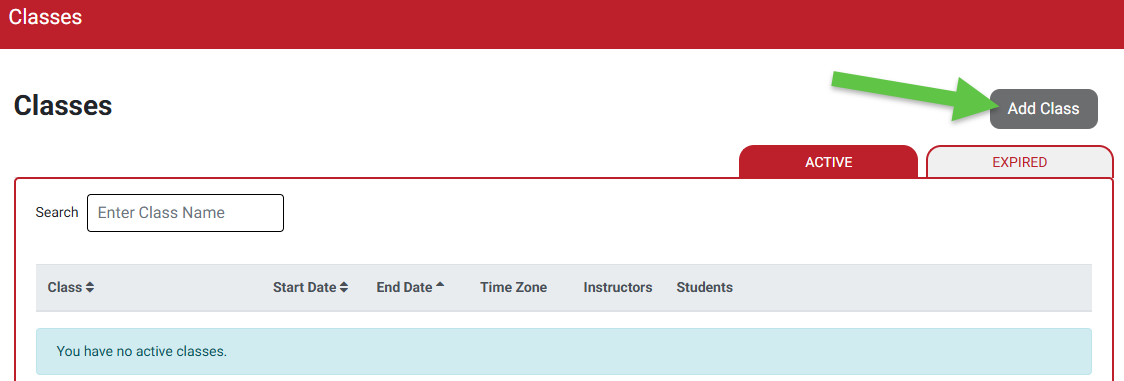
Before your MLL-enabled textbook's Classes page houses your active and expired MLL classes, it will start empty.
Click the "Add Class" button to launch a Class Set-up, so you can begin creating your MLL class.
Complete your Non-integrated MLL Class Set-up
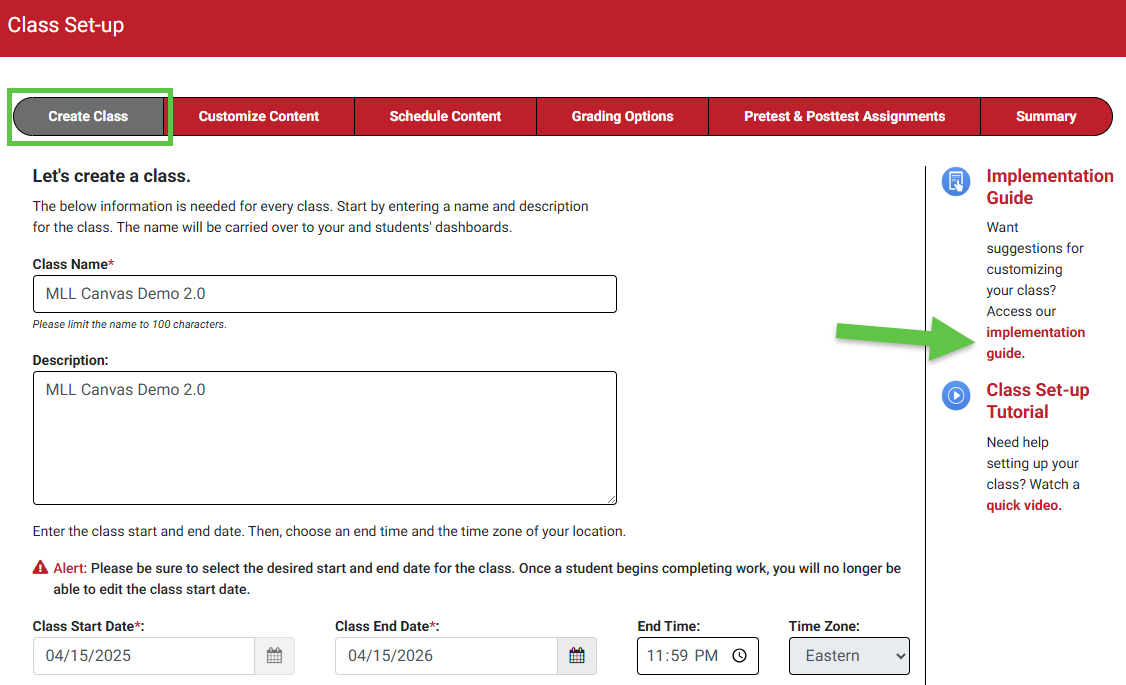
On the Class Setup page, you will see a menu with six steps of adjustable course settings.
The first step, "Create Class" will primarily require entering the macroscopic details of your MLL class, such as class name, the duration of the class via its Start and End Dates, and your time zone. We recommend giving your MLL class the same name as the LMS course it'll be integrated with, to increase student recognition.
If you encounter a setting on the "Create Class" step, or any other step of the Class Set-up, that you need to change and are unable to do so, please contact us via [email protected] so we can assist you.
On the right margin of your "Create Class" step, you'll see a link to load your Implementation Guide, which will give you more insights on how to implement MLL assignments within your syllabus.
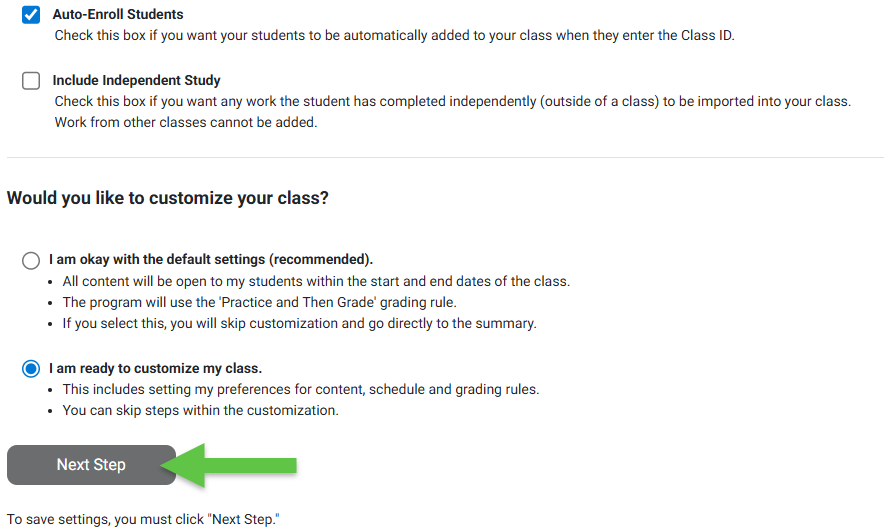
At the bottom of the "Create Class" step, please leave the "Auto-Enroll Students" checkbox checked, so your students will be enrolled when they launch an MLL class link inserted into your LMS course.
Additionally, please choose the "I am ready to customize my class." option, so you can progress through each possible step of your MLL Class Set-up.
Clicking the "Next Step" button saves whatever changes you made on a step of the Class Setup, in addition to progressing to the next step of the Setup.
On the "Select Content" step, you'll see a list of all the MLL assignment modules available for your textbook. Here, the topics turned ON should match the topics that will be covered in your syllabus.
If you will not cover a topic listed on this step, please turn it OFF, so your students will only see pre-made MLL assignments that align with what they expect to cover in-class.

You can preview or turn off content in MLL assignments down to the exercise level.
Click its "Details" button (1) to open the full contents of an MLL assignment. Then, click the down caret (2) for an activity type within an opened assignment to see the exercises it has available.
Before students begin working in your MLL class, please make sure you or an admin have finalized which exercises your students will be responsible for completing. To learn more about the different types of exercises within MLL assignment modules, please consult our student "Assignment Types" article.

When you are finished choosing which assignment modules to include in your MLL class, select “Next Step” to move on.

The "Schedule Content" step of your MLL Class Set-up is where you'll finalize due dates for your MLL assignments. If you want students to be penalized for late work in your MLL class, you will need to enter assignment End Dates on this page.
If you are creating an MLL class to be copied then led by a different instructor, please inform that instructor they will need to enter due dates on the "Schedule Content" step of their cloned MLL class. For more information, please consult our "Copying Classes" article.
Select “Set Dates,” and then click “Next Step” to see a list of assignments available in your course.

For each assignment, you will see a Start Date and an End Date. Most instructors forgo setting Start Dates, giving students have the opportunity to work ahead and/or preview the content in upcoming topics.
For each End Date, select the deadline that aligns with your intended due date for that assignment. The student will still be able to access the assignment after the End Date, but any new work submitted will be flagged as late and given a pending grade of “0” which you can override at your discretion.
For more information on late work, see the “MLL Gradebook Features” section of our Instructor "Grading" article.

When you are finished selecting your due dates, click “Next Step” to save your changed due dates and move on.

On the "Grading Options" step of your MLL Class Set-up, you can choose Grading Rules for the different activity types within your MLL assignments.
Grading rules should remain at the default settings for most MLL classes. You do not need to make any changes on this page, but we recommend familiarizing yourself with these grading rules and informing your students of your selections in the first week of class.
Information about alternative grading rules can be found on the right-hand side of the page. For more information on grading in MLL, please consult our "Grading" article for instructors.
Click the dropdown menu to the right of an activity type to choose its Grading Rule. You won't be able to select Grading Rules for all activity types. For example, Generation exercises (if included with your textbook) always have to be manually graded, and Review exercises are always graded on first attempt. Please note that Grading Rules also cannot be updated once students have enrolled and begun working in the course.

When you are finished making changes, select “Next Step” to move on.
If you wish to add a Pre-Test and/or Post-Test to your MLL class, you'll be able to finalize the settings for those assignments on the "Pretest & Posttest Assignments" step of your MLL Class Set-up.
For a Pre-Test, you'll be able to set a due-date, then choose if you want to randomize the questions in your Pre-Test and/or generate a study plan for students in regards to their performance on their Pre-Test.
You need only set a due-date for a Post-Test, if you choose to assign one. Many instructors use a Post-Test as a review for their class' final exam, because it's not designed to be a final exam itself.

You won't be able to choose the exact questions that make up a Pre-Test and/or Post-Test, but you'll be able to toggle off/on the topics those assignments will draw questions from.

When you are finished making changes and/or setting due dates, select “Next Step” to move on.
Integrate your MLL Class
The "Summary" step of your MLL Class Set-up gives you a chance to review the settings choices you've made.
Though it instructs you to do so at the top of the "Summary" step, you won't need to share your Class ID with your students. Because your MLL class will be integrated within your LMS course, your students will automatically enroll in your MLL class by launching MLL class links that will be inserted into your LMS course.
Furthermore, be advised that completing an MLL Class Set-up will not automatically integrate that class within your LMS course. Please email your Class ID to [email protected], alongside a request for more information on integrating your MLL class within your LMS course.


