


For information on how to access the eBook associated with your Davis Edge class, click to jump to the "Access Your eBook" section of this article.
Once you've got access to your eBook, click to jump to the "VitalSource eBook Features" section of this article to learn about key features within your VitalSource eBook reader.
Access Your eBook
Before you access the eBook of your textbook for the first time, please successfully launch a Davis Edge assignment via your LMS course. For more information on launching Edge assignments and redeeming access to your textbook, please consult our Student "Quick-start Guide" article.
When you successfully launch an Edge assignment via your LMS course, an FADavis.com account that's connected to your institutional login email will automatically be created.
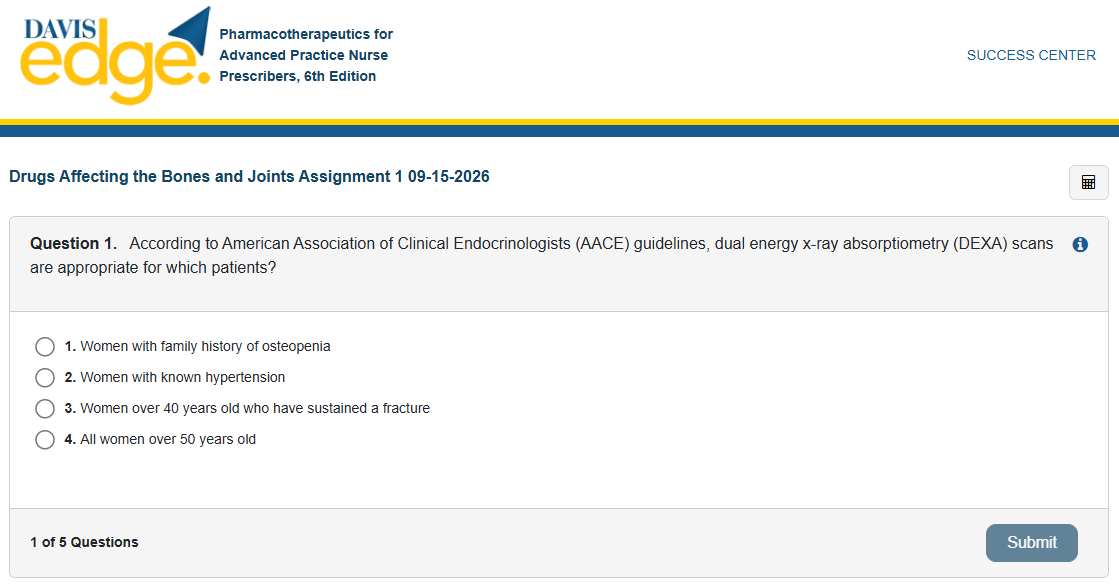
Once you have successfully launched an Edge assignment, you will be able to log into FADavis.com to begin navigating toward the eBook for your textbook.
You must log into FADavis.com whenever you wish to access your F.A. Davis eBooks.

If this is your first time logging into FADavis.com after successfully launching an Edge assignment, you may have to use the "Forgot Password?" feature to set a password for your FADavis.com account.
If you're logging into FADavis.com to access your eBook before successfully launching an Edge assignment, please create an account using your institutional email address.
You may have an FADavis.com account that pre-dates the class in which you'll complete Edge assignments. If the email address you use to log into FADavis.com differs from the institutional email address you use to login into your LMS, please email [email protected] to request an account merge.

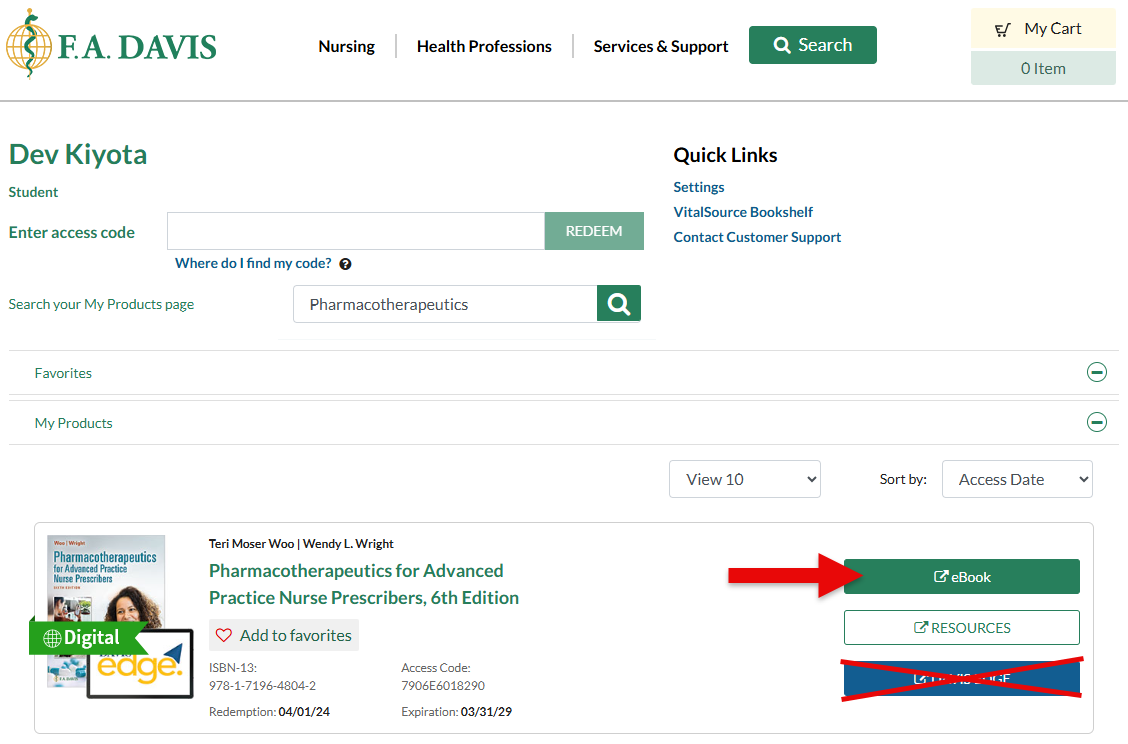
After logging into FADavis.com, you'll see your My Products page, with listings of all the F.A. Davis textbooks and products you have access to.
Find your textbook and click its "EBOOK" button.
Do not navigate to Davis Edge via your My Products page, because doing so will prevent your Edge assignment grades from being recorded correctly. You must always access your Edge assignments by launching them via your LMS course.
F.A. Davis eBooks are hosted by a separate service called "VitalSource." When first opening an F.A. Davis eBook, you may be prompted to create or log into a VitalSource account.
When creating a VitalSource account, enter the same email you use to log into your LMS.

VitalSource eBook Features
Even if you've gained access to Davis Edge content via the purchase of a new print book, you'll have access to the eBook of your required textbook.
Exercises completed in your eBook will not be visible by your instructor, nor will they report to your Gradebook.
Once you've opened your eBook in your browser, click the "More Options" button in the top-right of the VitalSource eBook reader to access a couple of key features.
Clicking "Read Aloud" will initiate audio playback of the text you have onscreen, essentially turning your eBook into an audiobook.
Clicking "Download App" will present you a QR Code you can use to download the VitalSource Bookshelf app. Using the Bookshelf app, you can download your eBooks to access them offline.
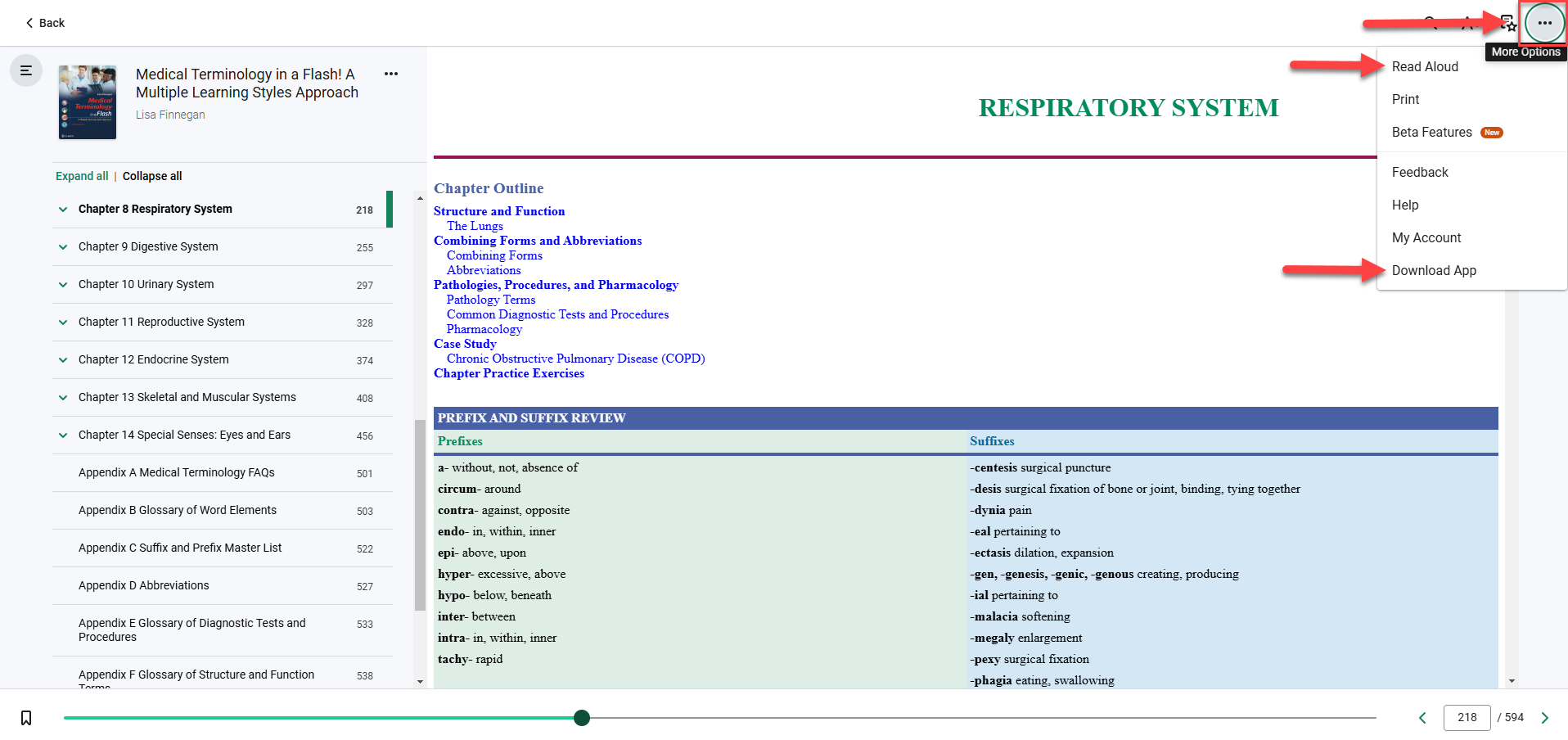
To the left of the "More Options" button, click the "Highlights, Notes, Bookmarks, and Flashcards" button, to open your "Workbook" tab.
In your Workbook tab, you'll find VitalSource's annotation, bookmarking, and flashcard features. Your usages of features within your Workbook tab will save, for you to return when you next open your eBook.
You can also access Workbook tab features by highlighting and right-clicking text in your eBook.

The above are key features of your VitalSource eBook reader. For full information on VitalSource features and the VitalSource Bookshelf app, please consult VitalSource's support article database.

