

*Though it only features screenshots from Dosage Calc 360, the information in this article applies to all Davis 360 platforms, including Dosage Calc 360, Med Term 360, and Test Success 360.
For details on how Davis 360 assignments are graded, click to jump to the "Grading" section of this article.
To learn how to accept late work, extend due dates, or reset assignments within your Davis 360 Gradebook, click to the jump to the "Davis 360 Gradebook Features" section of this article.
If you want to know how to review student performance on your Davis 360 assignments, click to jump to the "Actionable Analytics" section of this article.
Before your students can complete Davis 360 assignments, you need to set up your integrated Davis 360 class. If you need information on creating your integrated Davis 360 class, please consult our instructor "Quick-start Guide" article.
Grading
Subtopic Practice exercises will be graded based on completion. Quizzing assignments and Post-Assessments will be graded based on completion or competency, depending on what was chosen in your Davis 360 Class Setup. To learn more about your Davis 360 Class Setup, please consult the "Finalize your Davis Class Setup" section of our instructor "Quick-start Guide" article.
Once the due date for an assignment passes, any incomplete Subtopic Practice exercises and/or Post-Assessments, as well as individual Quizzing Assignments, will be scored as 0%. Likewise, late submissions will be scored as a 0, as will assignments and exercises that students haven't opened and/or made progress on prior to their set due dates.
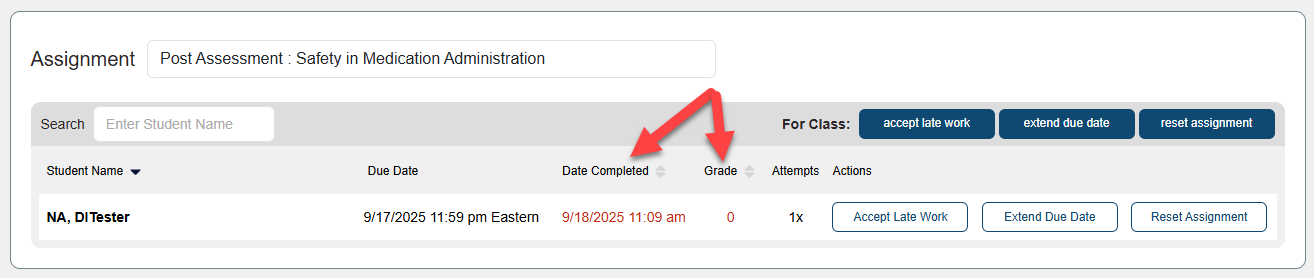
Zeroes for late submissions will appear in red, and can be overwritten via the Davis 360 Gradebook's "Accept Late Work" feature.
Though your Davis 360 class is integrated within your LMS course, your student's Davis 360 assignment scores won't write back to your LMS Gradebook. If you're assigning work within Davis 360 for a grade, you will need to manually enter Davis 360 assignment grades into your LMS gradebook.
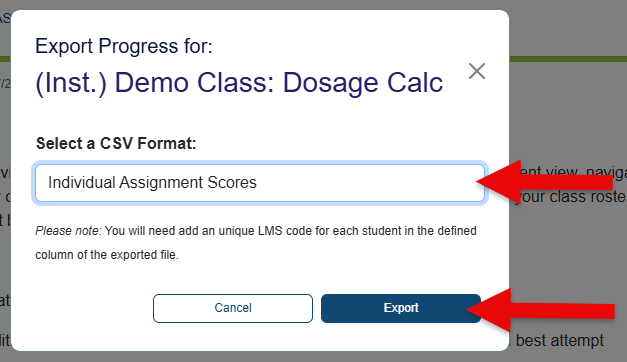
You can download a spreadsheet version of your current Davis 360 Gradebook, to reference while manually entering grades. On the top-right of your Davis 360 Gradebook page, click the "Export Gradebook" button.

On the ensuing popup, we recommend choosing "Individual Assignment Scores" from the "Select a CSV Format" dropdown menu, to get an easy-to-read spreadsheet. Then, click "Export."
The spreadsheet you export will be current as of the time it was exported. Because of this, we recommend waiting until the end of your semester to begin manually entering grades into your LMS gradebook.
If a student’s grades do not appear in your Davis 360 Gradebook, they may be completing work independently or under an email account that is not enrolled in your course. Consult our "Enrollment Issues" support article, for more information on why a student isn't being recorded by your Davis 360 Gradebook.
Davis 360 Gradebook Features
You can use the Gradebook page in Davis 360 to verify how your students are being scored for credit, and to enter grading exceptions for late work, extensions, or resetting assignments.
To access your Davis 360 class' Gradebook, navigate to your Davis 360 class, then click "Gradebook" in the top-left navigation bar.

Your Davis 360 Gradebook has four Display options.
The "Student" Display option will allow you to view all grades for an individual student by using the "Student" dropdown menu.

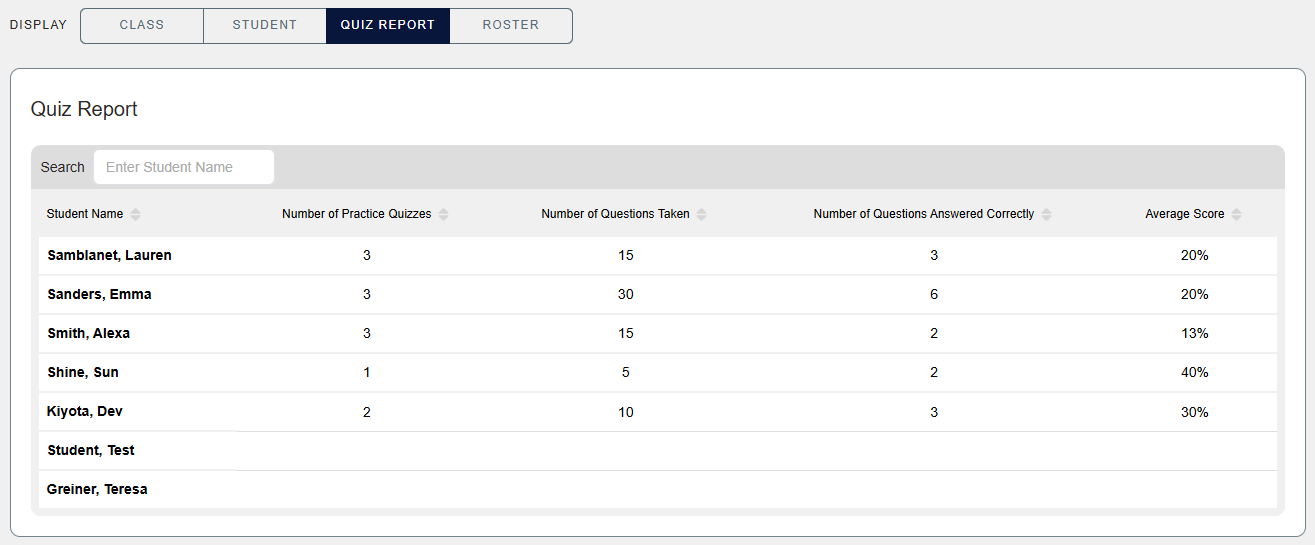
The "Quiz Report" Display option will show you if students are making and taking Practice Quizzes, as well as their overall performance on those Practice Quizzes.
If your students would like an additional optional resource which allows them to create ungraded Practice Quizzes, please direct them to our "Practice Quizzes" article.
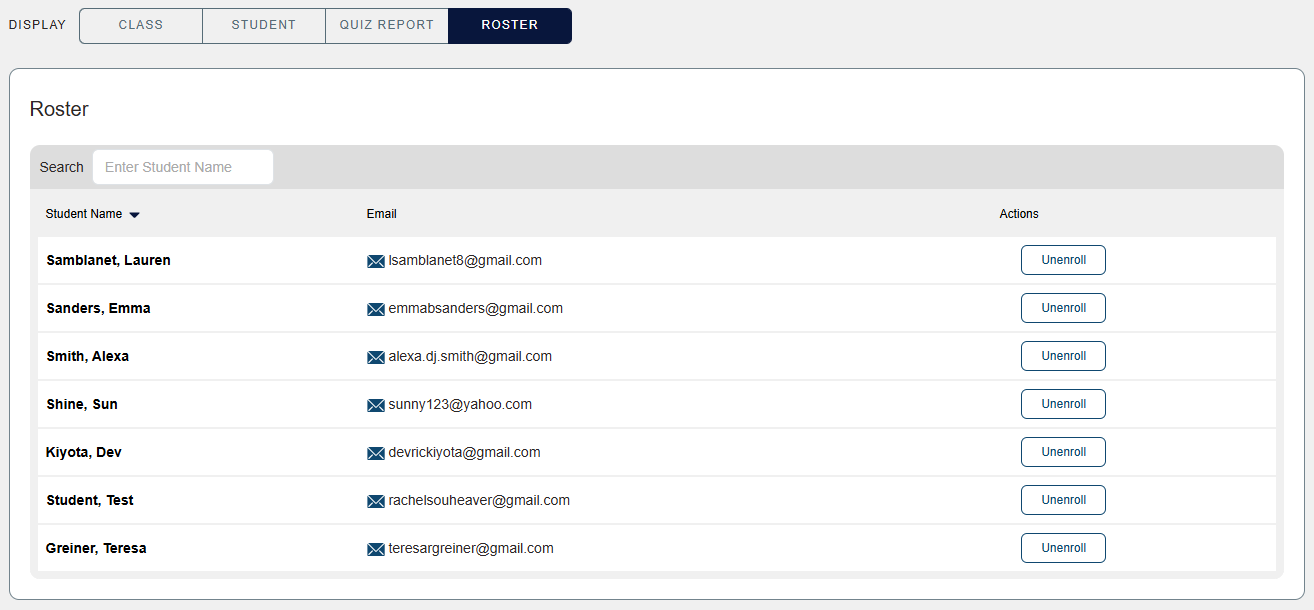
Your Davis 360 Gradebook's "Roster" Display option allows you check that all of your students have enrolled in your Davis 360 course. Please confirm your student roster after the start of your class, to make sure all your students have enrolled correctly.
Your Davis 360 Gradebook will initially open in the "Class" Display option, wherein you can use the "Assignment" dropdown menu to enter grading exceptions for whichever assignment you select.
You've got three grading exceptions you can enact via your Davis 360 Gradebook: Accept Late Work, Extend Due Date, and Reset Assignments. These features can be utilized on the student-by-student and class-wide level.
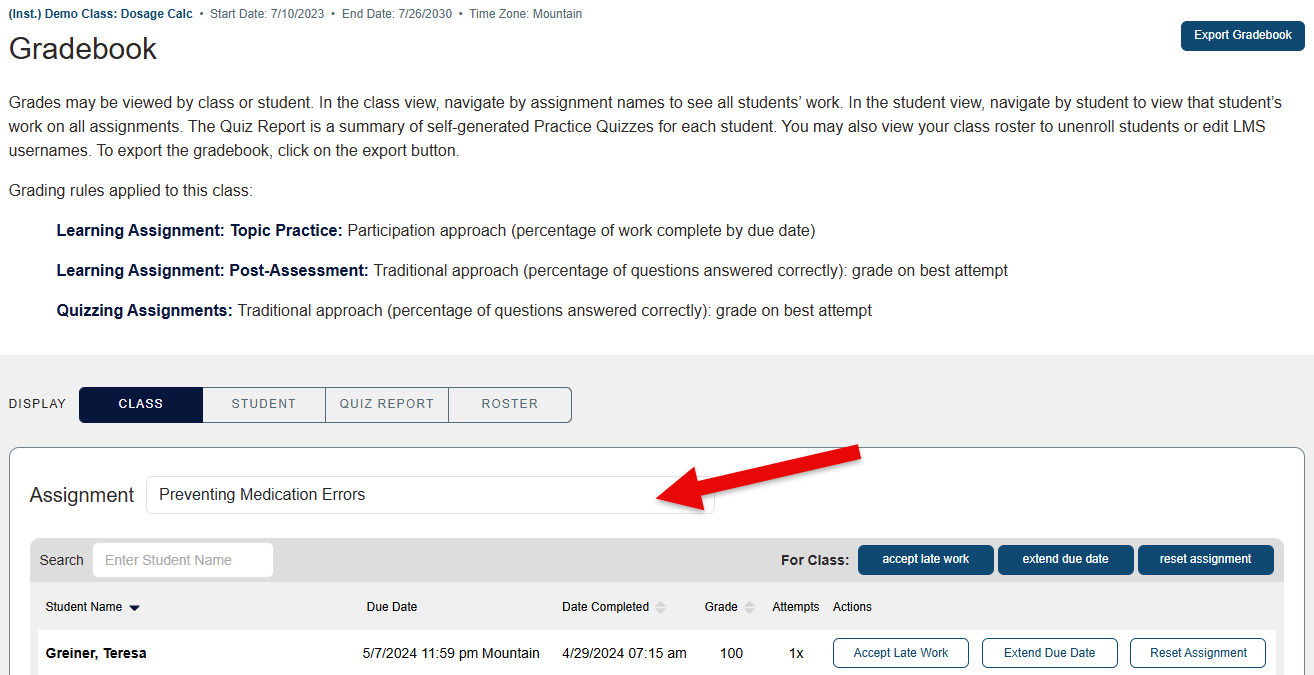
Accept Late Work
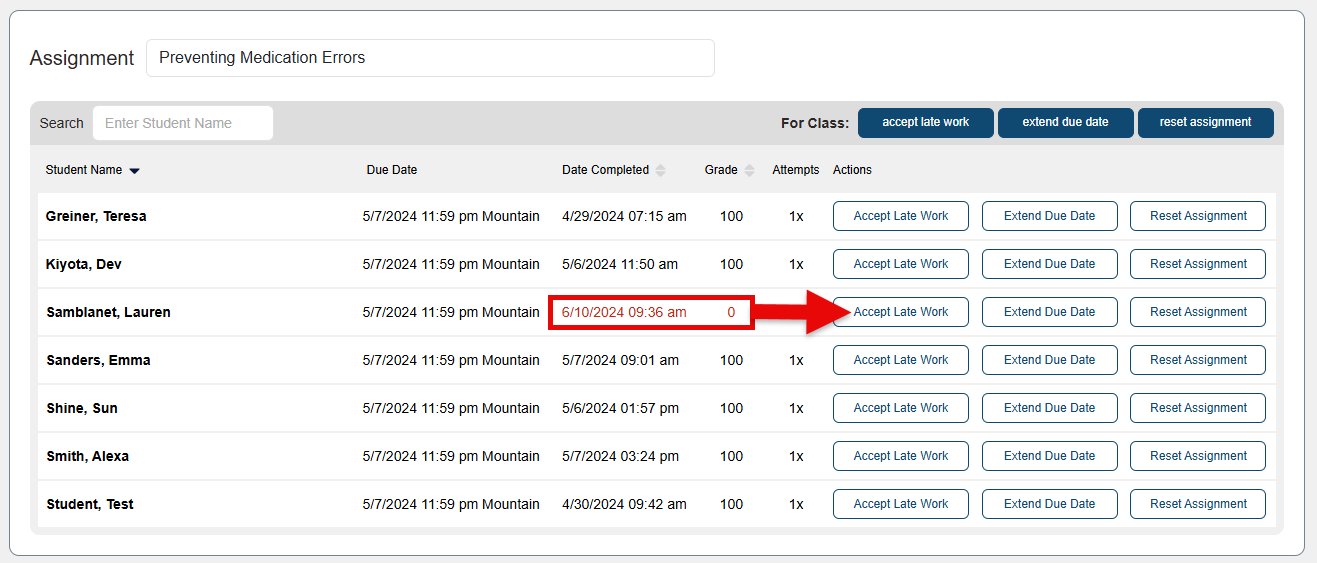
Scores for assignments or exercises submitted after their respective due dates will be marked with red Date Completed entries and red zeroes in your Davis 360 Gradebook.
To allow late work from a student, click "Accept Late Work" next to their name.
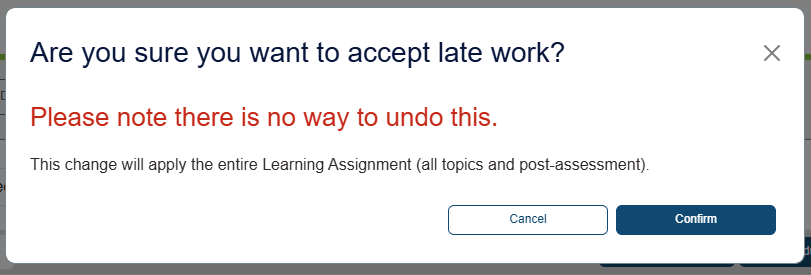
When opting to accept late work at the student or class level, please note the pop-up message. Select "Confirm" to accept the late work.
Late work that has been accepted will change from red to black text. The student’s grade will update to reflect the score they earned on that assignment.

Extend Due Date
To extend a due date for an individual student, select "Extend Due Date" next to the student’s name.

A calendar window will popup. Choose the assignment's new due date, then click "Confirm."
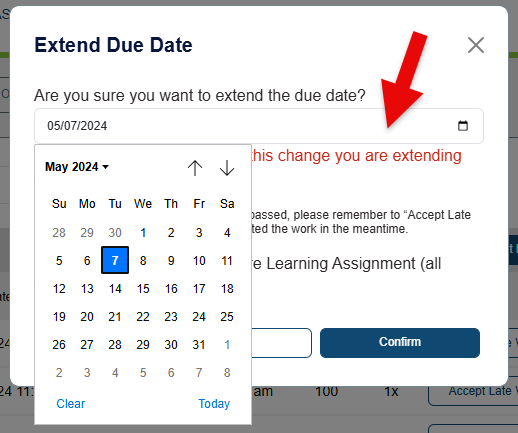
The updated due date will then be displayed in the Gradebook for that assignment.

Reset Assignment
To reset a Davis 360 assignment for an individual student, select the "Reset Assignment" button next to that student’s name.
You might get requests from your students to reset Post Assessments and Quizzing Assignments, if your Davis 360 Post Assessments and Quizzing Assignments are set to be single-attempt.
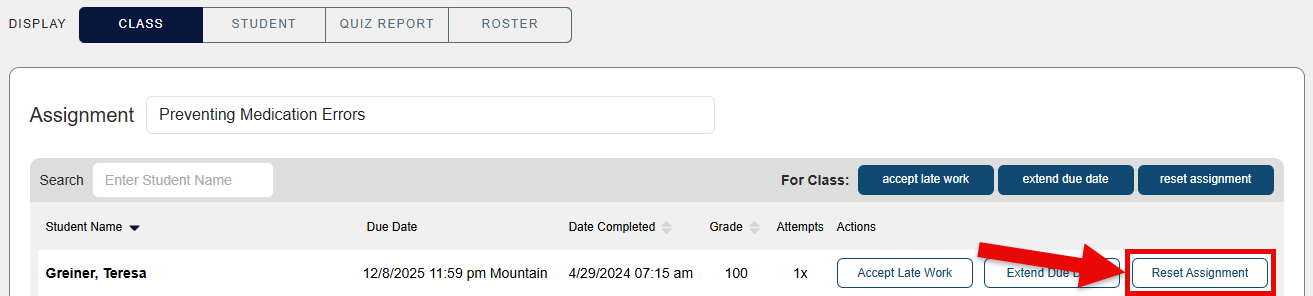
When opting to reset Davis 360 assignments, please note the pop-up message. This action cannot be undone, previous scores won't be saved, and the student(s) for whom the assignment is reset will need to complete that assignment from scratch.
Select "Confirm" to reset the assignment content.
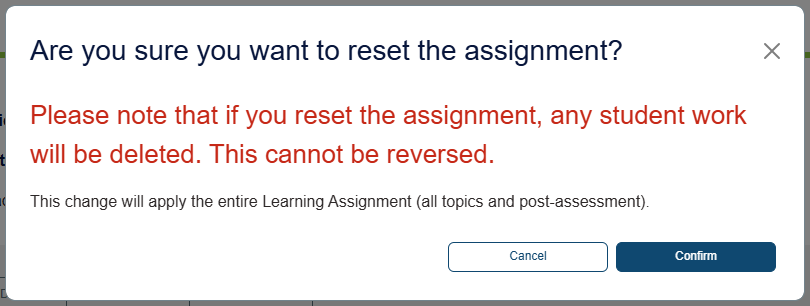
The scores for reset assignments will remain blank until the student completes the assignment content again.

If you've reset an assignment after its due date, the student's previous grade may be replaced with a red zero indicating the assignment is late. You can use the “Extend Due Date” button to give the student a new due date for their next attempt, or use the "Accept Late Work" button to accept their work after they submit again.
Class-wide Grading Exception
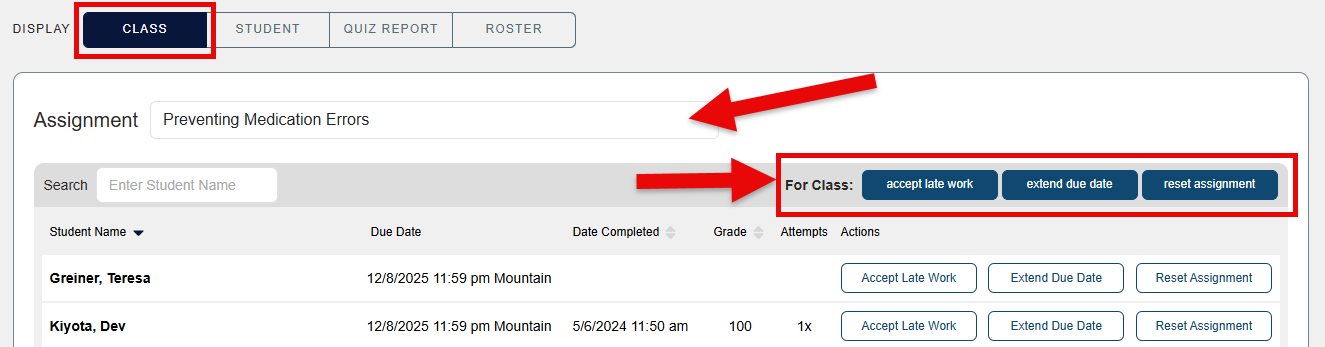
Sometimes you may wish to make a grading exception on an assignment that applies to all students in your Davis 360 Gradebook, such as extending the assignment due date for the whole class. To enact a class-wide grading exception, start by selecting the assignment from the dropdown menu, then use the buttons in the "For Class:" line to make your selection. You will find these "For Class:" buttons when viewing the "Class" display of your Davis 360 Gradebook.
Note that grading exceptions cannot be reversed, so make sure you have selected the correct assignment using the "Assignment" dropdown menu and that you are ready to make this exception for all students before you proceed.
Actionable Analytics
While the Davis 360 Gradebook records how students are graded for credit, the "Assignments" page provides more detailed analytics on student competency and engagement.
To get further insight on your students' Davis 360 performance, navigate to your class' "Assignments" page.

At the top of your Assignments page, you've got "Display" options, to choose which Davis 360 assignment type you want to review performance on.
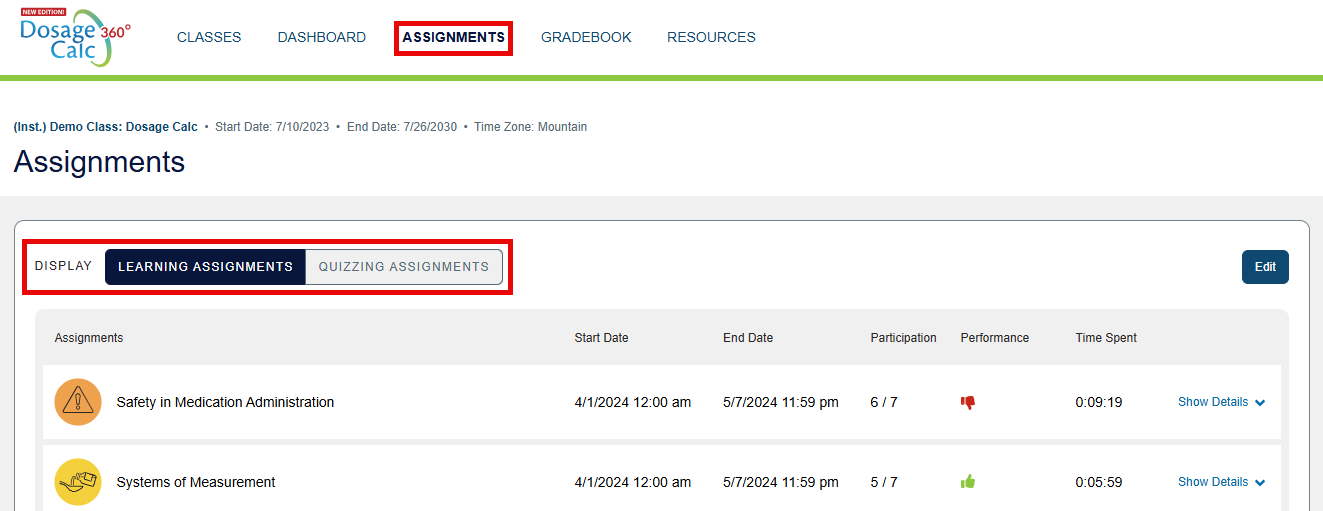
Though your subtopic Practice exercises will be graded based on completion, you'll still be able to review your competency on those exercises via your "Assignments" page.
For each Davis 360 assignment, you get analytics like average class-wide competency and average time spent on the assignment. When displaying performance on any Davis 360 assignment type, take note of the color-coded performance key viewable at the bottom of your Assignments page.

Click the "Show Details" dropdown link for an assignment or assignment module to open a table with student-by-student analytics for the assignment in-question. If you've opened an assignment module, you can click the "Show Students" dropdown link to see student-by-student analytics for a subtopic Practice exercise.
If you set your Post Assessments and/or Quizzing Assignments to be graded on best attempt, the competency displayed for said assignment will be the student's best score.
After opening the table for student performance on an assignment, click the "Results" button for a student to see their exact answers on a Post Assessment or Quizzing Assignment.

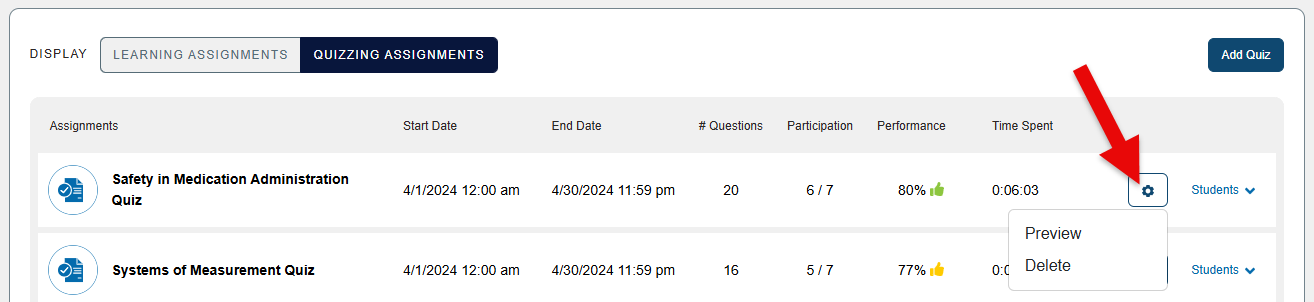
If you click the cog icon for a Quizzing assignment, you'll be able to Preview or Delete that quiz.
The Preview option allows you to view the assignment's answer key.
To fully preview assignments through the student’s experience, click the "Preview Student Mode" button found on the top-right of your Davis 360 class' Dashboard.


