


First, launch a Medical Language Lab class link inserted into your LMS course and navigate to your textbook's Classes page. If you need more information about launching MLL class links, please consult our Instructor "Quick-start Guide" article.
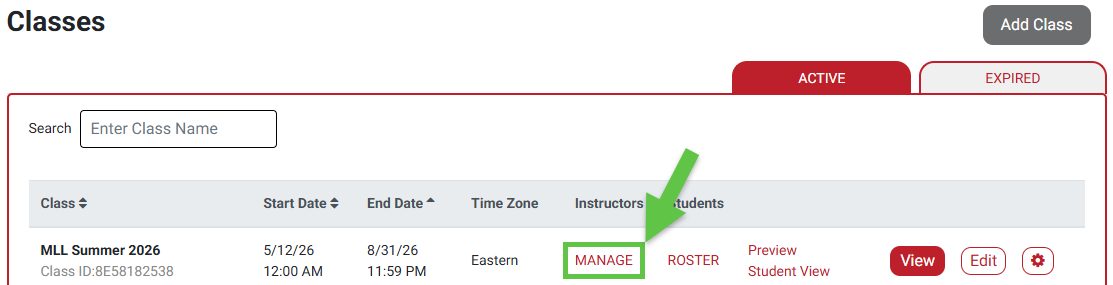
Once on your MLL textbook's Classes page, click "MANAGE" underneath the "Instructors" column for your class.
Found in the top-right of your "Manage Instructor" screen for an MLL class, click the "Add Instructor" button.

Enter your colleague’s email address and click "Search." Make sure to enter the email address your colleague uses to log into their Learning Management System.
If the instructor’s email was not found, please contact your F.A. Davis Educational Consultant to request access for that instructor.
If the instructor’s email was found, proceed to select their Access Type.

For an added instructor's access type, you may select one of the following options:
- Full Access: Instructor has permission to edit the class, view students’ work, add/remove instructors, or delete the class.
- Edit Class: Instructor has permission to edit the class, view students’ work; cannot add/remove instructors or delete the class.
- Read Only: Instructor cannot make any changes to the class; only view the setup and students’ work.

Click "Save" at the bottom to confirm.

The newly-added instructor will now appear in your class' Instructor List. Select the "Edit" button to change an instructor’s Access Type or "Delete" to remove an instructor from the class.

The Master instructor is the individual that created the class.
The Lead is the instructor whose name/email is associated with the class, i.e. whose name the class is under.

