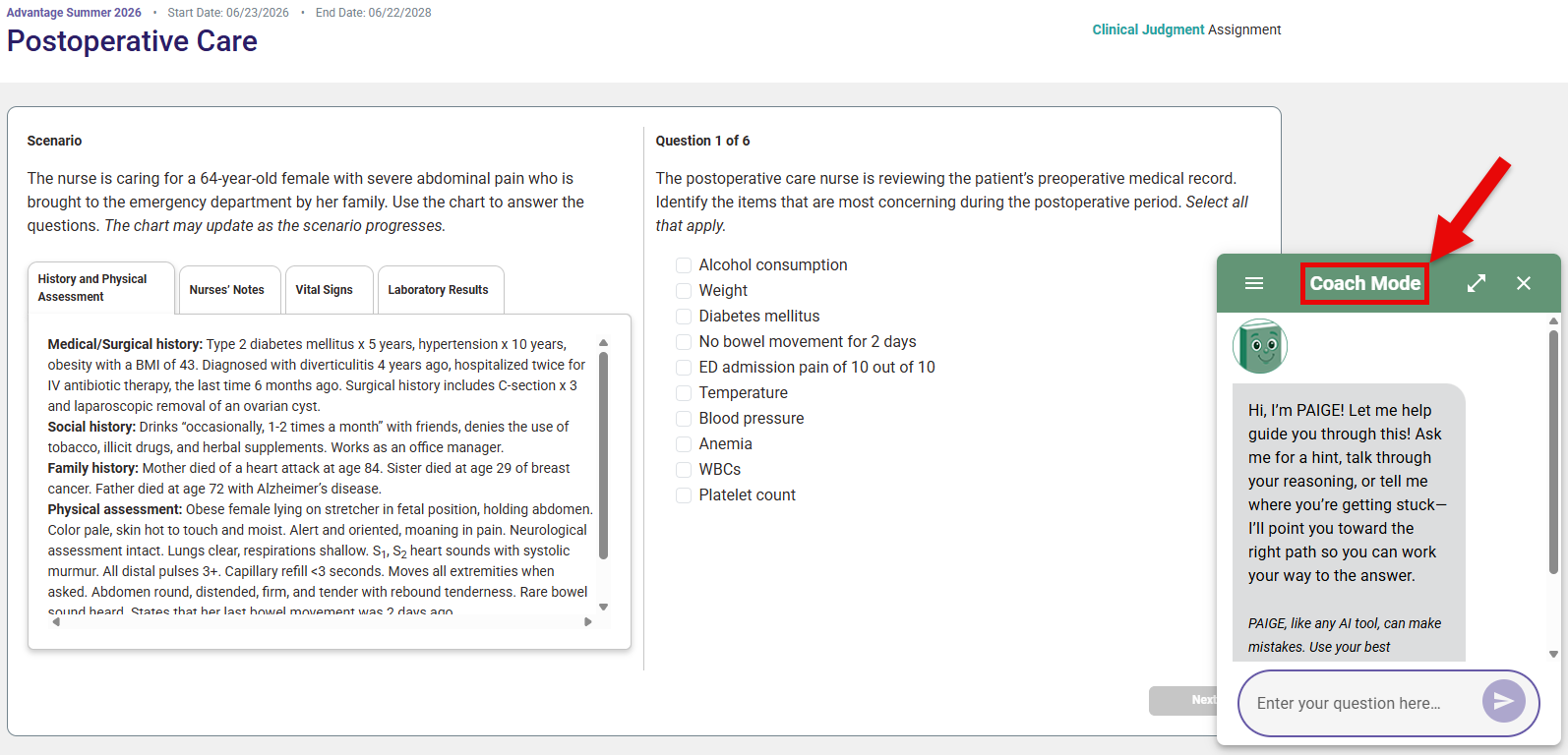
PAIGE is an AI tutor designed to enhance your learning, clarify difficult concepts, review content, strengthen clinical judgment, and offer opportunities to practice applying knowledge.
If your instructor has enabled PAIGE within your Davis Advantage class, you'll click the PAIGE icon in the bottom-right of your Advantage pages to open PAIGE's chat window.
PAIGE won't be available when you work on certain Advantage assignment types, including the Pre- and Post-Assessments of Personalized Learning assignments, as well as the entirety of Simulations and Quizzing assignments. For more information about Advantage assignment types, please consult our Student "Assignment Types" article.
Learn Mode
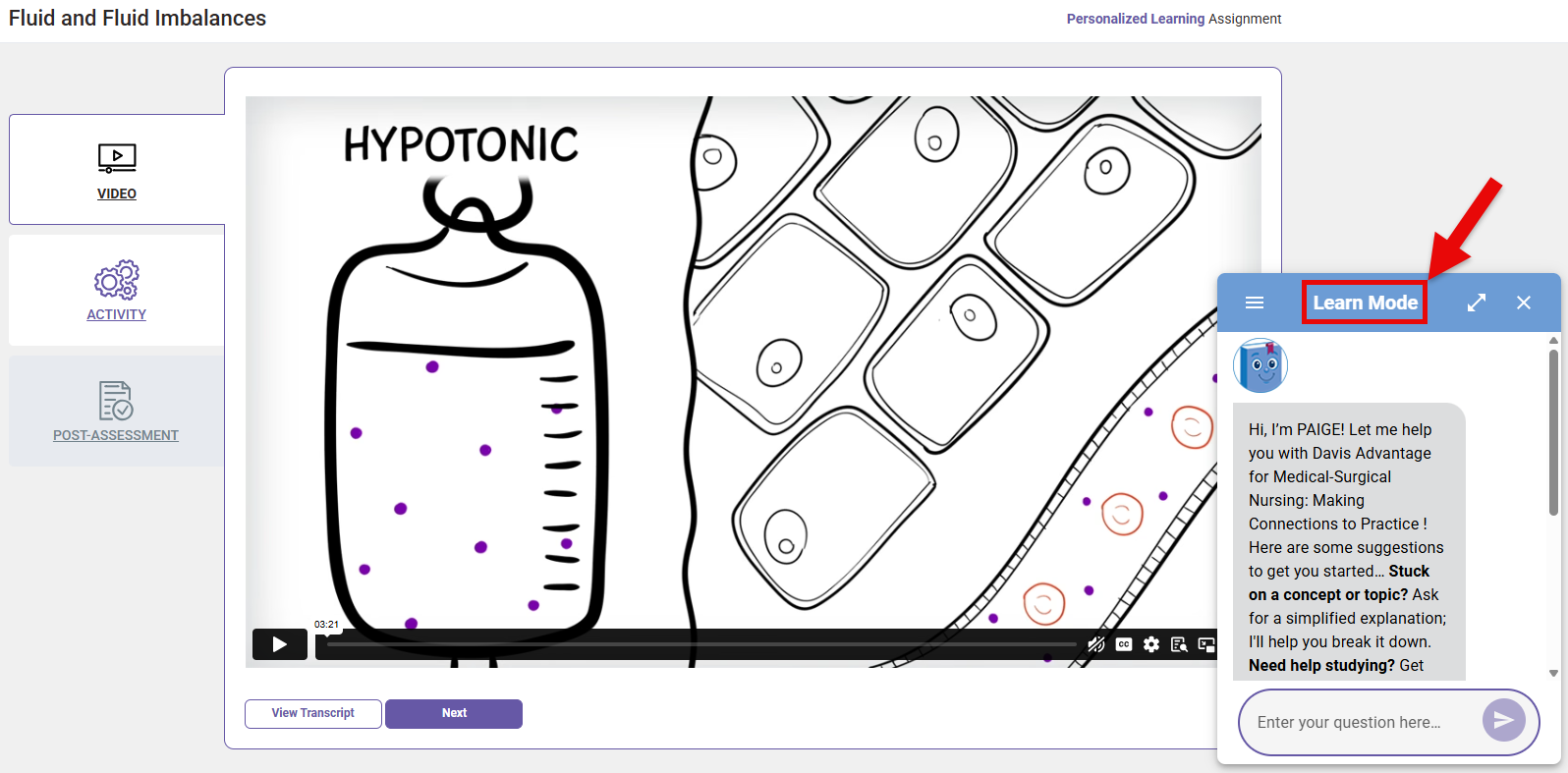
You can access PAIGE's Learn Mode in non-assignment learning areas, such as your Advantage class' Dashboard, Advantage Resources page, and Personalized Learning Plan page.
During Advantage assignments, Learn Mode is only available in certain sections, like the video sections of Personalized Learning assignments, as well as Overview and Results pages of Personalized Learning assignment Pre-Assessments.
In Learn Mode, you can prompt PAIGE to break down complex concepts step-by-step, summarize chapters and key topics, and/or answer your questions about course content.
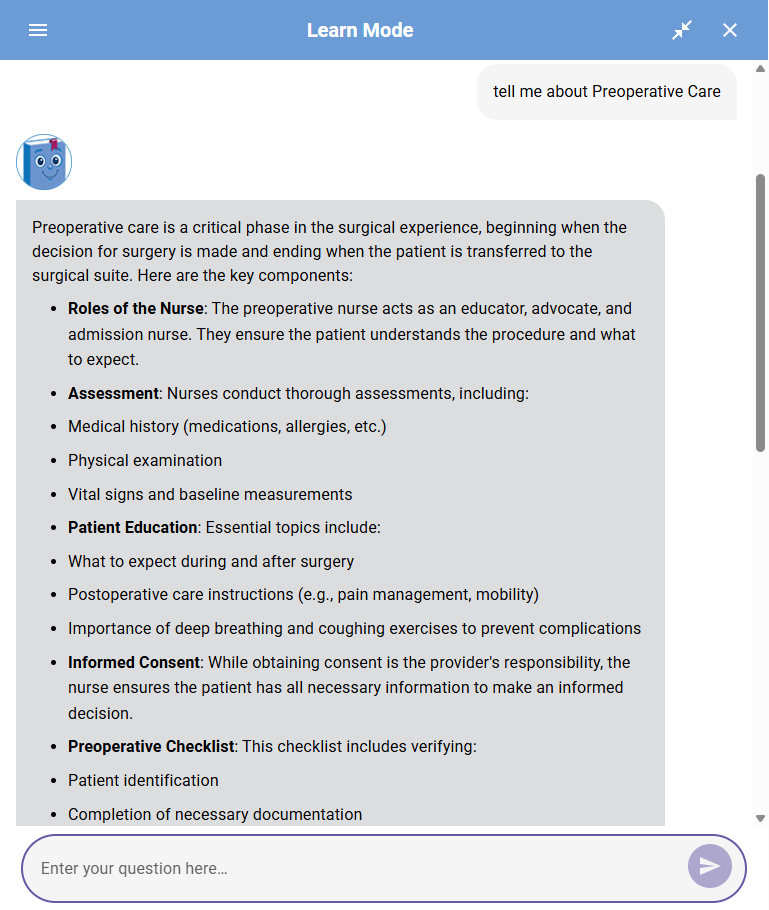
For more opportunities to apply knowledge from your textbook and Advantage class, you can prompt PAIGE to generate study guides and practice quizzes.
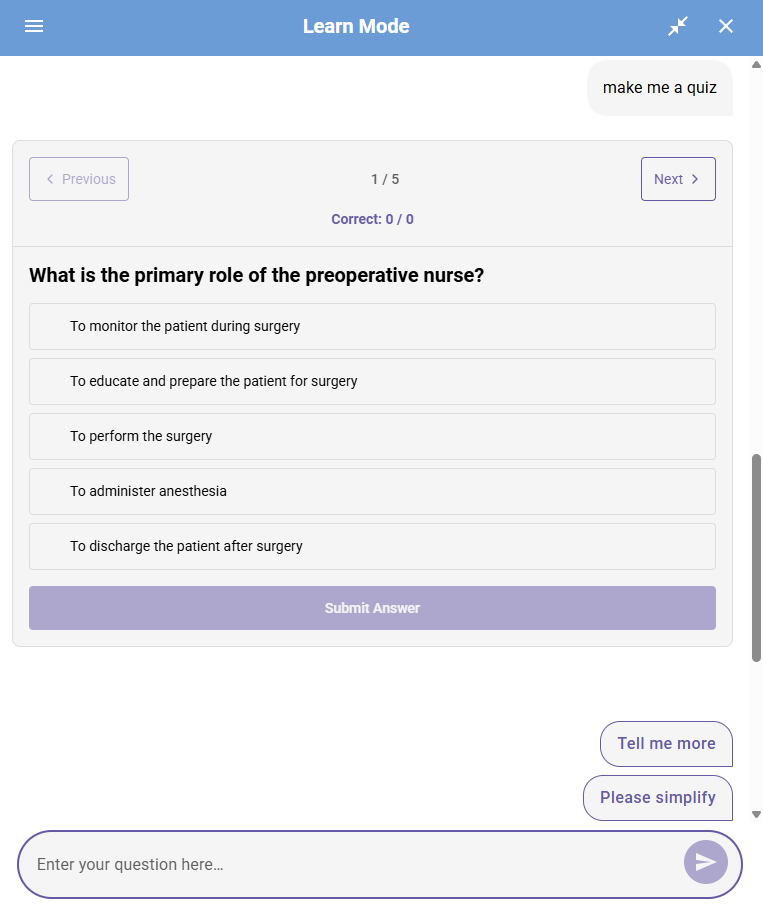
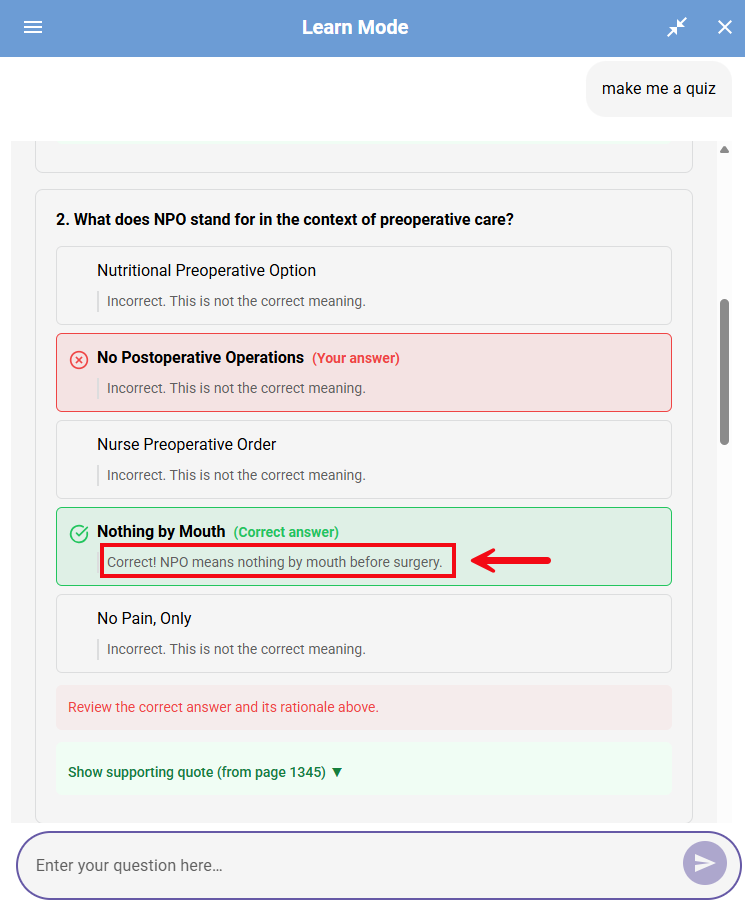
Practice quizzes generated by PAIGE will provide immediate feedback for your answer choices, with rationales for each possible answer, and page references so you can bring your study back to your textbook.
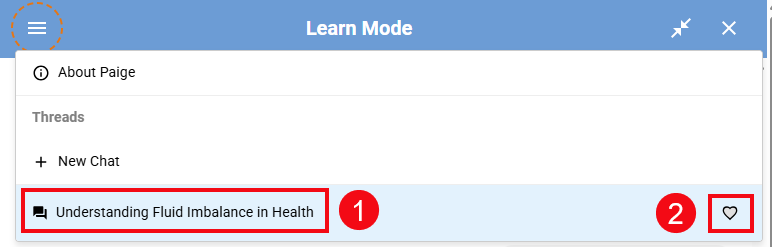
You can also save chat threads to revisit later (1) by clicking the heart icon (2).
To access past chats, click the three lines in the upper-left corner of PAIGE's chat window.
Coach Mode
In Coach Mode, PAIGE will provide scaffolded guidance rather than direct answers, by asking questions that will lead you to a deeper understanding of Advantage content.
Coach mode is accessible within Clinical Judgment assignments and the activity sections of Personalized Learning assignments.