

Each integrated FA Davis assignment inserted into your Canvas course has assignment post settings you'll need to confirm or finalize. Before editing any Canvas assignment post settings for your integrated FAD assignments, please confirm with your LMS admin, course coordinator, and/or the FAD Integration team whether you're authorized to edit assignment post settings as you intend.
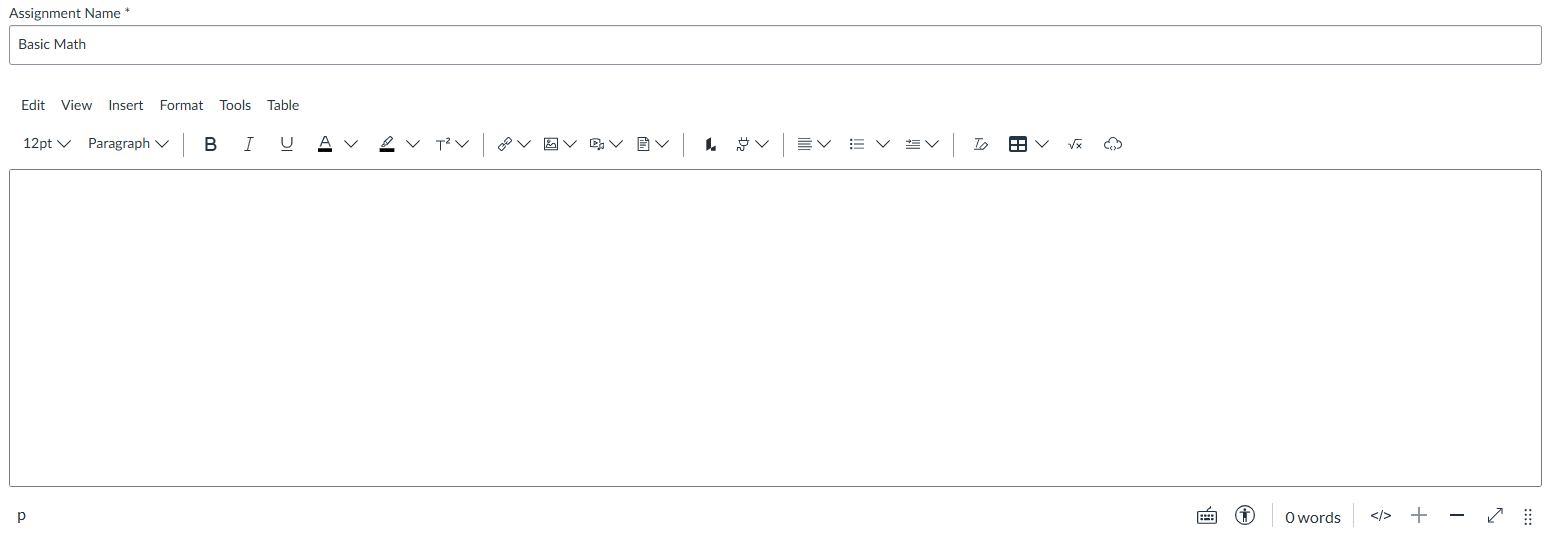
When an integrated FAD assignment is inserted into your Canvas course, the "Assignment Name" entry of its Canvas assignment post will auto-populate. If needed and authorized, you can change the auto-populated Assignment Name of your integrated FAD assignment to better suit your Canvas course setup.
Beneath your FAD assignment's Assignment Name, you can add an assignment description. Please confirm with your LMS admin and/or course coordinator whether there are standardized assignment descriptions that need to be added for your integrated FAD assignments.
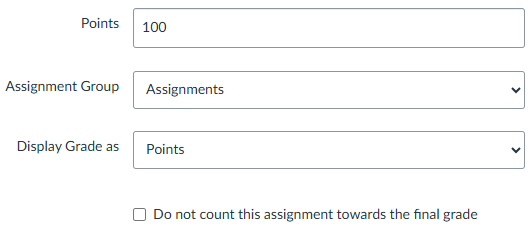
Within your Canvas assignment post settings, you can set credit values for your inserted FAD assignments, as well as include your FAD assignments in Assignment Groups. Please confirm with your LMS admin and/or course coordinator whether there are standardized credit values that need to be set for your integrated FAD assignments.
Scores for your FAD assignments will write-back as a percentage, and students must always access your FAD assignments via your Canvas course for their grades to write-back automatically and correctly. For further write-back details, including how the write-back for one FAD assignment type can differ from another, please consult the Instructor "Grading Information" article associated with your FAD product:
- Davis Advantage Instructor Grading Information
- Medical Language Lab Instructor Grading Information
- Davis 360 Instructor Grading Information
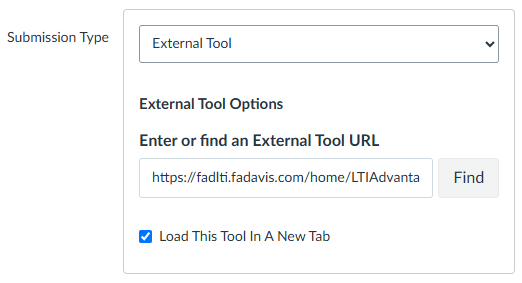
For all integrated FAD assignments, you must leave your "Submission Type" settings untouched, with only the exception of confirming the "Load This Tool In A New Tab" checkbox is checked.
Integrated FAD assignments must launch in a new tab.
For all integrated FAD assignments, your "Submission Attempts" setting must be set to "Unlimited." If you limit the attempts for an FAD assignment, it will cease functioning after your selected attempt number has been exceeded.
Your integrated FAD assignments are designed to be complementary to reading textbook chapters and/or your in-class activities, and to otherwise provide engaged exposure to the topics you'll cover in your class. Because of this, you can expect that students may retake your FAD assignments for their own review, and the majority of your FAD assignments will have in-product settings to facilitate that type of review.
Furthermore, FAD assignments are not designed to be used as formal exam or assessment content.

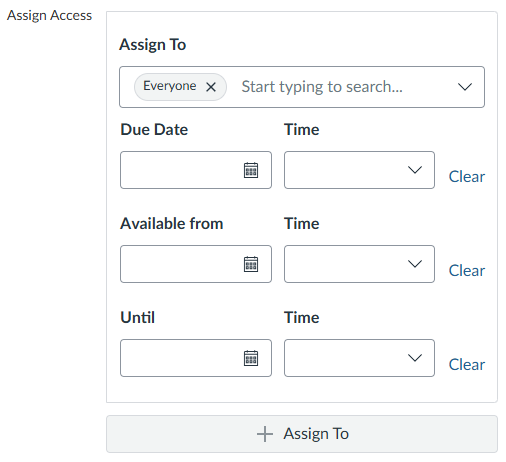
You may need to set due dates for your FAD assignments on Canvas and within your FAD product's Class Setup.
If a student does not complete an assignment by its due date or completes an assignment after its due date, your FAD product will write-back a zero to your Canvas gradebook. A zero for an FAD assignment in your Canvas gradebook should be interpreted as an indicator that your student either did not complete the assignment by its due date or completed the assignment after its due date.
If you do not later set due dates within your FAD product's Class Setup, your FAD product will not know when to write-back in the event of a student not completing an assignment by its due date, or in the event of a student completing an assignment after its due date.
For more information on how to appeal late-work penalties within your integrated FAD class, please refer to the "Gradebook Features" section of the Instructor "Grading Information" article associated with your FAD product:
- Davis Advantage Instructor Grading Information
- Medical Language Lab Instructor Grading Information
- Davis 360 Instructor Grading Information
Don't forget to "Save" or "Save & Publish" your FAD assignment's Canvas assignment post settings.

Once their assignment post settings have been saved, you can put your integrated FAD assignments into Canvas modules like any other Canvas assignment.
If you need to finalize your FAD product's Class Setup (perhaps, to set due dates within your FAD product itself or to confirm the Grading Options for your FAD assignment types), please consult the "Finalize your (product name) Class Setup" step of the Instructor "Quick-start Guide" article associated with your FAD product:
- Davis Advantage Instructor Quick-start Guide

