

Using Deep Link integration, you can insert direct links to FA Davis assignments within your Canvas course!
This guide is intended for instructors, LMS administrators, course coordinators, and/or course managers who need to insert integrated Davis Advantage, Medical Language Lab, or Davis 360 assignments into a Canvas course. Furthermore, the intended audience of this guide may be setting up a Canvas course for their own use, setting up a Canvas course that'll be used by an instructor at their institution, or setting up a template Canvas course that'll be copied by and/or distributed to multiple instructors within an institution.
Please confirm with your institution’s LMS administrator and/or course coordinator whether they will set up your Canvas course complete with integrated FAD assignments, or whether you will need to personally insert FAD assignments into your Canvas course.
If someone else has, or will, set up your Canvas course for you, please refer to an Instructor Quick-start Guide for instructions on launching your integrated FAD assignments and finalizing the setup of your integrated FAD class:
- Davis Advantage Instructor Quick-start Guide
- Medical Language Lab Instructor Quick-start Guide
- Davis 360 Instructor Quick-start Guide
1. Before you begin
Before integrating FAD assignments into your Canvas course, please confirm with your Educational Consultant or Business Development Manager that your FADavis.com account has been set up for you. When confirming with your EC or BDM, make sure the login email for your FADavis.com account is the same email address that you use to log into Canvas.
Though you may log into FADavis.com to confirm the resources with your FADavis.com account, do not navigate further to the Davis Advantage, Medical Language Lab, or Davis 360 website and create an FAD class, because doing so will create an FAD class that will not integrate with your Canvas course.
Setting up your integrated FAD class will require inserting integrated FAD assignment links into your Canvas, so you'll begin the FAD integration process by logging into Canvas and accessing the appropriate course.
2. Access the FA Davis External Tool
Once you've logged into your Canvas course, you must access the FA Davis External Tool to integrate FAD assignments into the course at-hand.
The video below demonstrates how to access the FA Davis External Tool.
You can only insert one FAD assignment at a time, so you'll need to access the FA Davis External Tool each time you add an integrated FAD assignment to your Canvas course. This is a limitation of Canvas itself, rather than the FA Davis External Tool, so please plan the appropriate time needed to set up your Canvas course.
You will likely only need to insert FAD assignments the first time you set up a Canvas course for a particular class. If you teach another class that will use the same FAD assignments (i.e., teaching another class that uses the same textbook and edition), you'll be able to copy all of those previously-inserted assignments into your new Canvas course.
3. Choose an FA Davis product to integrate within your Canvas course
The first time you access the FA Davis External Tool, you will need to choose which FAD product you want to integrate within your Canvas course.
You can only integrate one FAD product within your Canvas course.
The video below demonstrates how to choose your integrated FAD product.
As mentioned in the video above, please leave the "Post Grades to LMS Course" setting toggled to "Yes," even if you wish to make some of your integrated FAD assignments ungraded. If you later decide you want your integrated FAD assignments to be ungraded, you can update their Canvas assignment post settings.
If you're unable to see the confirm popup once you've finished selecting the FAD product you want to integrate, you may need to zoom out your browser window.
4. Choose an FA Davis assignment to insert into your Canvas course
After you choose which FAD product you want to integrate, and on all subsequent accesses of the FA Davis External Tool for your current course, you will choose which FAD assignment to insert into your Canvas course.
For all integrated FAD products, you'll see a "Getting Started" option amongst your FAD product's assignments. Inserting a "Getting Started" into your Canvas course will provide your students with a PDF of quick reference information regarding their FAD product access, which should be thought of as only a complement to the Student "Quick-start Guide" associated with your FAD product.
"Getting Started" is not an assignment, so launching it will not create your integrated FAD class. Because of this, we do not recommend selecting "Getting Started" first, when choosing an FAD assignment to insert into your Canvas course.
Please choose to insert one FAD assignment, then proceed to the next steps of this guide before inserting more.
Furthermore, please be advised that, after inserting the requisite FAD assignments into your Canvas course, there will be settings within the integrated FAD product itself that will need to be finalized to complete your integrated FAD assignment setup.
SELECTING DAVIS ADVANTAGE ASSIGNMENTS
For more information on implementing the Advantage assignments you can insert into your Canvas course, please consult our Advantage Instructor "Assignment Types" article.
SELECTING MEDICAL LANGUAGE LAB ASSIGNMENTS
For more information on implementing the MLL assignments you can insert into your Canvas course, please consult our MLL Instructor "Assignment Exercise Types" article.
Unless you’re certain which activity types and exercises you want to include, we recommend first inserting the full contents of an MLL assignment module, to pair down activity type and exercise numbers later within your MLL Class Set-up.
Additionally, similar to "Getting Started," MLL's "Feedback Center" is not an assignment, so launching it first will not create your integrated MLL class. Because of this, and because of the value of the MLL Feedback Center, we recommend inserting it second into your Canvas course.
SELECTING DAVIS 360 ASSIGNMENTS
Dosage Calc 360, Test Success 360, and Med Term 360 are all within the Davis 360 suite, so the information in the video below applies to all three.
For more information on implementing the Davis 360 assignments you can insert into your Canvas course, please consult our Davis 360 Instructor "Assignment Types" article.
Similar to MLL, we recommend first inserting the full contents of a Davis 360 assignment module, if you want to pair down exercise numbers later within your Davis 360 Class Setup.
5. Confirm the Canvas assignment post settings of your integrated FA Davis assignments
Upon completing your use of the FA Davis External Tool, you will have Canvas assignment post settings (and later, FAD Class Setup settings) to finalize. Before editing any Canvas assignment post settings for your integrated FAD assignments, please confirm with your LMS admin, course coordinator, and/or the FAD Integration team whether you're authorized to edit assignment post settings as you intend.
When you insert an integrated FAD assignment, the "Assignment Name" entry of its Canvas assignment post will auto-populate. If needed and authorized, you can change the auto-populated Assignment Name to better suit your Canvas course setup.
Beneath your FAD assignment's Assignment Name, you can fill out an assignment description. Please confirm with your LMS admin and/or course coordinator whether there are standardized assignment descriptions that need to be added for your integrated FAD assignments.
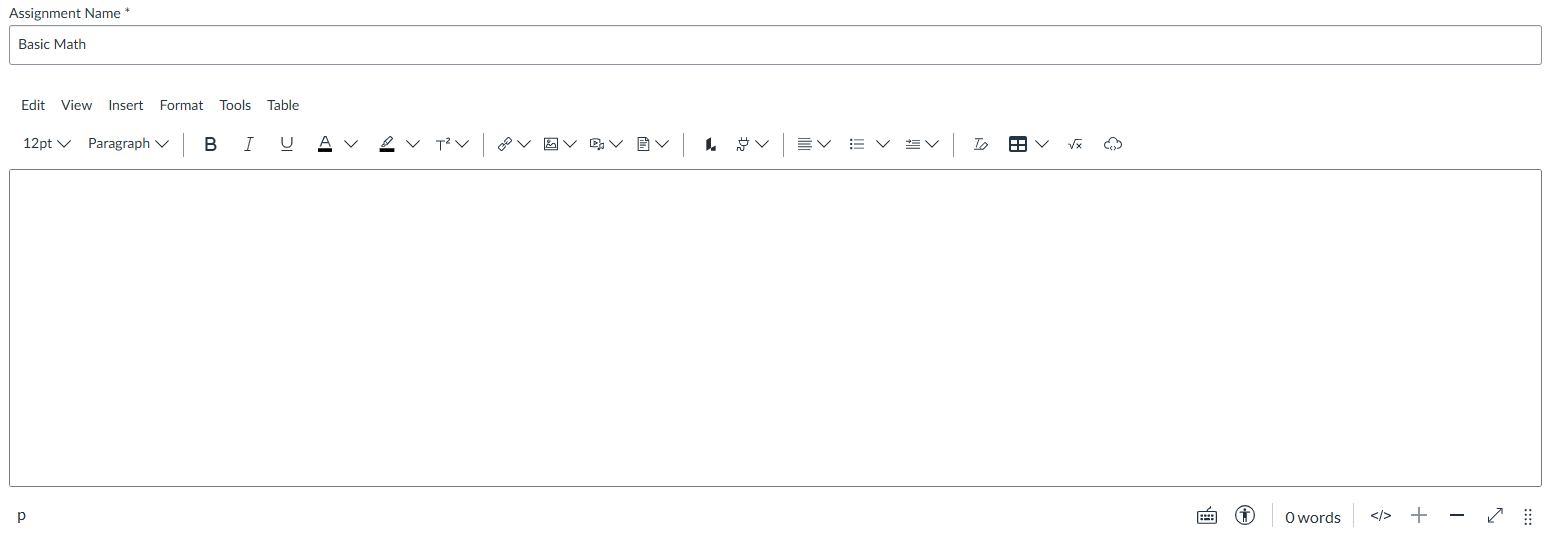
Within your Canvas assignment post settings, you can set credit values for your inserted FAD assignments, as well as include your FAD assignments in Assignment Groups. Please confirm with your LMS admin and/or course coordinator whether there are standardized credit values that need to be set for your integrated FAD assignments.
Scores for your FAD assignments will write-back as a percentage, and students must always access your FAD assignments via your Canvas course for their grades to write-back automatically and correctly. For further write-back details, including how the write-back for one assignment type can differ from another, please consult the Instructor "Grading Information" article associated with your FAD product:
- Davis Advantage Instructor Grading Information
- Medical Language Lab Instructor Grading Information
- Davis 360 Instructor Grading Information
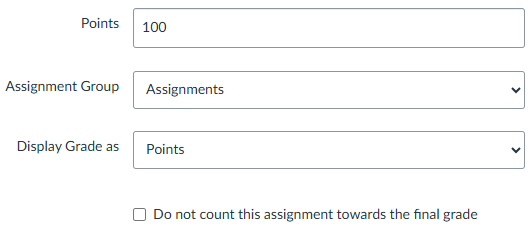
After you've inserted an FAD assignment using the FA Davis External Tool, you must leave your "Submission Type" settings untouched, with only the exception of confirming the "Load This Tool In A New Tab" checkbox is checked.
Integrated FAD assignments must launch in a new tab.
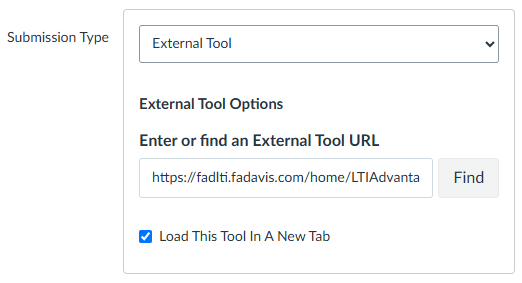
Your "Submission Attempts" setting must be set to "Unlimited," for all FAD assignments. If you limit the attempts for an FAD assignment, it will cease functioning after your selected attempt number has been exceeded.
Your integrated FAD assignments are designed to be complementary to reading textbook chapters and/or your in-class activities, and to otherwise provide engaged exposure to the topics you'll cover in your class. Because of this, you can expect that students may retake your FAD assignments for their own review, and the majority of your FAD assignments will have in-product settings to facilitate that type of review.
Furthermore, FAD assignments are not designed to be used as formal exam or assessment content.
You will need to set due dates for your FAD assignments on Canvas and within your FAD product's Class Setup.
If a student does not complete an assignment by its due date or completes an assignment after its due date, your FAD product will write-back a zero to your Canvas gradebook. A zero for an FAD assignment in your Canvas gradebook should be interpreted as an indicator that your student either did not complete the assignment by its due date or completed the assignment after its due date.
If you do not later set due dates within your FAD product's Class Setup, your FAD product will not know when to write-back in the event of a student not completing an assignment by its due date, or in the event of a student completing an assignment after its due date.
For more information on how to appeal late-work penalties within your integrated FAD class, please refer to the "Gradebook Features" section of the Instructor "Grading Information" article associated with your FAD product:
- Davis Advantage Instructor Grading Information
- Medical Language Lab Instructor Grading Information
- Davis 360 Instructor Grading Information
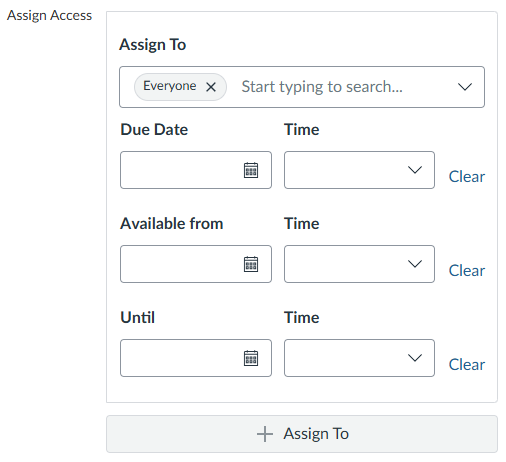
Don't forget to "Save" or "Save & Publish" your FAD assignment's Canvas assignment post settings.

Once their assignment post settings have been saved, you can put your integrated FAD assignments into Canvas modules like any other Canvas assignment.
6. Launch an integrated FA Davis assignment to create your integrated FA Davis class
Once you've inserted an FAD assignment and confirmed its Canvas assignment post settings, you can test whether that inserted FAD assignment will launch.
We recommend launching the first FAD assignment you insert as soon as possible, because the first successful launch of an inserted FAD assignment will simultaneously auto-generate an integrated FAD class associated with your Canvas course.
Click the "Load (assignment name) in a new window" button to launch your integrated FAD assignment.
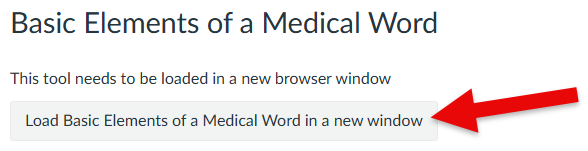
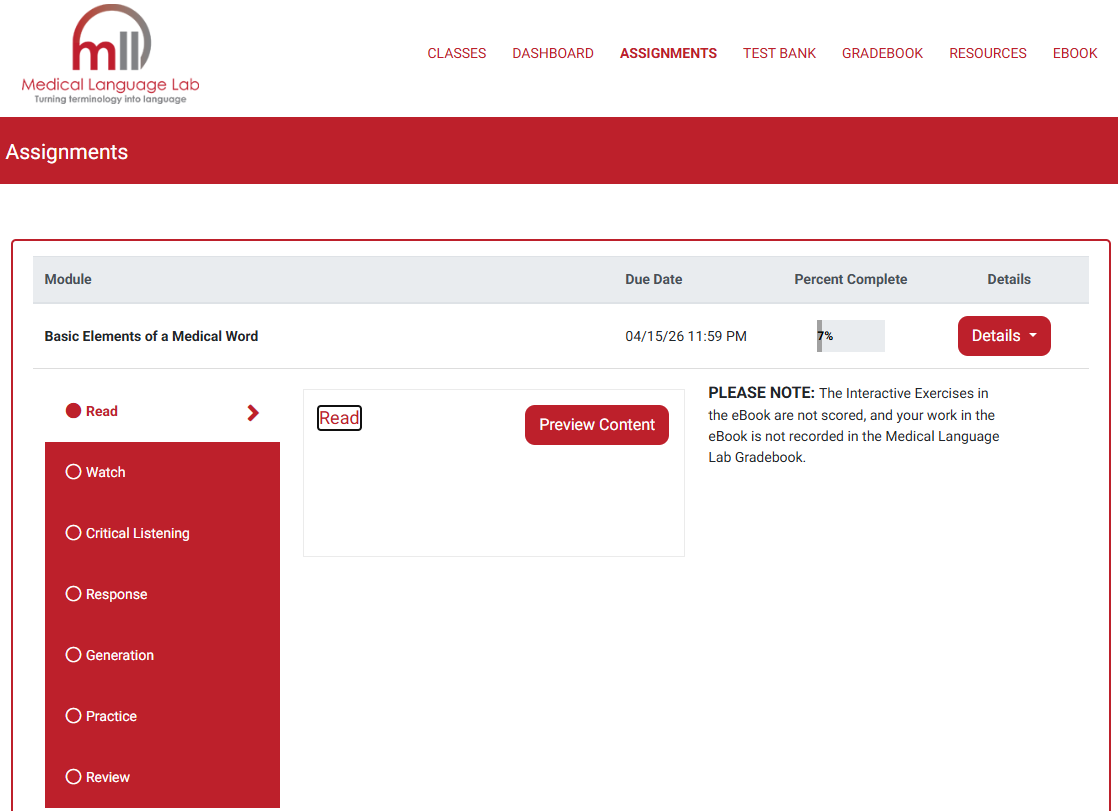
Upon the successful launch of an integrated FAD assignment, the launched assignment will load in a new tab.
When launching an integrated Advantage assignment, students will find themselves either on the first screen of the launched assignment or at wherever point in the assignment they left off. When launching an MLL or Davis 360 assignment module, students will find themselves presented with the launched assignment module and able to begin or proceed working through its contents.
After launching an integrated FAD assignment, you can work through it as if you were a student to preview it.
Though we recommend accessing your integrated FAD class by launching one of your inserted FAD assignments, the same way your students must access your integrated FAD assignments, be advised that your navigation options (as an instructor) within your integrated FAD product will be more expansive.
Students have reduced navigation options within their integrated FAD class to prevent them from disabling grade write-back.
After your first successful launch of an integrated FAD assignment, please confirm that you've got access to your FAD product's Class Setup.
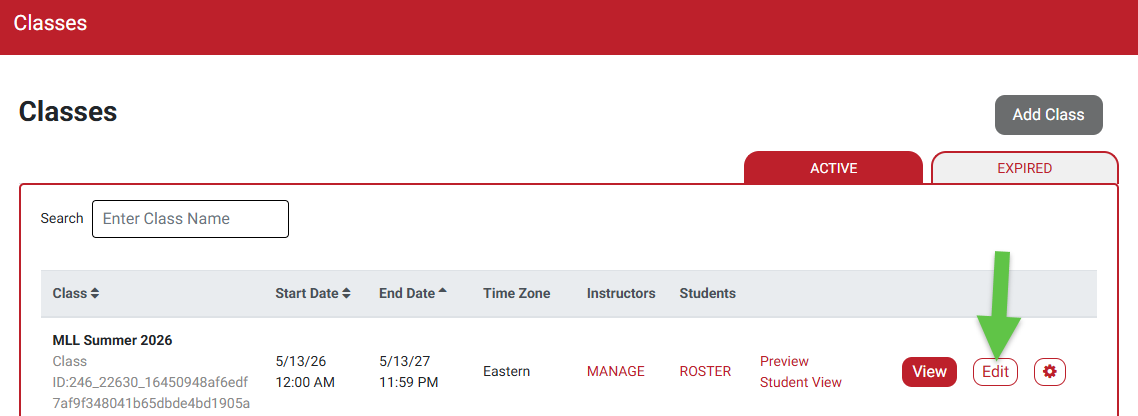
Click "Classes" in your top navigation bar to navigate to your product's "Classes" page.

Your FAD product's Classes page collects your current and expired FAD classes.
After a successful launch, an integrated class with the same name as your Canvas course will appear under your list of Active Classes. You may see a duplicate listing directly below that integrated class, but you can disregard this as a normal part of the integration process. Please only make changes to the class atop its duplicate.
Please do not delete any classes from your Classes page (including duplicate and expired classes), so your current and future integrated FAD classes can function as intended.

In addition to confirming your integrated FAD class and entering your Class Setup, you'll need to navigate to your integrated FAD product's Classes page to grant additional instructors access to your integrated class. If you are setting up a Canvas course to be used by someone other than yourself, you will need to grant that instructor access to the integrated FAD class you have successfully launched.
Under the "Instructors" column of your integrated FAD product's Classes page, you'll click the "MANAGE" link to begin granting additional instructor or administrator access. For more information on giving co-instructors access to an integrated FAD class, please consult the "Adding Co-instructors" article associated with your FAD product:
- Davis Advantage, Adding Co-instructors
- Medical Language Lab, Adding Co-instructors
- Davis 360, Adding Co-instructors
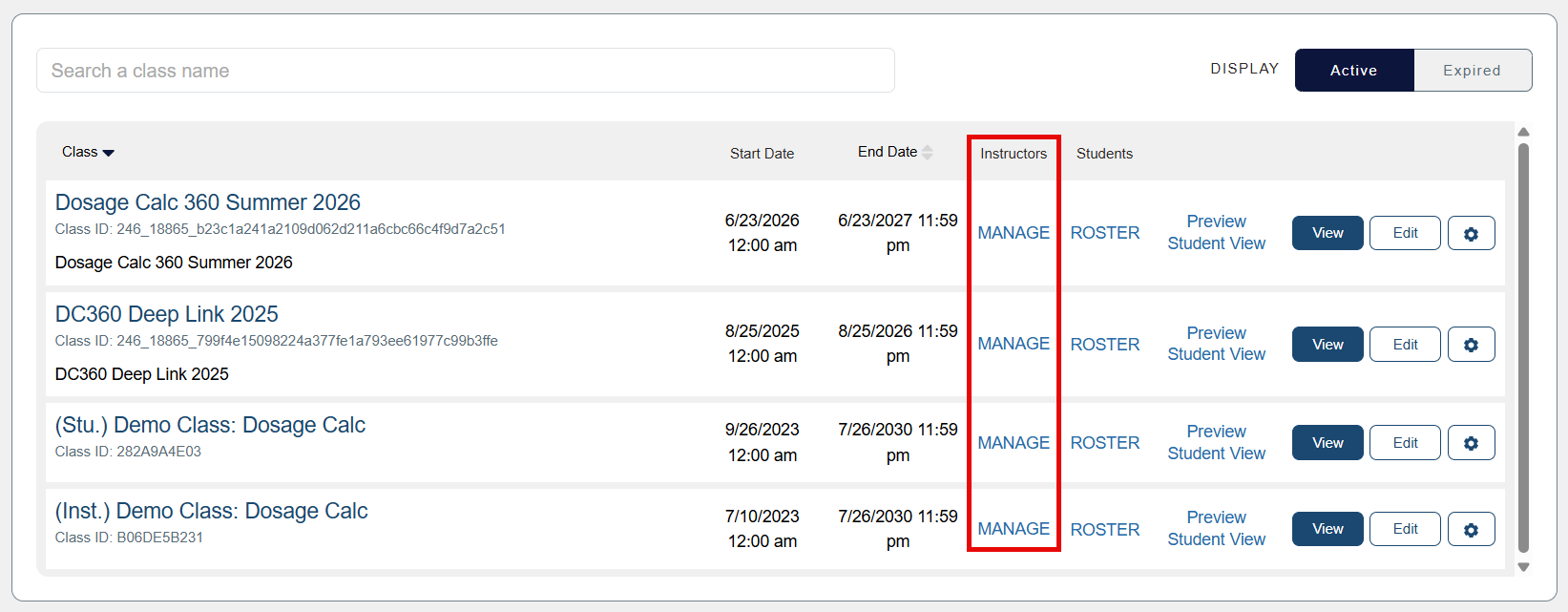
To begin finalizing your integrated FAD settings, click the "Edit" button and enter your integrated Class Setup.
If you are setting up a Canvas course to be used by someone other than yourself, or setting up a template Canvas course to be copied by and/or distributed to multiple instructors, you can distribute that Canvas course after you've inserted all necessary FAD assignments and direct that Canvas course's recipient to finalize the Class Setup of their integrated FAD class.
For instructions on finalizing an integrated FAD Class Setup, please direct the recipient of your Canvas course to consult the Instructor "Quick-start Guide" associated with your FAD product:
- Davis Advantage Instructor Quick-start Guide
- Medical Language Lab Instructor Quick-start Guide
- Davis 360 Instructor Quick-start Guide
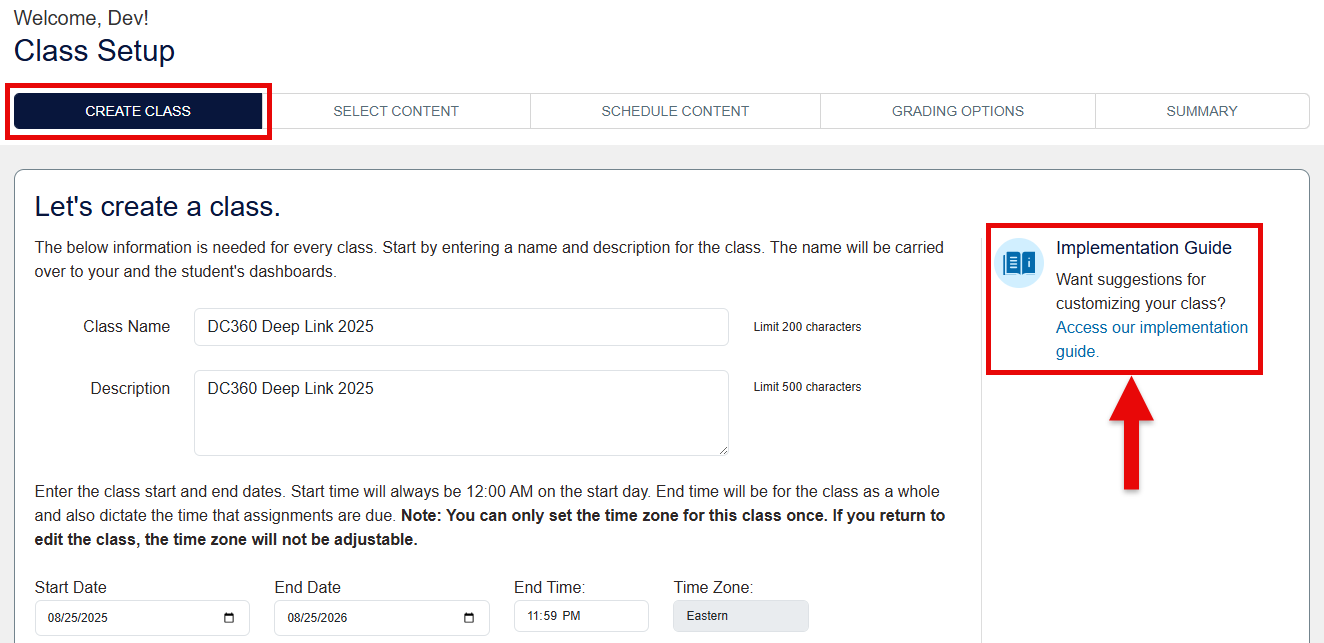
7. Finalize the integrated FA Davis Class Setup within your FA Davis product
The Class Setup for your integrated FAD product will consist of up to six steps of adjustable class settings. Thanks to the integration process, most of these settings have been pre-configured for you.
On the right margin of your "Create Class" step, you will see a link to your FAD product's "Implementation Guide," which will provide further insights on how to incorporate your integrated FAD assignments into your syllabus.
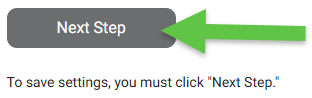
Whenever you have finished making changes on a step within your integrated FAD Class Setup, remember to click the "Next Step" button at the bottom to save your changes.
In addition to saving your changes, you will click "Next Step" buttons to progress through the steps of your integrated Class Setup.
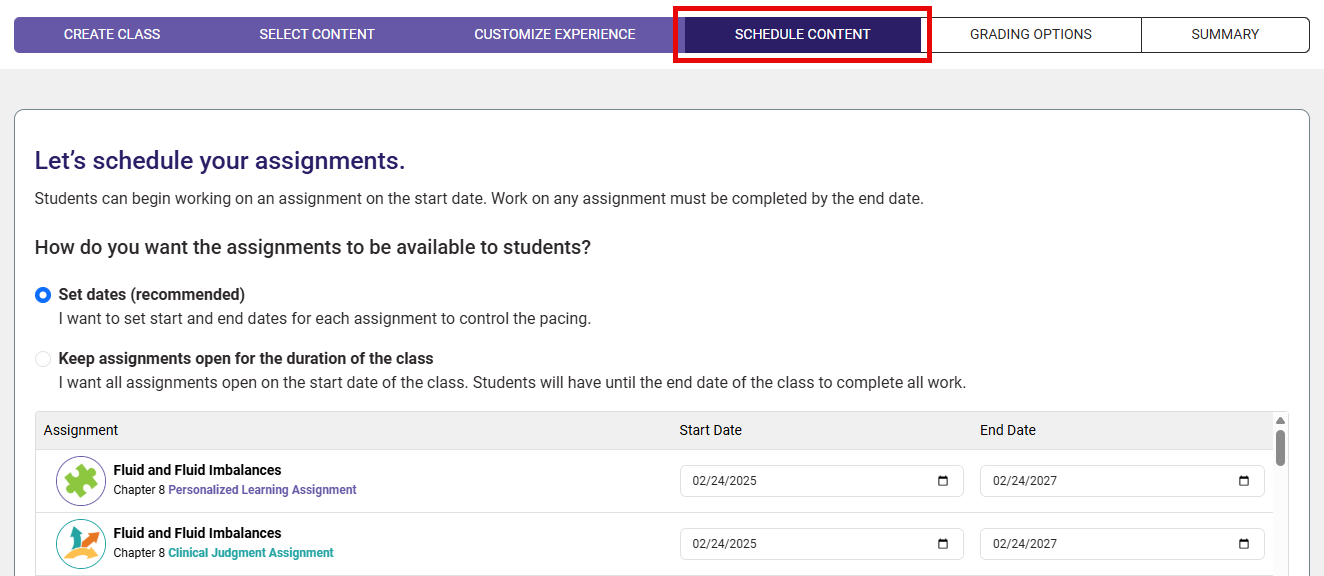
To finalize your integrated Class Setup, your primary concern will be to set due dates for each of your integrated FAD assignments. As mentioned above, you must set due dates within your integrated Class Setup so your FAD product will know when to inform your Canvas gradebook of a student failing to complete an FAD assignment by its due date.
On the "Schedule Content" step of your integrated Class Setup, you will need to set due dates for each integrated FAD class. We recommend setting said due dates within your FAD Class Setup after you've completed inserting FAD assignments into your Canvas course, to ensure your "Schedule Content" step populates with all your integrated FAD assignments.
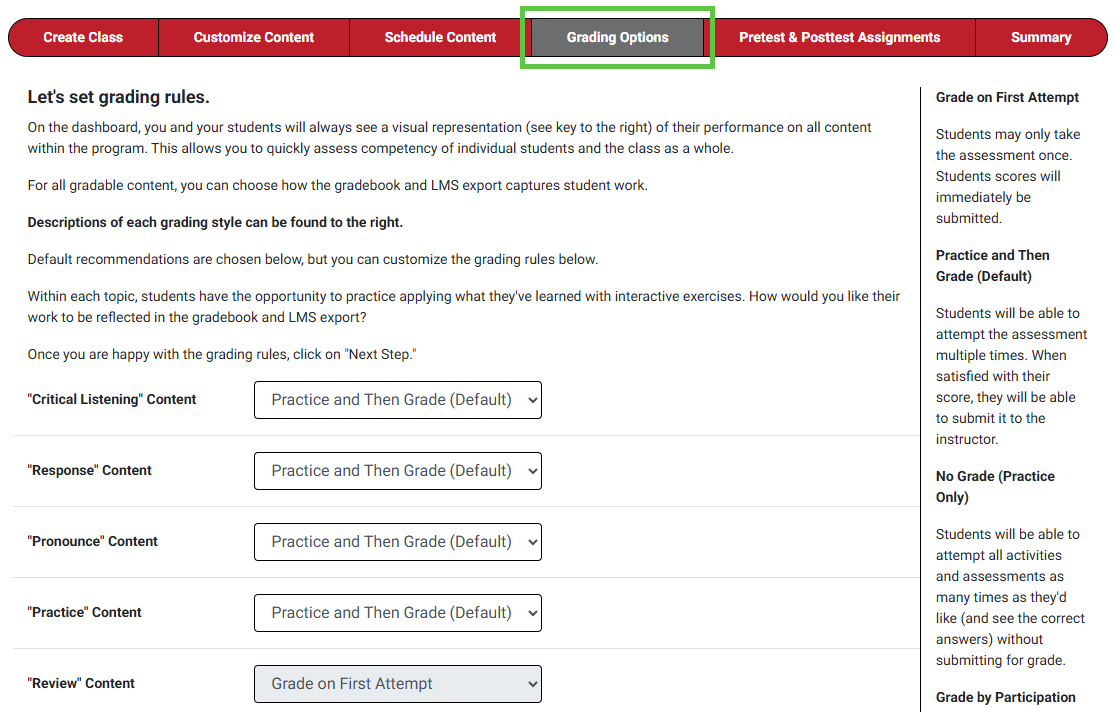
Additionally, please confirm the selections on the "Grading Options" step of your integrated FAD Class Setup.
You must confirm your "Grading Options" selections before your students begin working on your integrated FAD assignments, because student work will lock your "Grading Options" selections.
For full instructions on finalizing your integrated FAD Class Setup, please consult the Instructor "Quick-start Guide" associated with your FAD product:
- Davis Advantage Instructor Quick-start Guide
- Medical Language Lab Instructor Quick-start Guide
- Davis 360 Instructor Quick-start Guide
If you're preparing a Canvas course with integrated FAD assignments for another instructor, please provide that instructor with the appropriate Instructor "Quick-start Guide," so it can provide them an orientation on teaching with those integrated FAD assignments.
8. Distribute your integrated FA Davis product's Student Quick-start Guide
Please provide your students with the Student "Quick-start Guide" article associated with your FAD product, to be seen early in your Canvas course or in your syllabus.
- Davis Advantage Student Quick-start Guide
- Medical Language Lab Student Quick-start Guide
- Davis 360 Student Quick-start Guide
Student Quick-start Guides are designed to be asynchronous orientations of all students need to know to launch and complete integrated FAD assignments, as well as how to utilize additional resources offered by your integrated FAD class.
As outlined in Student Quick-start Guides, students should only access your integrated FAD assignments via your Canvas course, and they'll be automatically enrolled into your integrated FAD class when they first launch one of the FAD assignments inserted into your Canvas course.
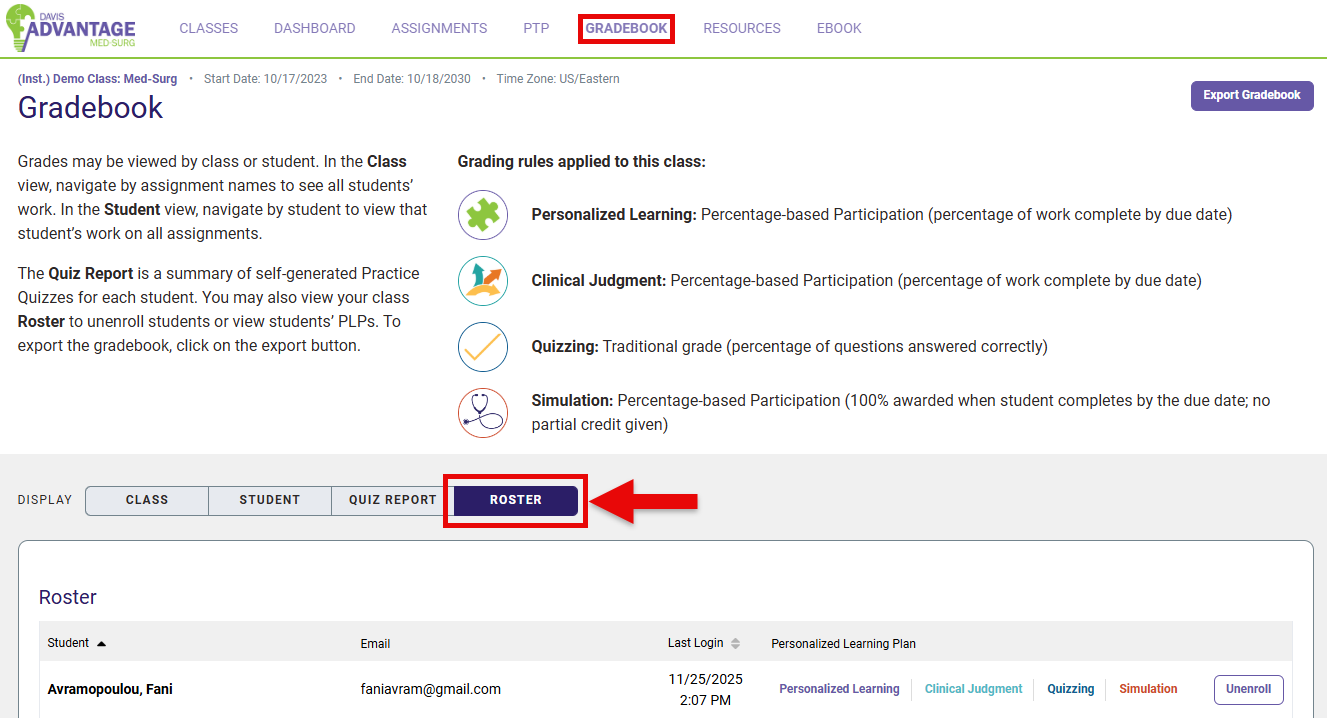
To confirm all your students are enrolled in your integrated FAD class, click the "Roster" display within your integrated FAD product's Gradebook. Please confirm your FAD class roster a few days after your class start date, to ensure all your students have enrolled correctly.
If a student’s grades do not appear in your integrated FAD product's Gradebook and/or do not write back to your Canvas gradebook, they may be completing work independently or under an email account that is not enrolled in your integrated class. You can check this by asking the student to confirm which email account they are using to access your integrated FAD class. If the student has completed work under an email other than their institutional email (i.e. the email address they use to access your Canvas course), you can direct them to contact Customer Support via [email protected] for assistance merging their two accounts.
For more information on why a student might not be on your integrated FAD class roster, consult the "Enrollment Issues" support article associated with your integrated FAD product:
- Davis Advantage Enrollment Issues
- Medical Language Lab Enrollment Issues
- Davis 360 Student Enrollment Issues
9. Need more help?
If you have consulted the information/resources above and are still unable to access your integrated FAD content, you can contact us via [email protected]. Include your name, Canvas login email address, and the name of your institution in your email to us, so our team can contact and further assist you.
Additionally, if you have further questions about your integrated FAD class, please consult the Instructor "FAQs" article associated with your FAD product:
- Davis Advantage Instructor FAQs

