


*This guide is intended for instructors using LMS course shells that have been prepared by an admin, or by instructors who have already inserted Davis Advantage class links themselves. If an admin has not inserted Advantage class links into your LMS course shell, or if you haven't been provided a copy of an LMS course shell with inserted Advantage class links, please contact [email protected] for further assistance.
1. Before you begin
If an admin has set up your integrated Davis Advantage class and inserted a class link into your LMS course, do not log into the Davis Advantage website and create an Advantage class manually, because doing so will create a second Advantage class that will not be integrated with your LMS course.
Though your integrated Advantage class has already been created, there are class settings you may still need to finalize prior to the start of your semester. To begin, log into your Learning Management System (Blackboard, Canvas, Moodle, or D2L/Brightspace) and access your course.
2. Locate a Davis Advantage class link
Once logged into your LMS course, locate a link to your integrated Davis Advantage class.
The locations and titles of Advantage class links will vary depending on how your admin has designed your course. Look for "Davis Advantage," or the title of your assigned textbook. Ask your admin for help if you're unable to find your Advantage class links.
Though the example below is of an Advantage class link within a Canvas course, your Advantage class links will appear similarly in all Learning Management Systems:
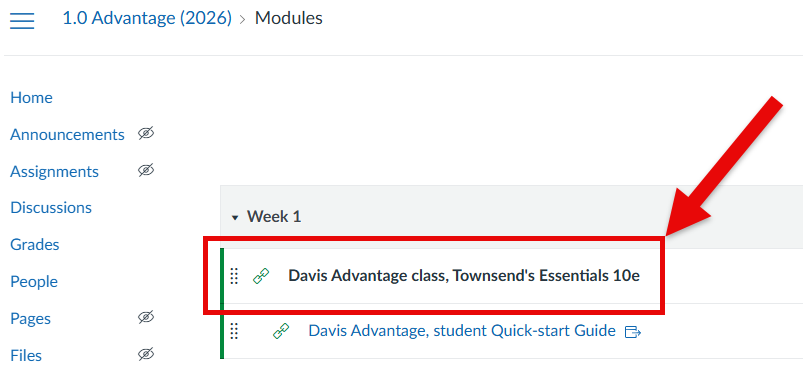
For more information about the assignment types offered by Advantage, alongside information on implementing Advantage within your syllabus and lesson plans, please consult our Instructor "Assignment Types" article.
3. Launch an Advantage class link
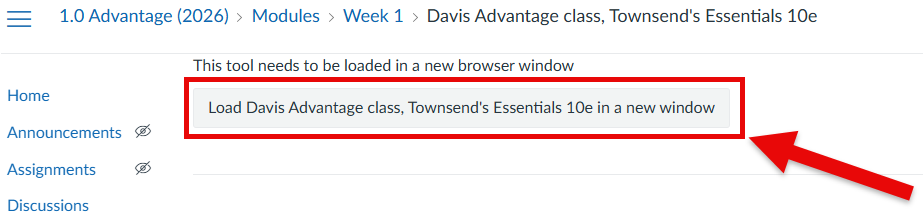
Click the link in your LMS course to launch an Advantage class. Depending on your LMS, the Advantage class link may load automatically in a new browser window, or you may be taken to a launch page with a button to load the class.
If you are taken to an Advantage class link launch page, you may see an assignment description entered by an admin. If you don't see an assignment description, you can add one later on the assignment's setting page in your LMS. Click the button that reads "Load (link title) in a new window," so your class link will launch in a new tab.
If you click an Advantage class link and it fails to launch, it's possible your web browser settings blocked the class' launch page. Check your browser settings to make sure pop-ups are permitted.
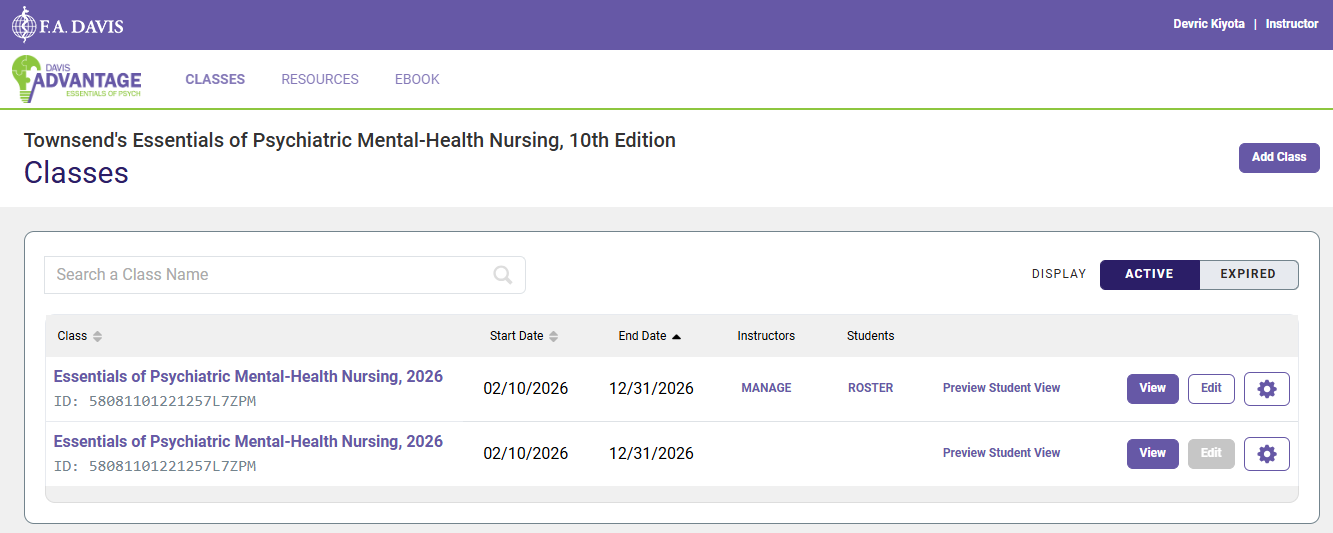
After launching an Advantage class link, you'll be taken to the Classes page for your associated textbook.
Alternatively, if your FADavis.com account has access to multiple Advantage titles and/or Advantage classes, launching an Advantage class link will first take you to your Davis Advantage My Products page, wherein you'll see listings for all the Advantage titles you've got access to.
On your Davis Advantage My Products page, click the "Launch" button for your title to access its Classes page.
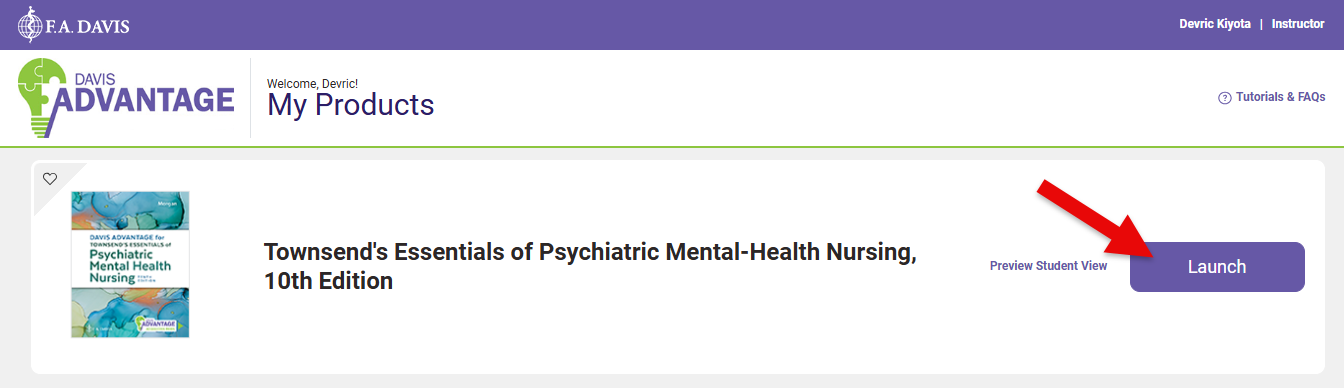
If your Davis Advantage class link launches successfully (to either your Davis Advantage My Products or Classes page), that means your integrated Advantage class link is functional. Your students will now be able to use a class link in your LMS course to automatically enroll in this integrated Advantage class and access their assigned coursework.
Please stress to your students that they can always access their Advantage class and assignments by launching the links in your LMS course.
4. Navigate to your Davis Advantage Class Setup
If your admin wants you to finalize your Advantage class settings and set due dates within Advantage, first launch and/or navigate to your Advantage Classes page.
Your Advantage Classes page collects your current and expired Advantage classes. You may see a duplicate listing directly below your integrated Advantage class, but you can disregard this as a normal part of the integration display. Please only make changes to the class atop its duplicate.
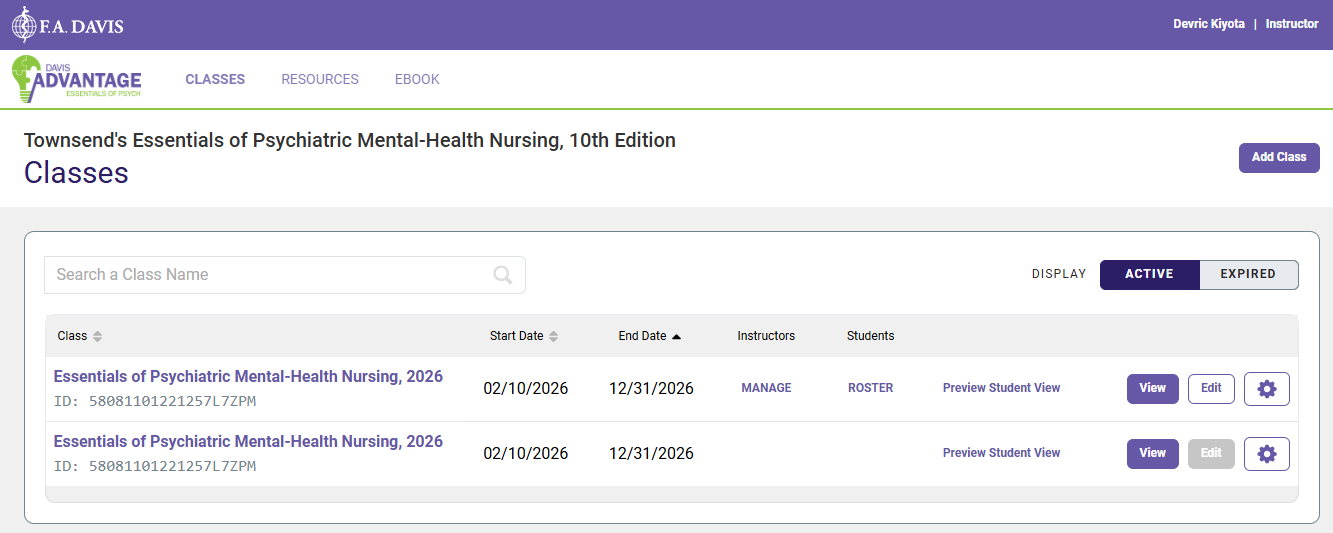
Click "MANAGE" (1) if you have a co-instructor who needs access to your Advantage class. For more information on adding co-instructors to your Advantage class, consult our "Adding Co-Instructors" article.
Clicking "ROSTER" (2) will bring you to your Advantage class' student roster, so you can confirm all your students have enrolled.
To get a look at Advantage from the student-side and work through assignments as if you were a student, click "Preview Student View" (3).

Clicking the cog button on the right side of each class listing will open a dropdown menu with three options: “Copy Class ID,” “Clone,” and “Delete.” You won't need to copy your Class ID, because students will be automatically enrolled in your Advantage class when they launch a class link via your LMS course.
In future semesters, you may utilize the "Clone" feature to copy your Advantage class, though simply copying your Advantage here will not integrate the copy with a new LMS course. For more information on copying integrated Advantage classes, please consult our "Copying Classes" article.
Even after your class has concluded, please don't delete integrated Advantage classes, because doing so can cause technical errors for your LMS course and later cloned Advantage classes..
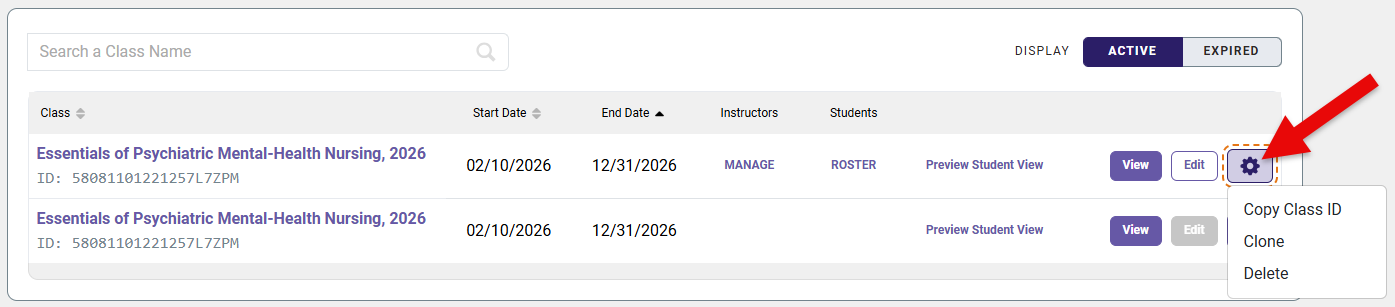
To view a class' Dashboard, click its "View” button. From a class' Dashboard, you'll be able to navigate to the class' Gradebook and other resources.
Click an "Edit" button to access your Davis Advantage Class Set-up, so you can progress toward finalizing your Advantage class' settings.

5. Finalize your Advantage Class Setup
On the Class Setup page, you will see a menu with six steps of adjustable course settings. If you're editing an Advantage class that was set up for you by an admin, some of these steps will have already been configured for you.
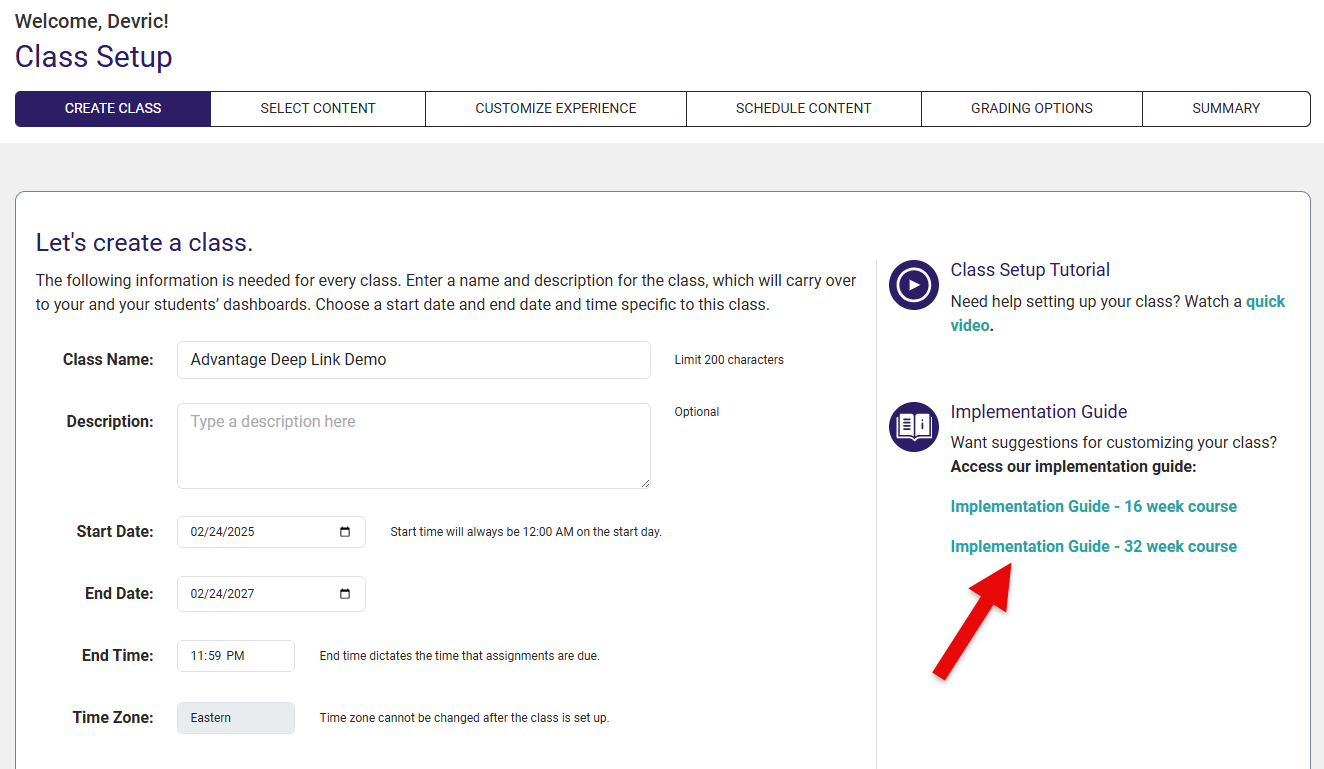
The first step, "Create Class" will largely be a step wherein you confirm the macroscopic details of your Advantage class, such as class name, the duration of the class via its Start and End Dates, and your time zone. We recommend giving your integrated Advantage class the same name as the LMS course it's paired with, to increase student recognition.
If you encounter a setting on the "Create Class" step, or any other step of the Class Setup, that you need to change and are unable to do so, please contact us via [email protected] so we can assist you.
On the right margin of your "Create Class" step, you'll see a link to load your Implementation Guide, which will give you more insights on how to implement Advantage assignments within your syllabus.
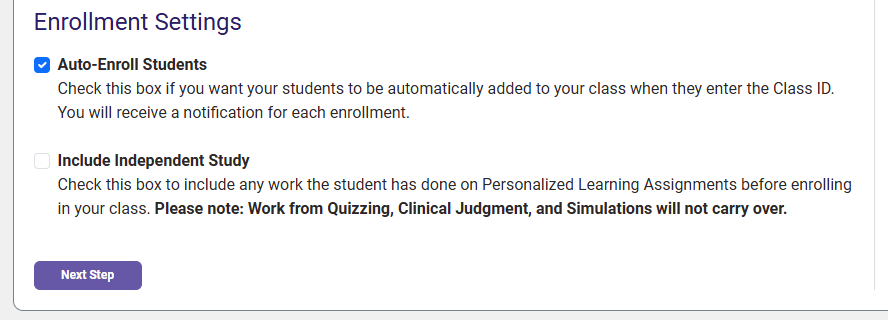
At the bottom of the "Create Class" step, please leave the "Auto-Enroll Students" checkbox checked, so your students will be enrolled when they launch an Advantage class link inserted into your LMS course.
Clicking the "Next Step" button saves whatever changes you made on a step of the Class Setup, in addition to progressing to the next step of the Setup.
On the "Select Content" step, you'll see a list of all the Advantage assignment topics available for your textbook. Please verify the topics turned ON here match the topics you'll cover in your syllabus.
If you will not cover a topic listed on this step, please turn it OFF, so your students will only see Advantage assignments that align with what they expect to cover in-class.
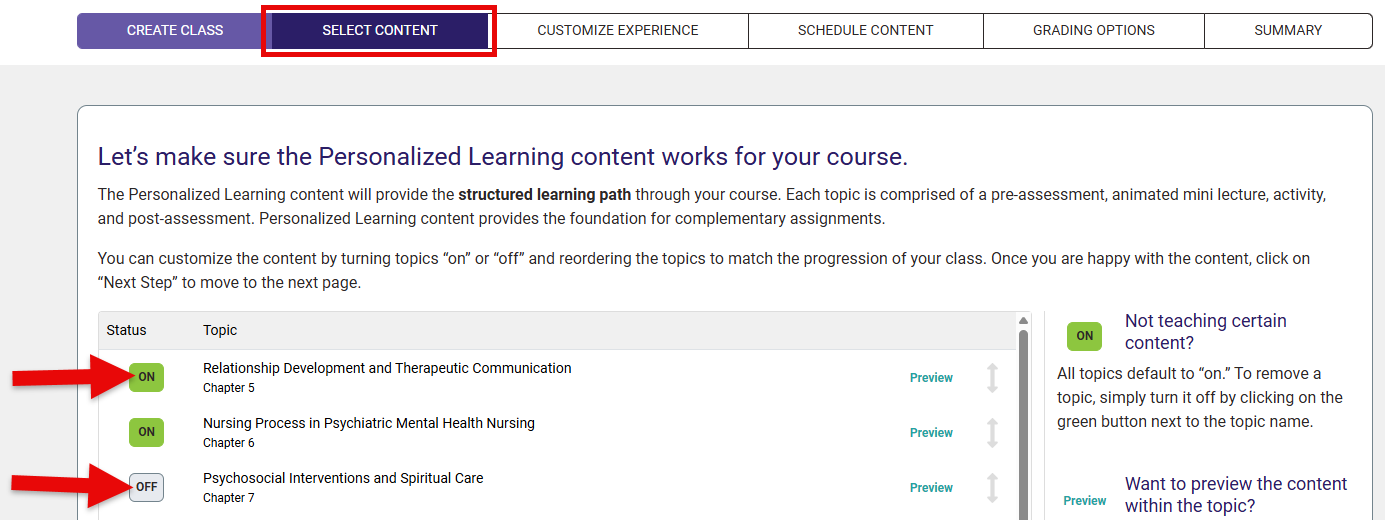
Select “Next Step” to move on.

The "Customize Experience" step of your Advantage Class Setup is where you can choose settings for assignment types you've included in your Advantage class. For more information on how students will complete assignments within Advantage, please consult our student "Assignment Types" support article.
Personalized Learning Assignments have two settings choices you can make, regarding sections of Personalized Learning Assignment content. For the "Assignment Requirements" setting, you're choosing whether students who score high on Pre-Assessments will make the rest of the Personalized Learning Assignment content optional to complete. For the "Post-Assessment Preference" setting, you're choosing how many times a student can take a Post-Assessment.
We recommend the default settings for both of these choices.

Scrolling down the "Customize Experience" step, the setting choices for Clinical Judgment and Quizzing assignments ask whether you want to automatically load in all the assignments of those types that match the topics you enabled ON during the "Select Content" step.
We recommend leaving both these settings at "Yes," to save yourself the time it would take to manually add these assignments.
Though not pictured, you'll have the same settings choice for Simulation Assignments, if using a textbook which includes Simulation assignments.

The "Schedule Content" step of your Advantage Class Setup is where you'll finalize due dates for your Advantage assignments. If you want students to be penalized for late work in your course, you will need to enter assignment End Dates on this page.
Select “Set Dates,” and then click “Next Step” to see a list of assignments available in your course.

For each assignment, you will see a Start Date and an End Date. We recommend disregarding the Start Dates here, so students can work ahead in your Advantage class if they want to.
With each End Date, select your intended due date for that assignment. Your students will still be able to access assignments after their End Dates, but any new work submitted will be flagged as late and assigned a pending grade of “0" to override at your discretion. For more information on late work, please see the “Advantage Gradebook Features” section of our instructor "Grading and Feedback” article.

When you are finished selecting your due dates, click “Next Step” to save your changed due dates and move on.

On the "Grading Options" step of your Advantage Class Setup, you can choose Grading Rules for different Advantage assignment types. Please note that grading rules should be selected before students enroll and begin working in your course.
Information about each Grading Rule can be found on the right-hand side of this step. More information on grading can also be found in our "Grading and Feedback" article for instructors.

Personalized Learning, Simulation (where applicable), and Clinical Judgment assignments are graded based on completion. Please leave these assignments on the default "Percentage-based Participation Grade" selection, for legibility when later manually entering assignments scores into your LMS gradebook.
If you would like to make an assignment points-based or change the amount of points an assignment is worth, you can do so by editing the grade setting and point value for that assignment in your manual LMS gradebook entry.

You can choose to grade Quizzing Assignments based on completion or competency. Here, the "Percentage-based Participation Grade" selection will grade students based on completion, whereas the "Traditional Grade" selection will grade students based on how many quiz questions they get correct.

Click "Next Step" once you've decided how your Advantage assignments will be graded.

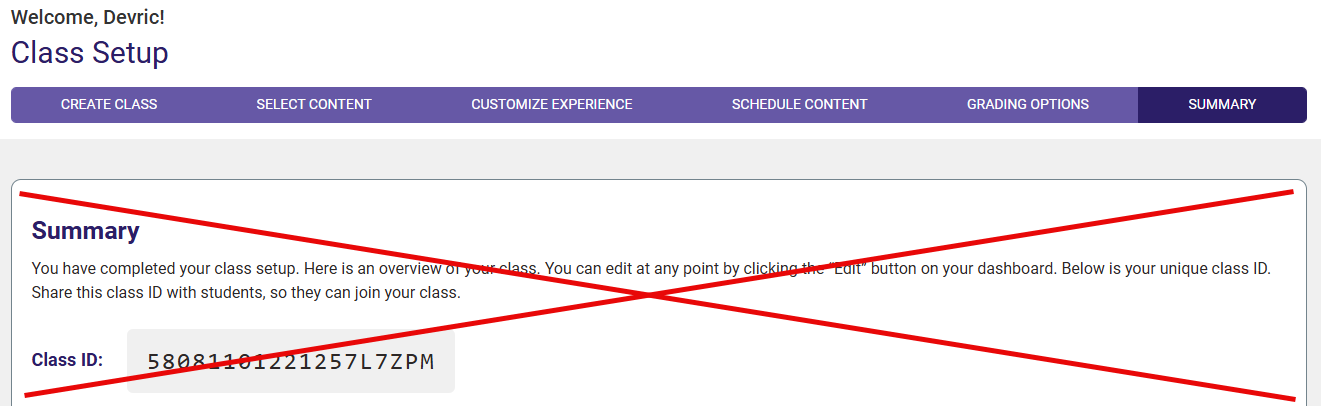
The "Summary" step of your Advantage Class Setup gives you a chance to review the settings choices you've made.
Though it instructs you to do so at the top of the "Summary" step, you won't need to share your Class ID with your students. Because your Advantage class is integrated within your LMS course, your students will automatically enroll in your Advantage class by launching Advantage class links via your LMS course.
6. Check student performance
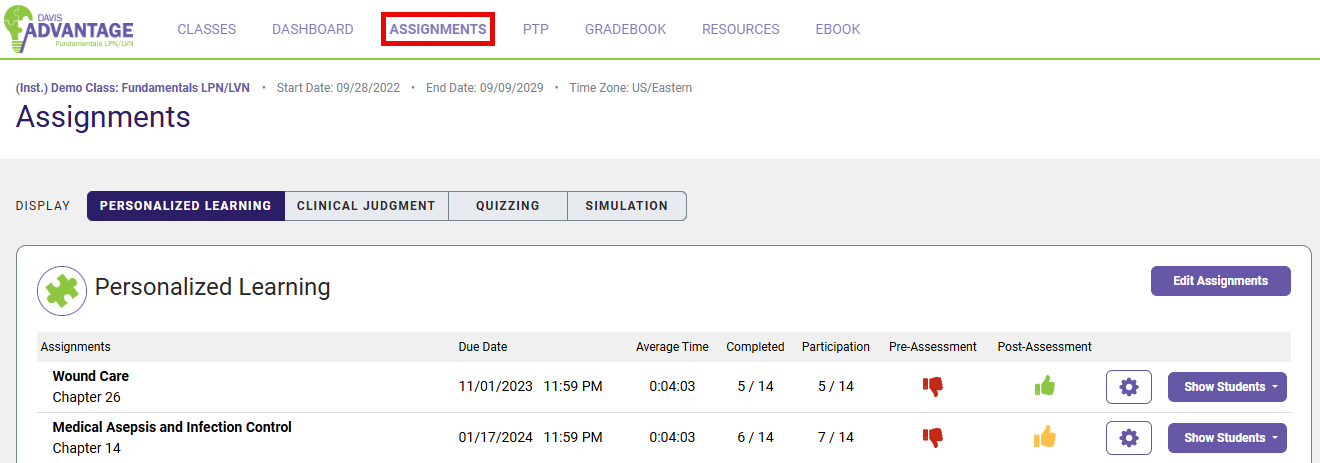
As students complete Davis Advantage assignments, their scores will be saved and viewable on your Assignments and Gradebook pages.
To see how well your students are doing on your Advantage assignments, navigate to your Assignments page. For more information on the student performance data offered by your Assignments page, please consult the "Actionable Analytics" section of our "Grading and Feedback" article for instructors.
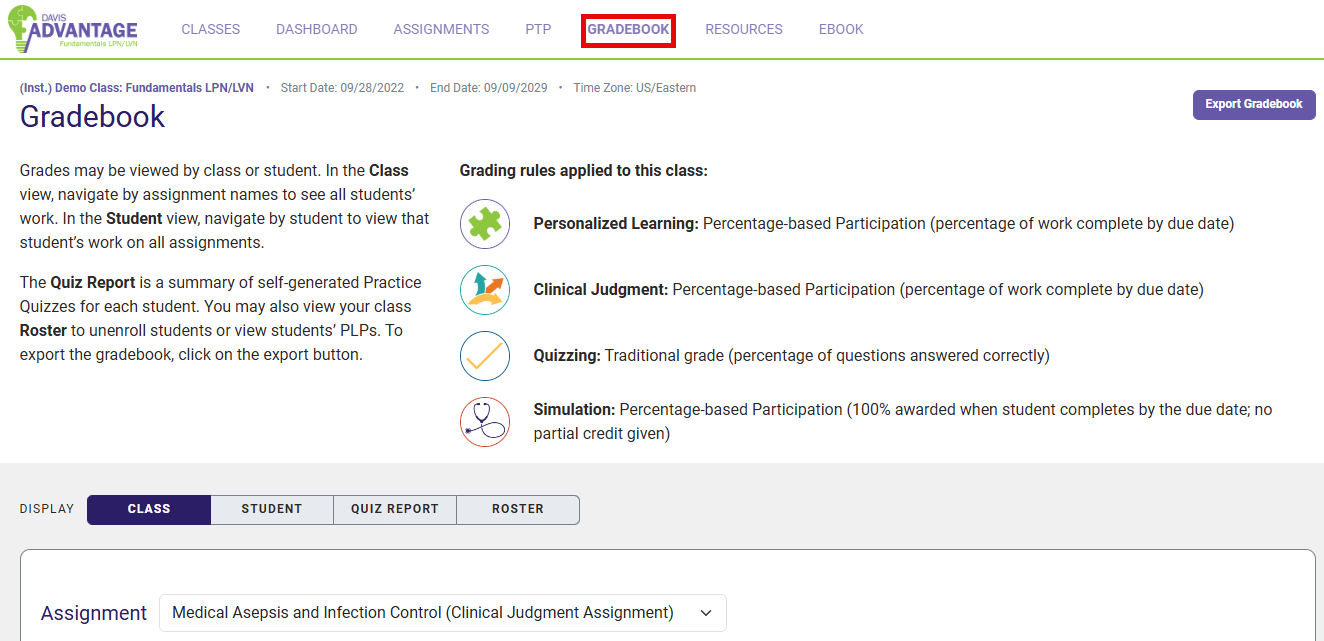
To check how your students are being scored for credit, and to accept late work or extend due dates, navigate to your Advantage class' Gradebook page. If you need more information on how to use your Advantage Gradebook, consult the "Grading" and "Advantage Gradebook Features" sections of our "Grading and Feedback" article for instructors.
7. Access your eBook
You and your students will be able to access the eBook associated with your integrated Advantage class.
After navigating to your Advantage class, click the "eBook" link in your top-left navigation bar.

F.A. Davis eBooks are hosted by a separate service called "VitalSource." When first opening an F.A. Davis eBook, you may be prompted to create or log into a VitalSource account.
When creating a VitalSource account, enter the same email you use to log into your LMS.

You won't be able to view exercises that students have completed in their eBooks, and their performance on those eBook exercises won't report to your Gradebook.
8. Access your Instructor Resources
For guidance on accessing your Instructor Resources, which include pre-made PowerPoint Presentations and test banks, please consult our "Instructor Resources and PTPs" article.

9. Distribute the student Quick-Start Guide
If your admin hasn't already, please link the student "Quick-start Guide" article to be seen early in your LMS course content or in your syllabus. The student Quick-start Guide is designed to be an asynchronous orientation of all students need to know to launch and complete assignments within Advantage, as well as how they can best utilize additional resources offered by Advantage.
Students should enroll in your integrated Advantage class by launching an Advantage class link via your LMS course. You can direct your students to log into FADavis.com and navigate manually to Davis Advantage, so they can then enroll themselves in your integrated Advantage class using the Class ID you provide them, but enrolling students that way will add unnecessary steps to the student enrollment process.
After enrolling in your integrated Advantage class, students have the option to log into FADavis.com and navigate to your Advantage class manually, but we recommend they continue accessing your integrated Advantage class via launching your inserted class links.
To confirm all your students are within your integrated Advantage class, click the "Roster" display within your Advantage Gradebook. Please confirm your Advantage class roster a few days after your class start date, to ensure all your students have enrolled correctly.
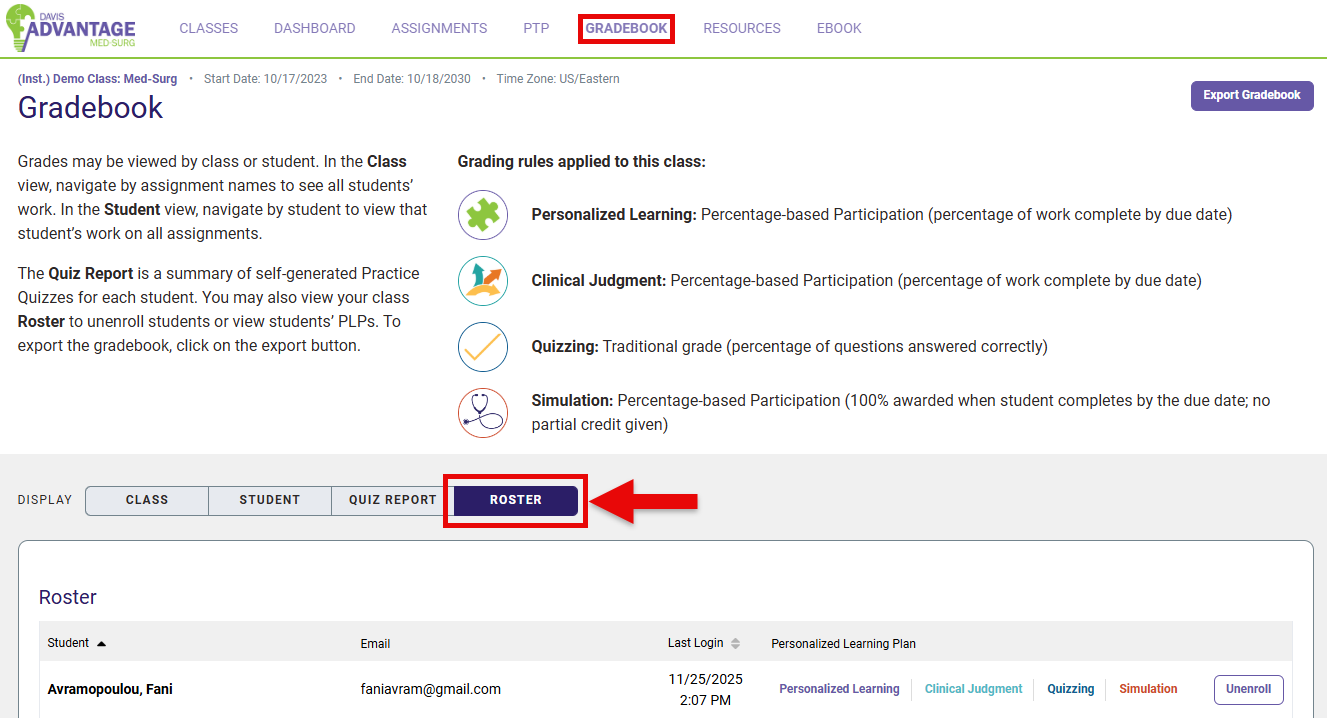
If a student’s grades do not appear in your Advantage Gradebook, they may be completing work independently and/or under an email account that is not enrolled in your course. You can check this by asking the student to confirm which email account they are using to access Davis Advantage. If the student has completed work under a different email, you can direct them to contact Customer Care via [email protected] for assistance merging their two accounts.
For more information on why a student might not be on your Advantage class roster, please consult our "Enrollment Issues" article.
10. Need more help?
If you have consulted the information/resources above and are still unable to access your Davis Advantage content, please contact us via [email protected]. Include your name, LMS login email address, and the name of your institution in your email to us, so our team can contact and further assist you.
Additionally, if you have further questions about your integrated Advantage class, please consult our Instructor "FAQs" article.

