*Though it only features screenshots from Dosage Calc 360, the information in this article applies to all Davis 360 platforms, including Dosage Calc 360, Med Term 360, and Test Success 360.
If you want to know where to find your test banks and PowerPoint Presentations, click to jump to the "Instructor Resources" section of this article.
For information on accessing Davis's Drug Guide for Nurses or other FA Davis products you may have access to within your FADavis.com account, click to jump to the "Non-Davis 360 Resources" section of this article.
Instructor Resources
In addition to its pre-made assignments, your Davis 360 platform comes with Instructor Resources to save you some lesson-planning time. If you want PowerPoints and test banks to use within your class, you'll find them in your Instructor Resources!
To access your Instructor Resources, you must log into FADavis.com.
If you're unsure whether you've got an FADavis.com Instructor account, please contact your program's Educational Consultant (EC) or Business Development Manager (BDM) to confirm your account login credentials or to set up your FADavis.com account with access to the necessary textbooks and resources. If you're unsure who your EC or BDM is, ask your program's admin or course coordinator to identify your EC or BDM.

Log into FADavis.com with the same credentials you use to log into your LMS course. If the email address you use to log into your Instructor FADavis.com account differs from the email address you use to login into your LMS course, please contact your EC or BDM to update your FADavis.com account.
If this is your first time logging into FADavis.com, you may have to use the "Forgot Password?" feature to set a password for your account.

After logging into FADavis.com, you'll see your My Products page, with listings of all the F.A. Davis textbooks and products you have access to.
Find your Davis 360 platform and click its "Resources" button.
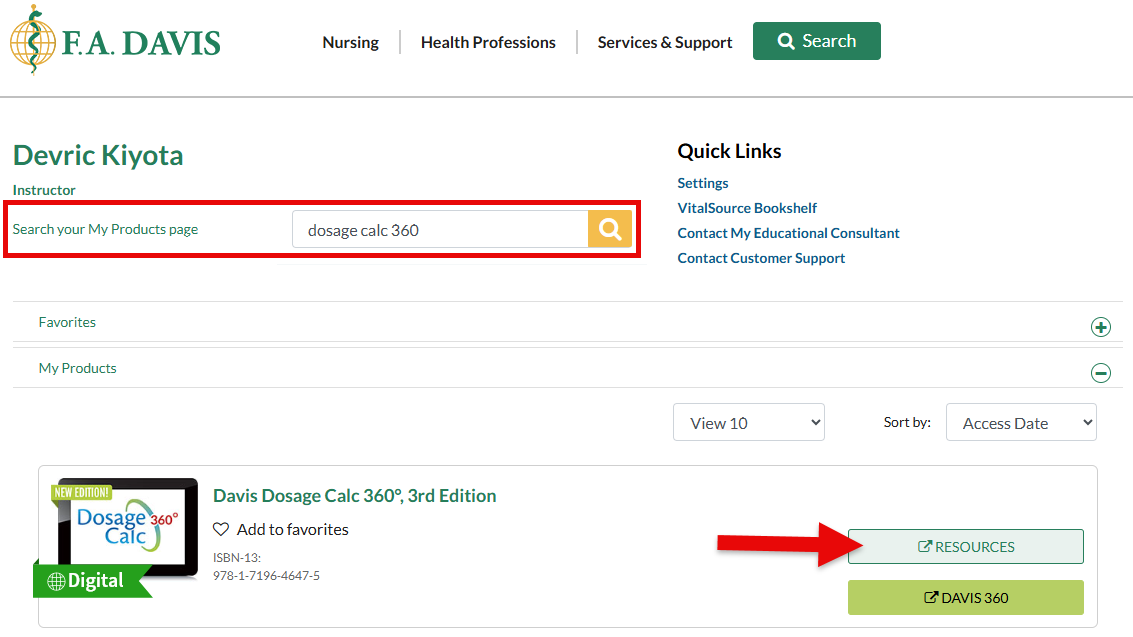
Your students won't be able to access the Instructor Resources that come with your Davis 360 platform. And, you can edit whatever you find in your Instructor Resources however you see fit!
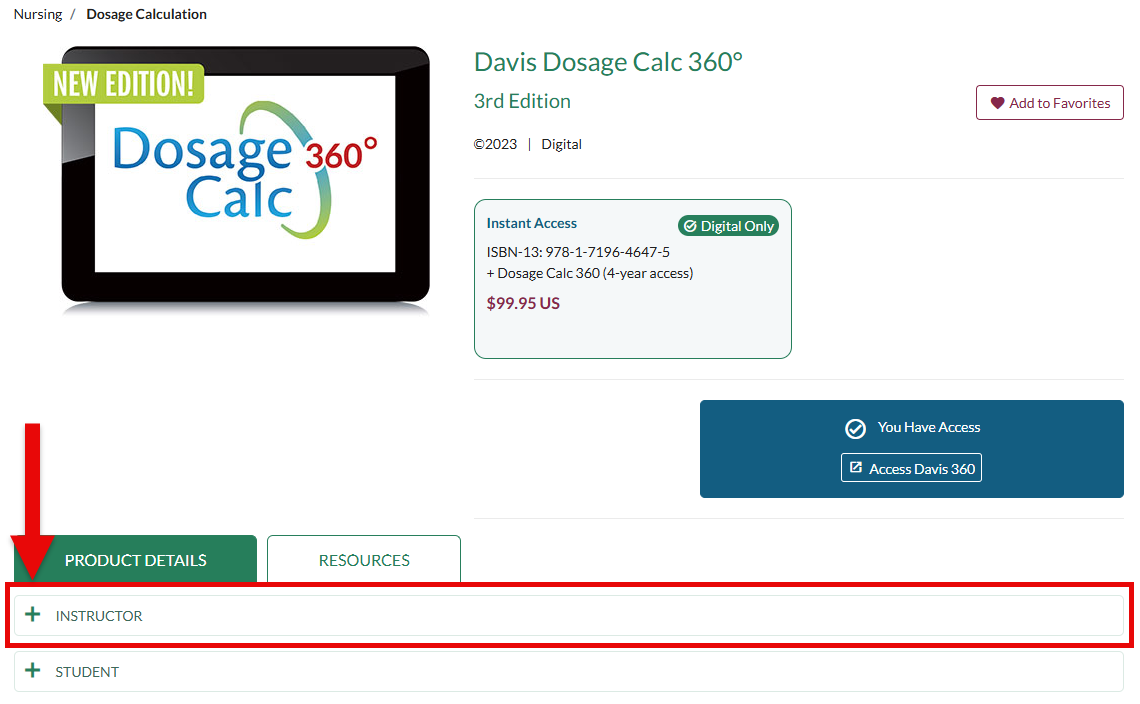
Click the "Instructor" dropdown menu to open your Instructor Resources.
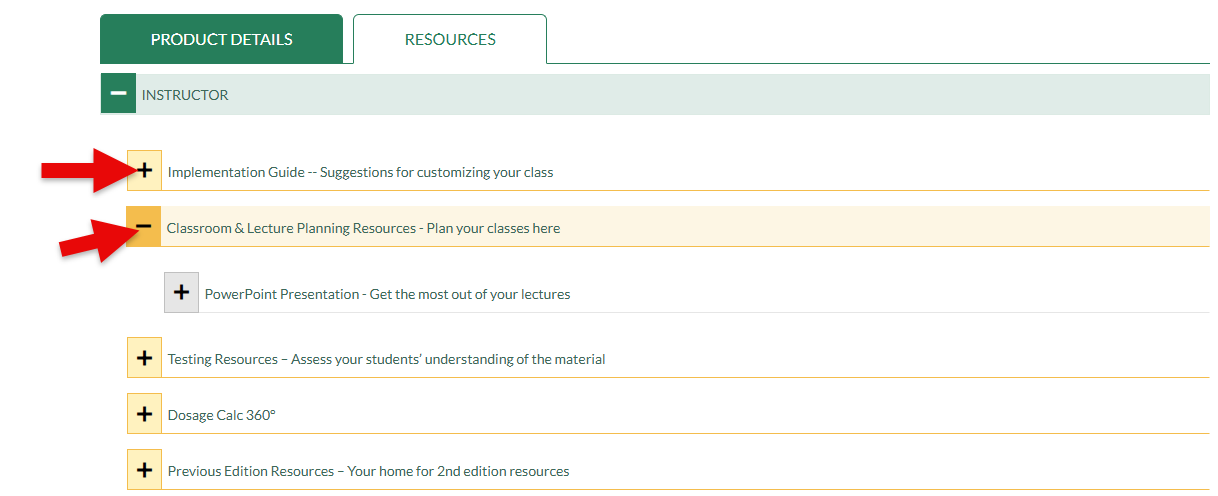
Within your Instructor dropdown menu, you can find an Implementation Guide with insights on using your Davis 360 platform's content in your class
Beneath the Implementation Guide, you can find full PowerPoint Presentations in the "Classroom & Lecture Planning Resources" dropdown menu of your Instructor Resources. These PPTs are ready to use, but you can edit, add, and remove their slides to personalize them further.
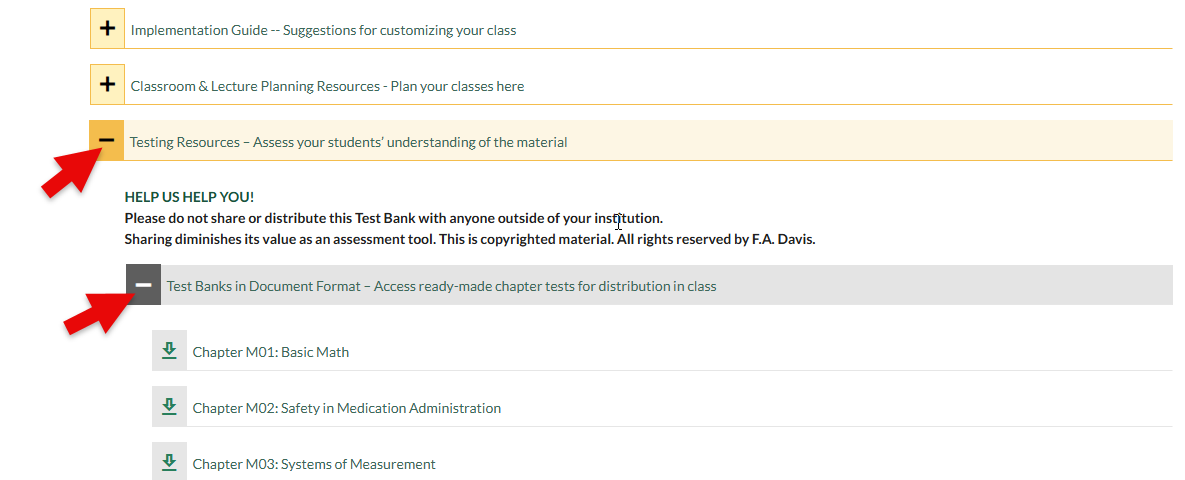
In the "Testing Resource" dropdown menu of your Instructor Resources, click the "Test Banks in Document Format" dropdown menu to find documents with premade test questions for each chapter/topic covered by your Davis 360 platform. Check with your admin to confirm whether the test banks seen here have already been added to your LMS course.
Please note, your Instructor Resources test banks aren't duplicates of the test banks in your Davis 360 platform, so you can use your Instructor Resources test banks to create your own in-class quizzes and tests!
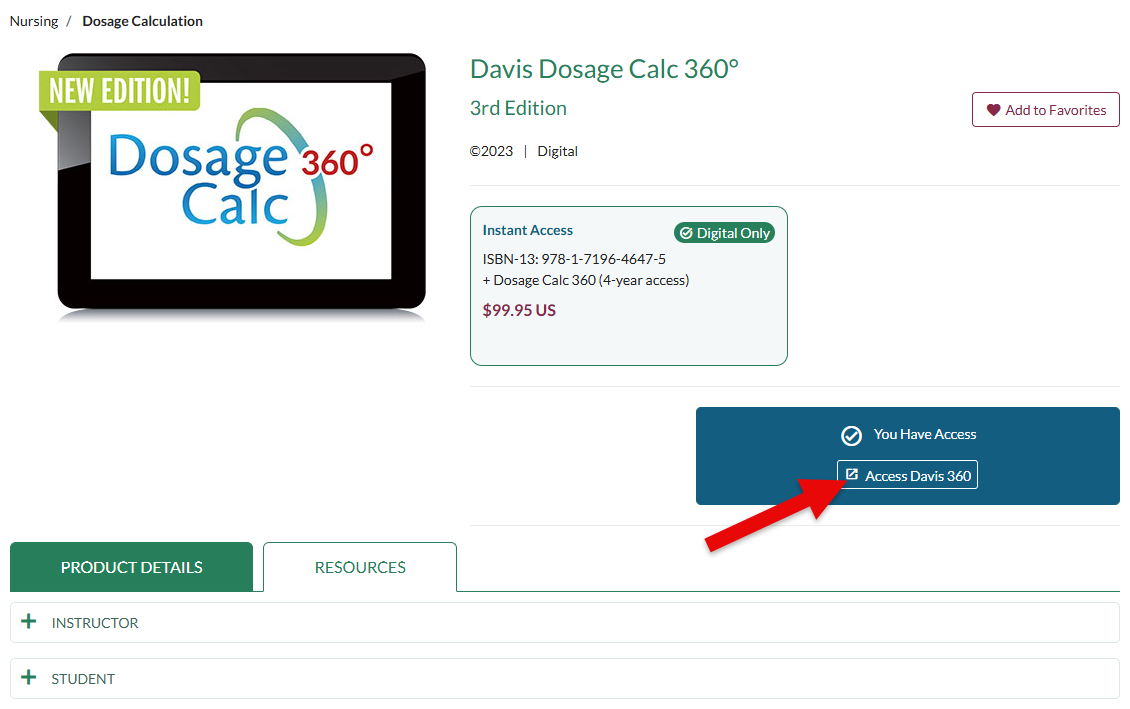
For resources you may want to direct your students toward, click the "Access Davis 360" button to begin navigating toward your Davis 360 platform's class. If you haven't yet launched your DC360 class, please consult our instructor "Quick-start Guide" before proceeding.
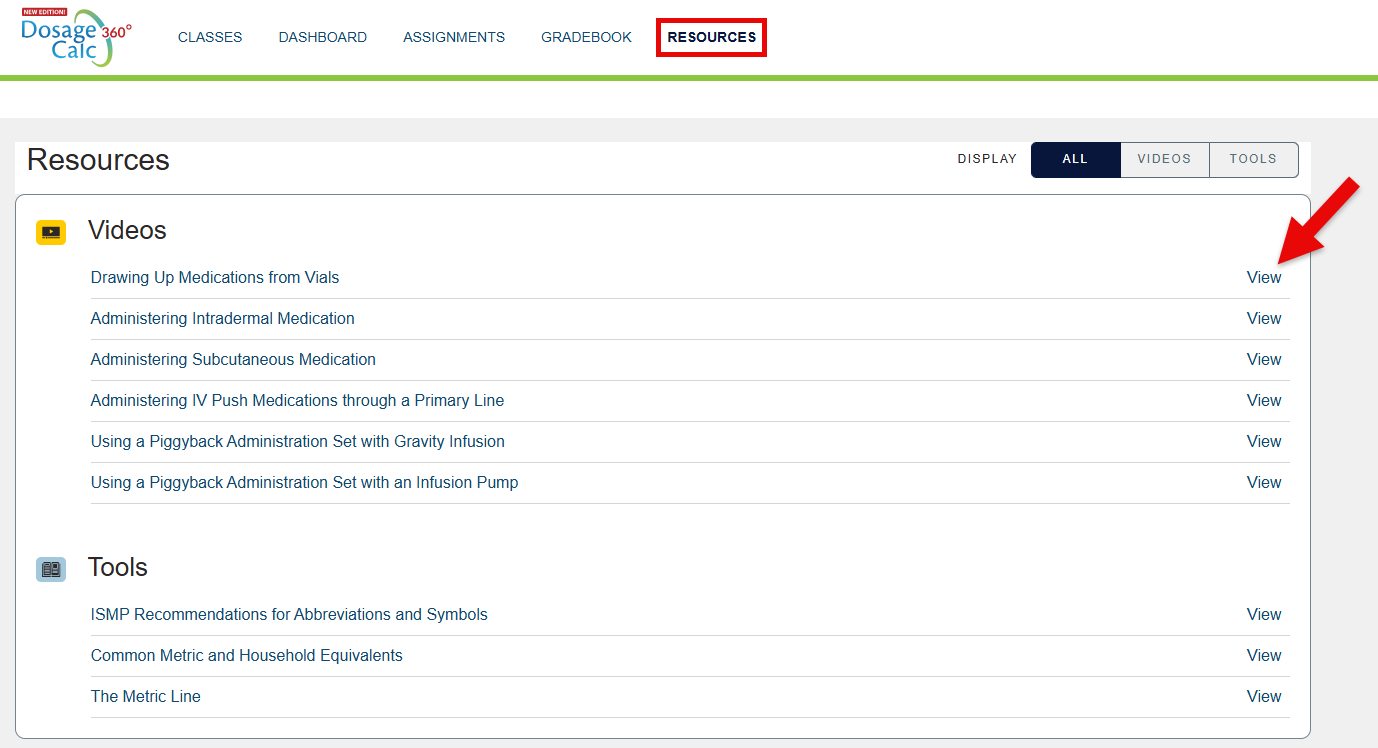
Once you're in your Davis 360 class, click "Resources" in the top-left navigation bar. Your students will also be able to access the Davis 360 resources we're navigating to, by clicking "Resources" in their own navigation bar.

Within your Davis 360 platform's Resources page, your students and you can find additional videos related to topics covered by your Davis 360 platform, as well as downloadable reference sheets underneath the page's "Tools" listing.
Click "View" to access any of the respective resources listed on your Resources page.
Non-Davis 360 Resources
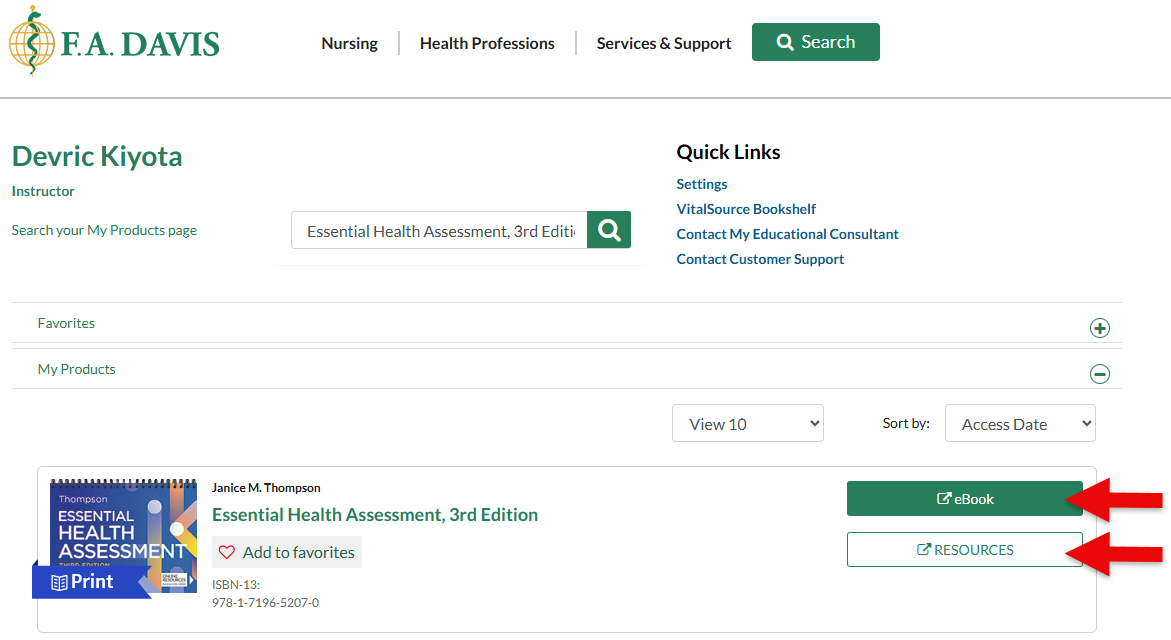
Your FADavis.com account may contain access to additional products that aren't supported by the Davis 360 platform, like Janice M. Thompson's Essential Health Assessment or Cynthia A. Sanoski's Davis's Drug Guide for Nurses.
To access your Instructor Resources for products that aren't supported by Davis 360, you must log into FADavis.com.
If you're unsure whether you've got an FADavis.com Instructor account, please contact your program's Educational Consultant (EC) or Business Development Manager (BDM) to confirm your account login credentials or to set up your FADavis.com account with access to the necessary textbooks and products. If you're unsure who your EC or BDM is, ask your program's admin or course coordinator to identify your EC or BDM.
Log into FADavis.com with the same credentials you use to log into your LMS course. If the email address you use to log into your Instructor FADavis.com account differs from the email address you use to login into your LMS course, please contact your EC or BDM to update your FADavis.com account.
If this is your first time logging into FADavis.com, you may have to use the "Forgot Password?" feature to set a password for your account.
After logging into FADavis.com, you'll see your My Products page, with listings of all the F.A. Davis textbooks and products you have access to.
Find your textbook and click either its "eBook" or "Resources" button. Though not all products within your FADavis.com account will be supported by the Davis 360 platform, you'll still be able to view the eBook or access Instructor Resources for every product you have access to.