*Though it only features screenshots from Dosage Calc 360, the information in this article applies to all Davis 360 platforms, including Dosage Calc 360, Med Term 360, and Test Success 360.
If you want to further familiarize yourself with Davis 360 content, you can make yourself Practice Quizzes! Your Practice Quiz scores won't report back to your Davis 360 gradebook.
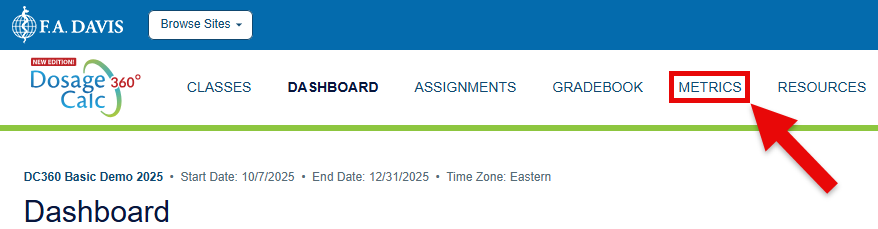
To create a Practice Quiz, first launch and/or navigate to your Davis 360 class Dashboard, then click to access your Metrics page. If you need help navigating to your Davis 360 class, please consult our student "Quick-start Guide" article.
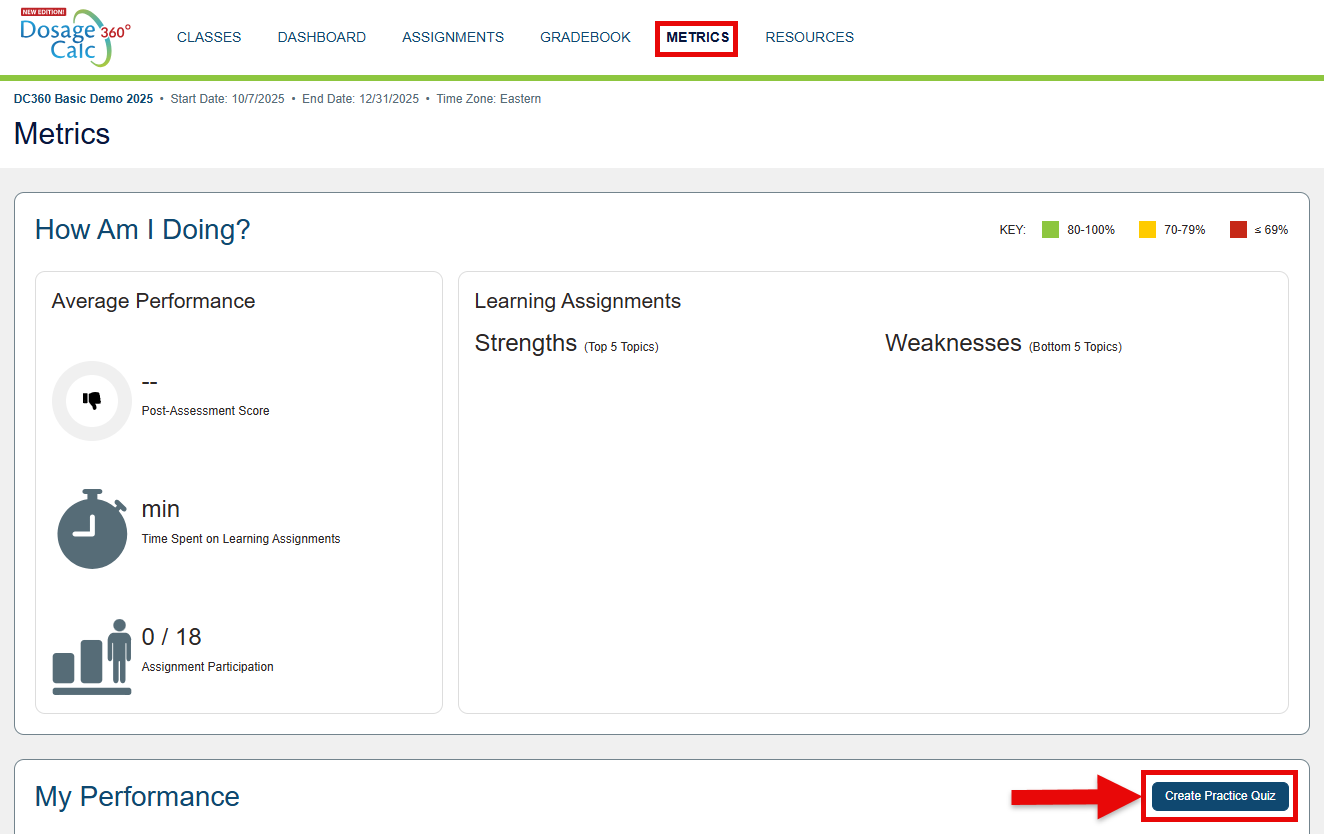
Once on your Metrics page, scroll down to your "My Performance" panel and click the "Create Practice Quiz" button.
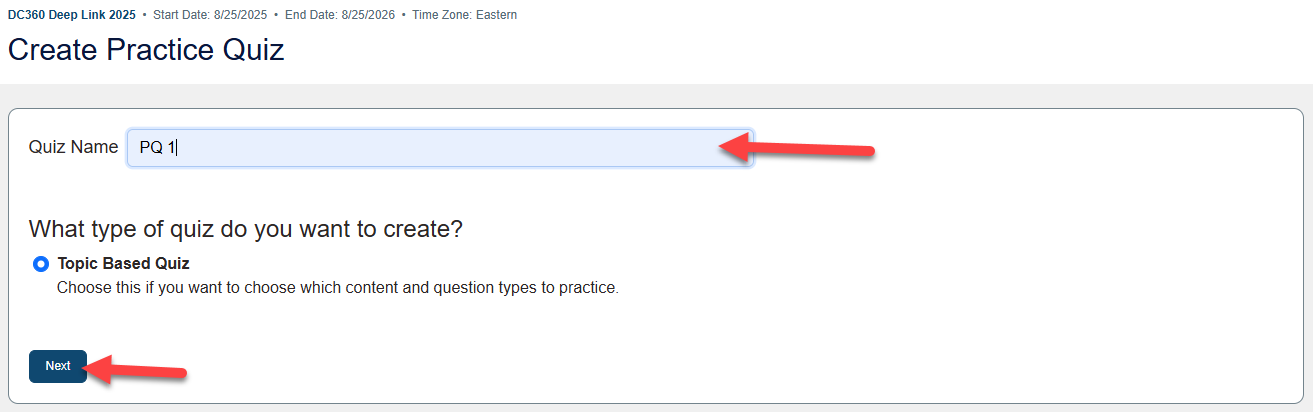
Clicking the "Create Practice Quiz" button will launch your Practice Quiz Builder. Give your Practice Quiz a name, then click "Next."
Be advised that your instructor will be able to read the names you give Practice Quizzes.
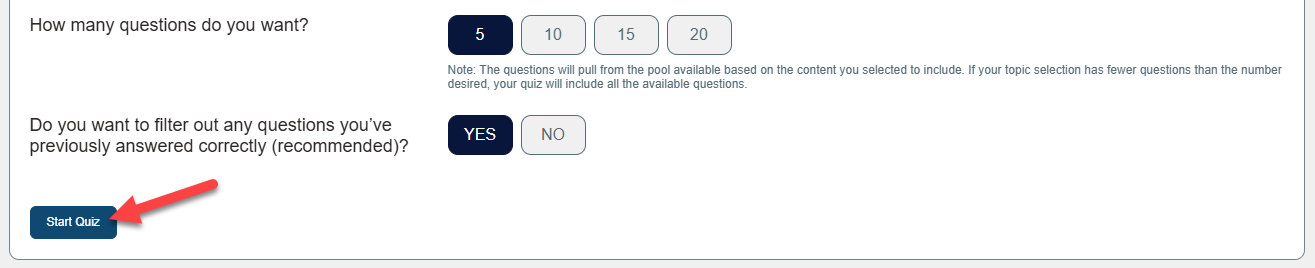
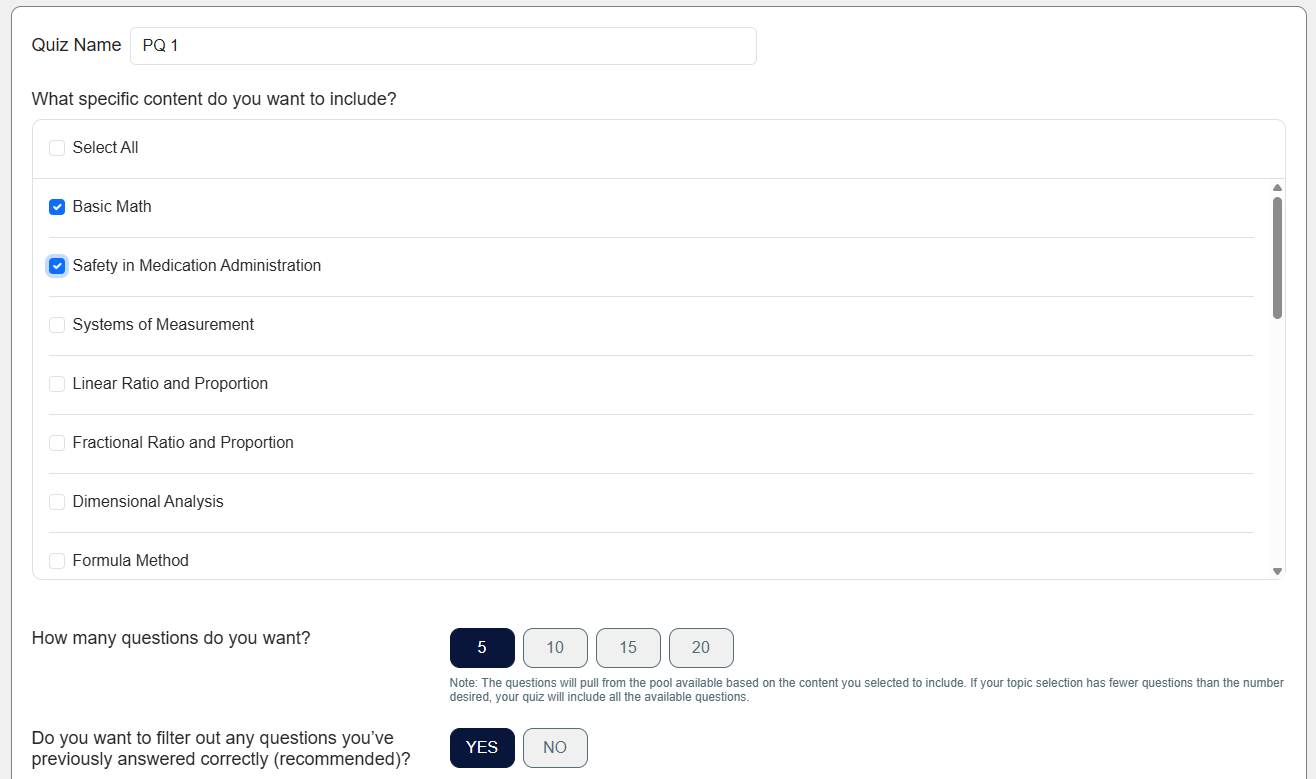
On the second screen of your Practice Quiz Builder, you'll choose which topics you want your Practice Quiz to cover, how many questions it'll contain, and whether it'll contain questions you've previously answered correctly in other Davis 360 Quizzing assignments.
Once you've made your selections, click "Start Quiz" to generate and begin working on your Practice Quiz. You can make as many Practice Quizzes as you want!